








01
Petal
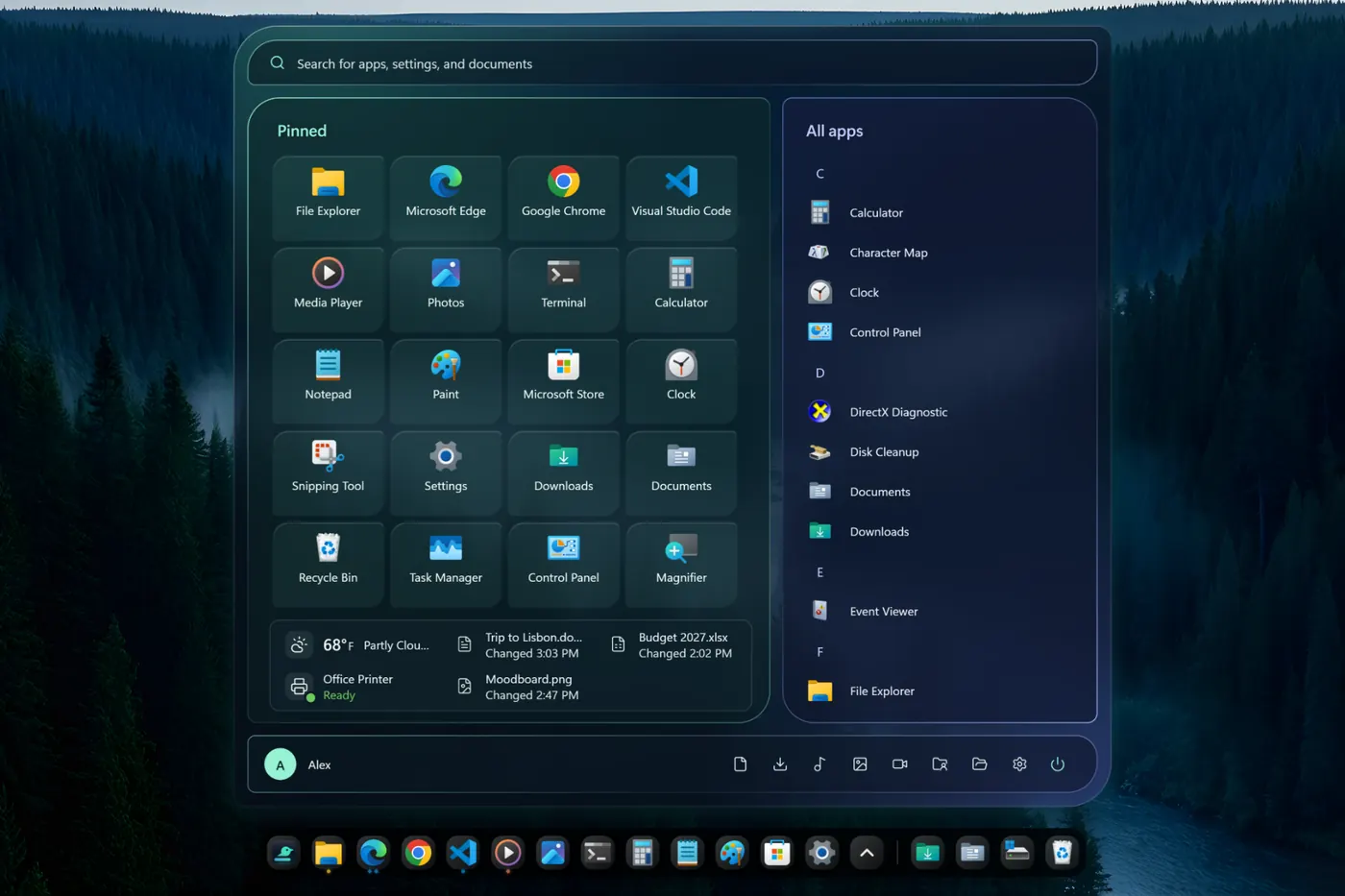
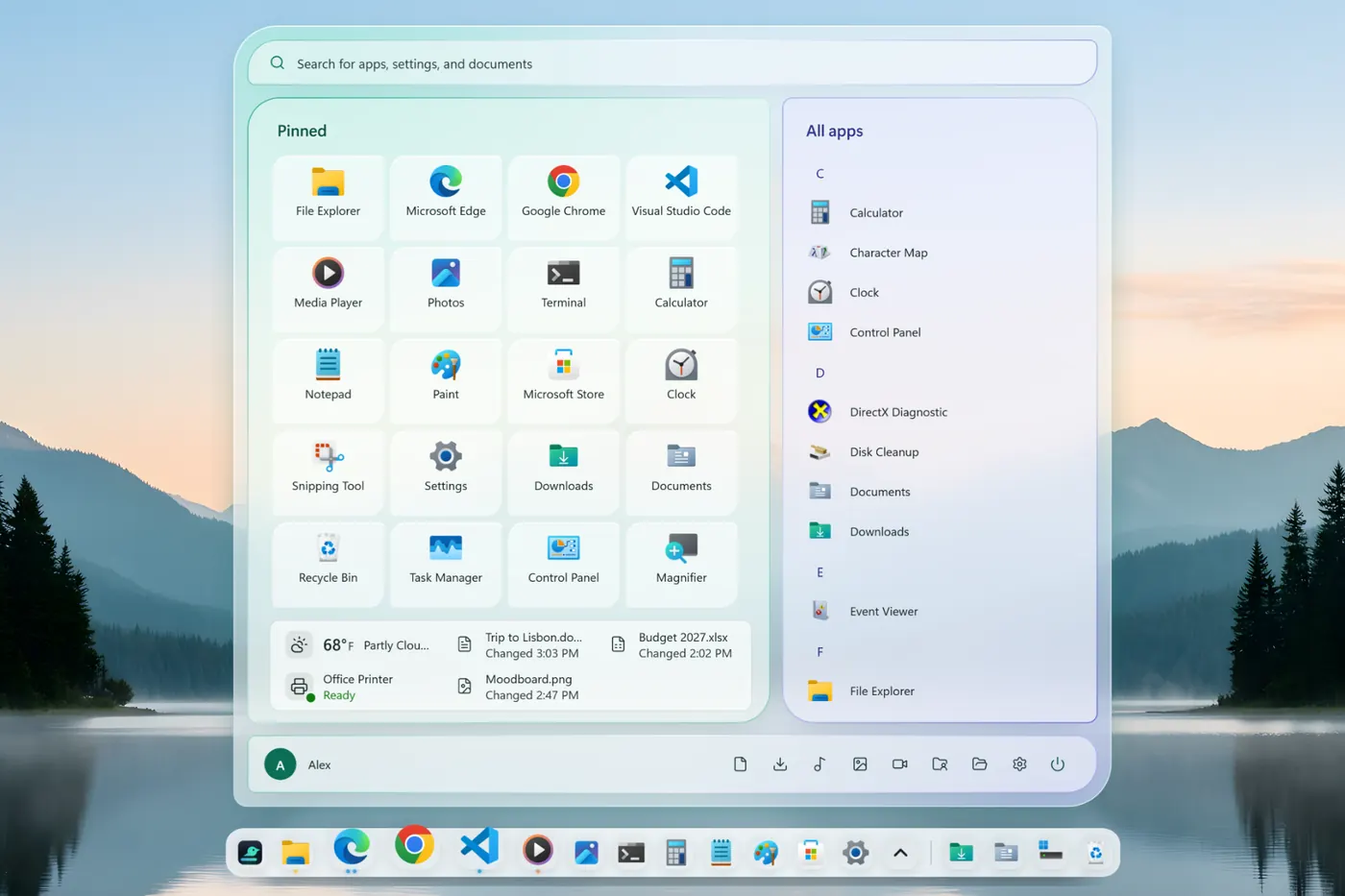
Two big corners, mirrored like a petal. Mint for your pins, blue-violet for your apps, a glass bar below.
A dock that grows under your cursor. A live notch at the top of your screen. A Start menu you can dress ninety-four ways. Your apps and files stay exactly where they are.
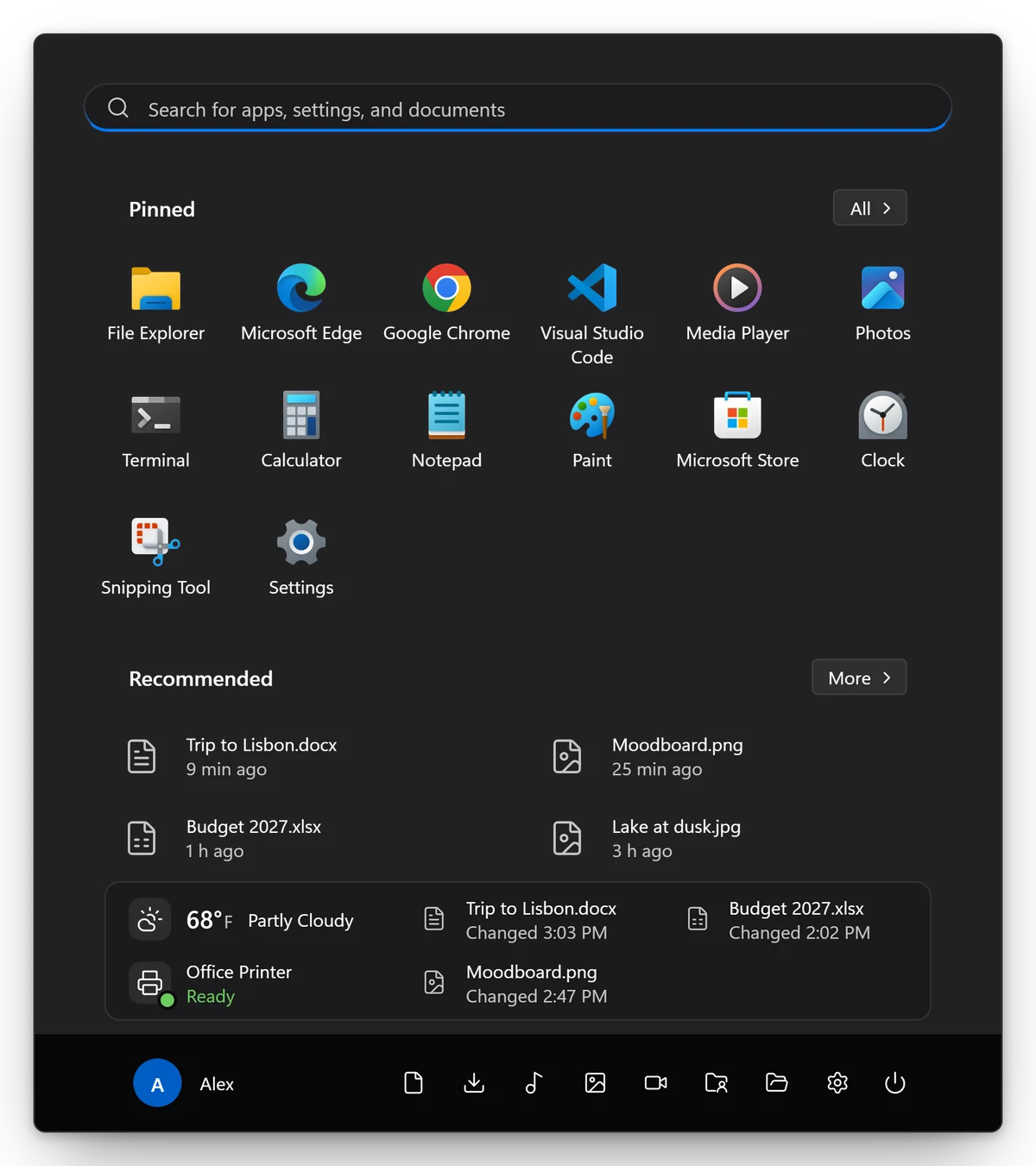
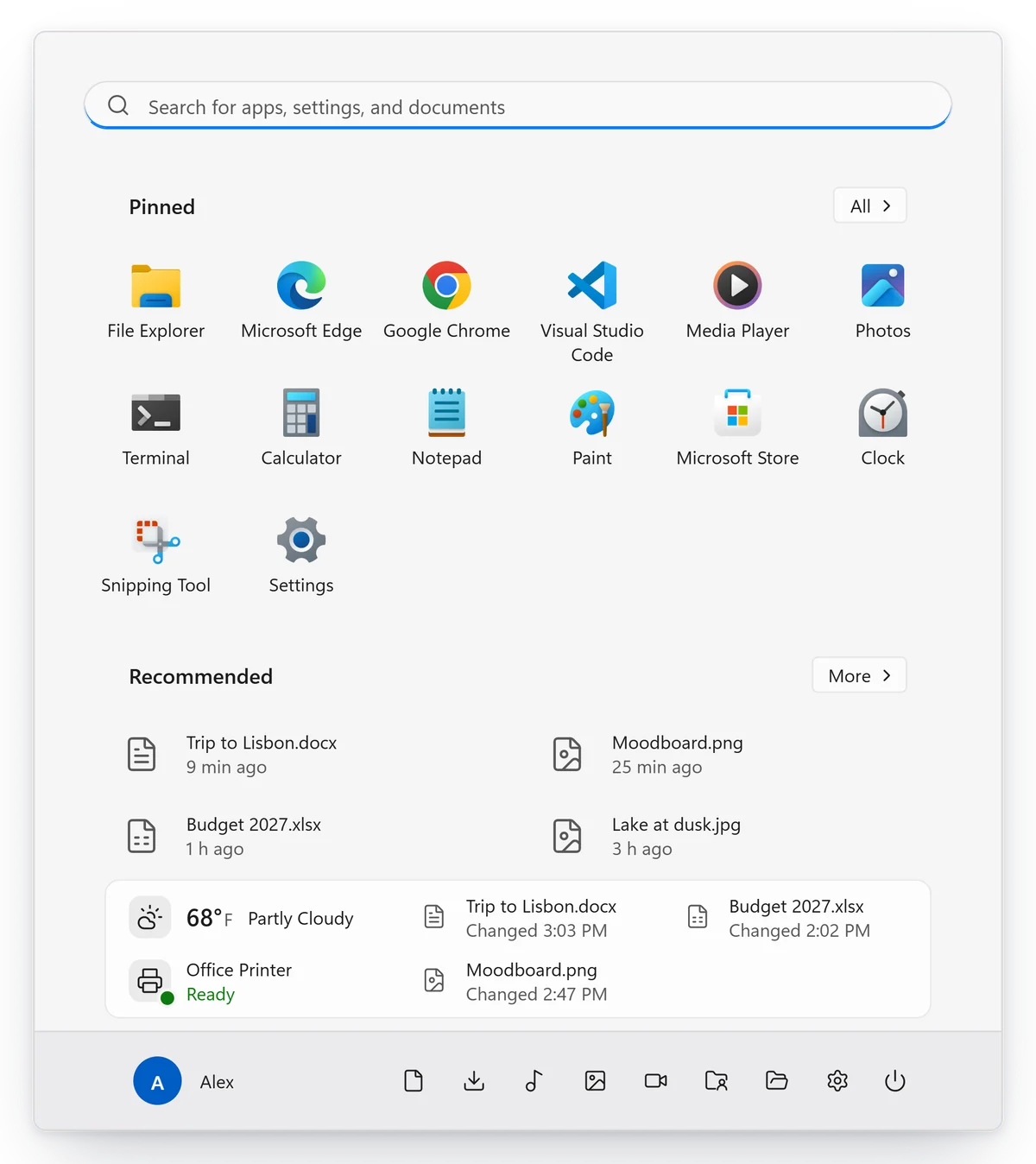


Perch sits on top of Windows and replaces the parts you see most. The taskbar becomes a dock. The empty strip at the top of your screen becomes a notch that shows the time, the weather, your music and how your PC is doing. The Start button opens a menu of its own.
A small island at the top of your screen. Hover or click, and it opens.
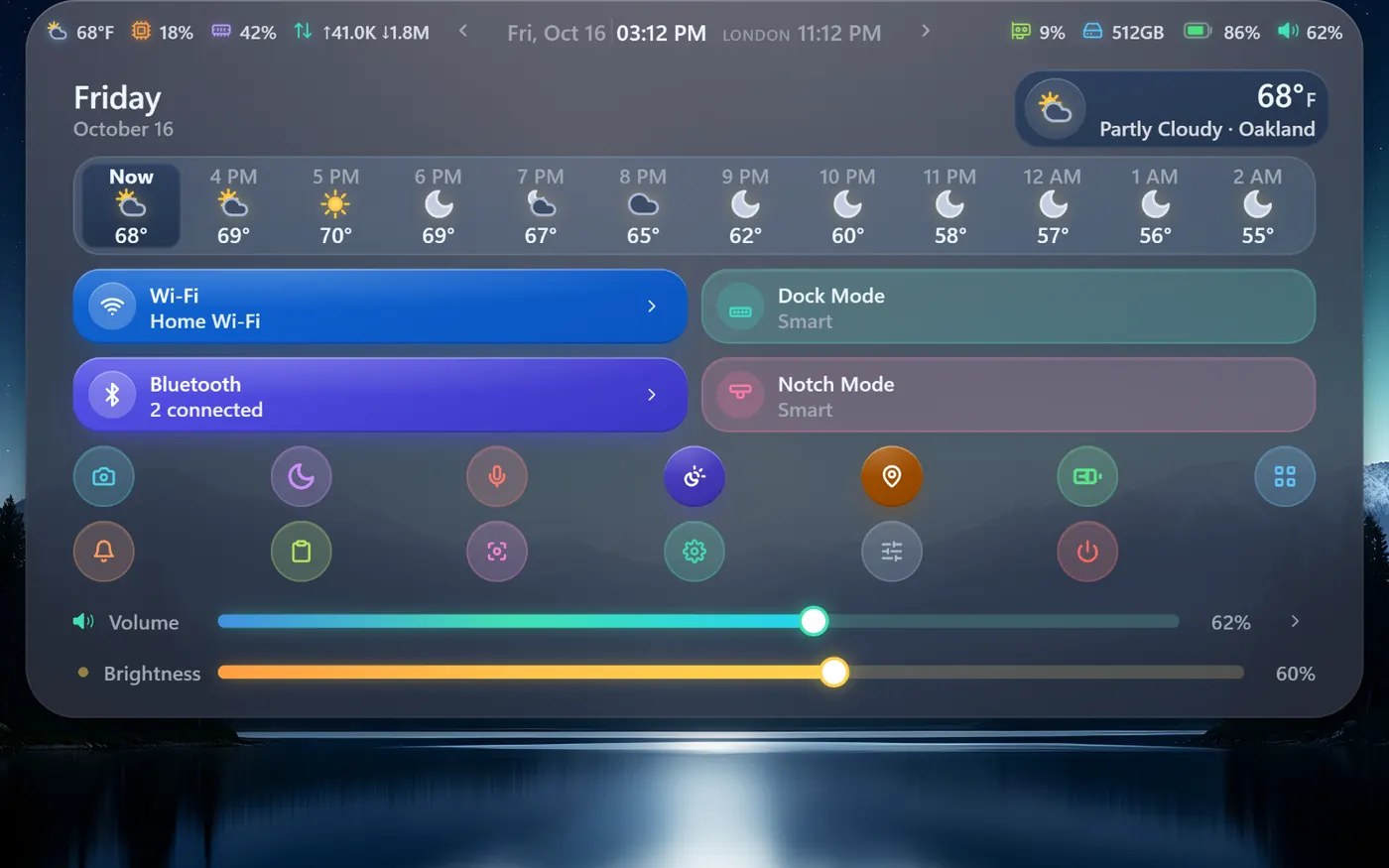
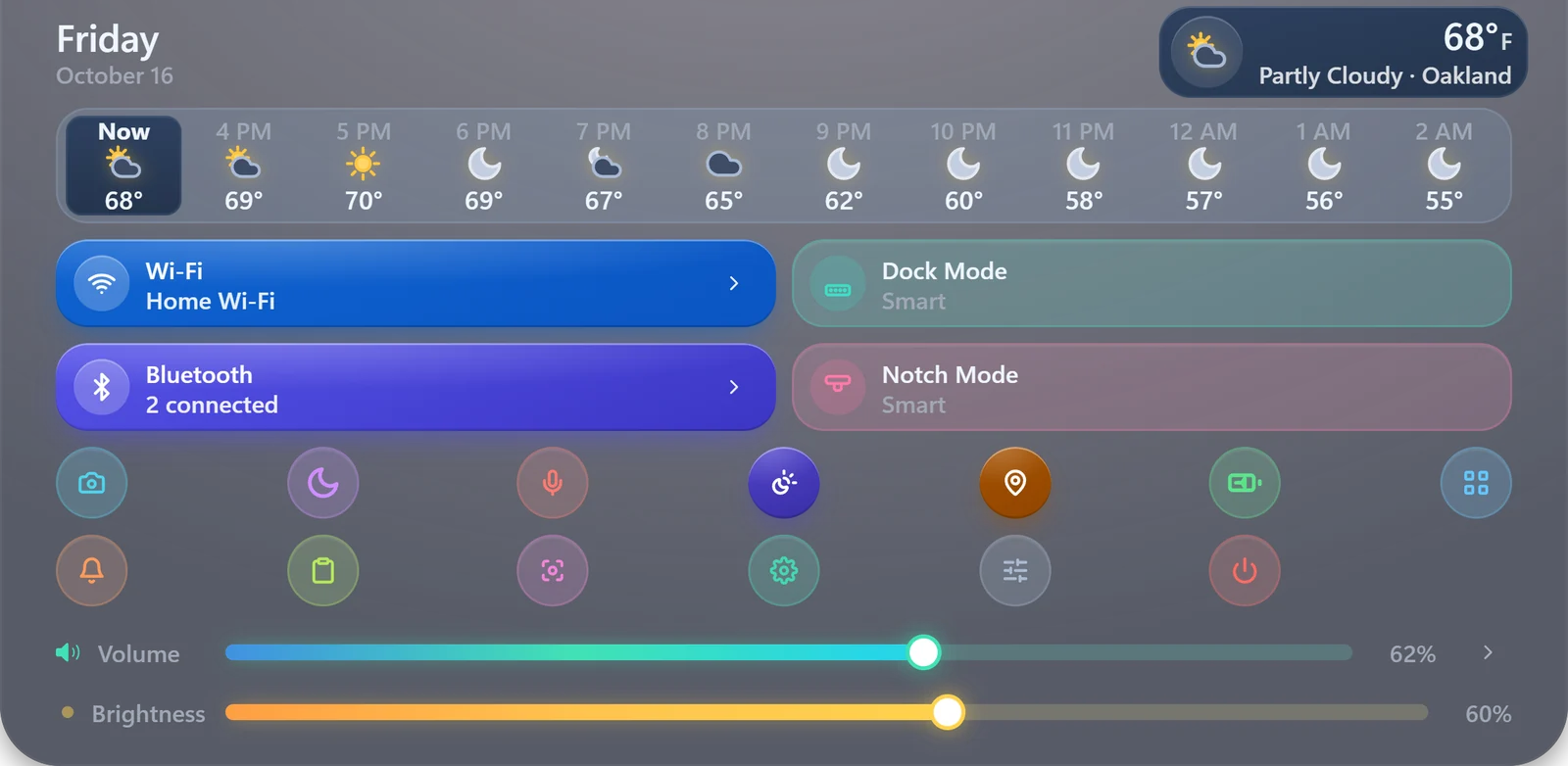
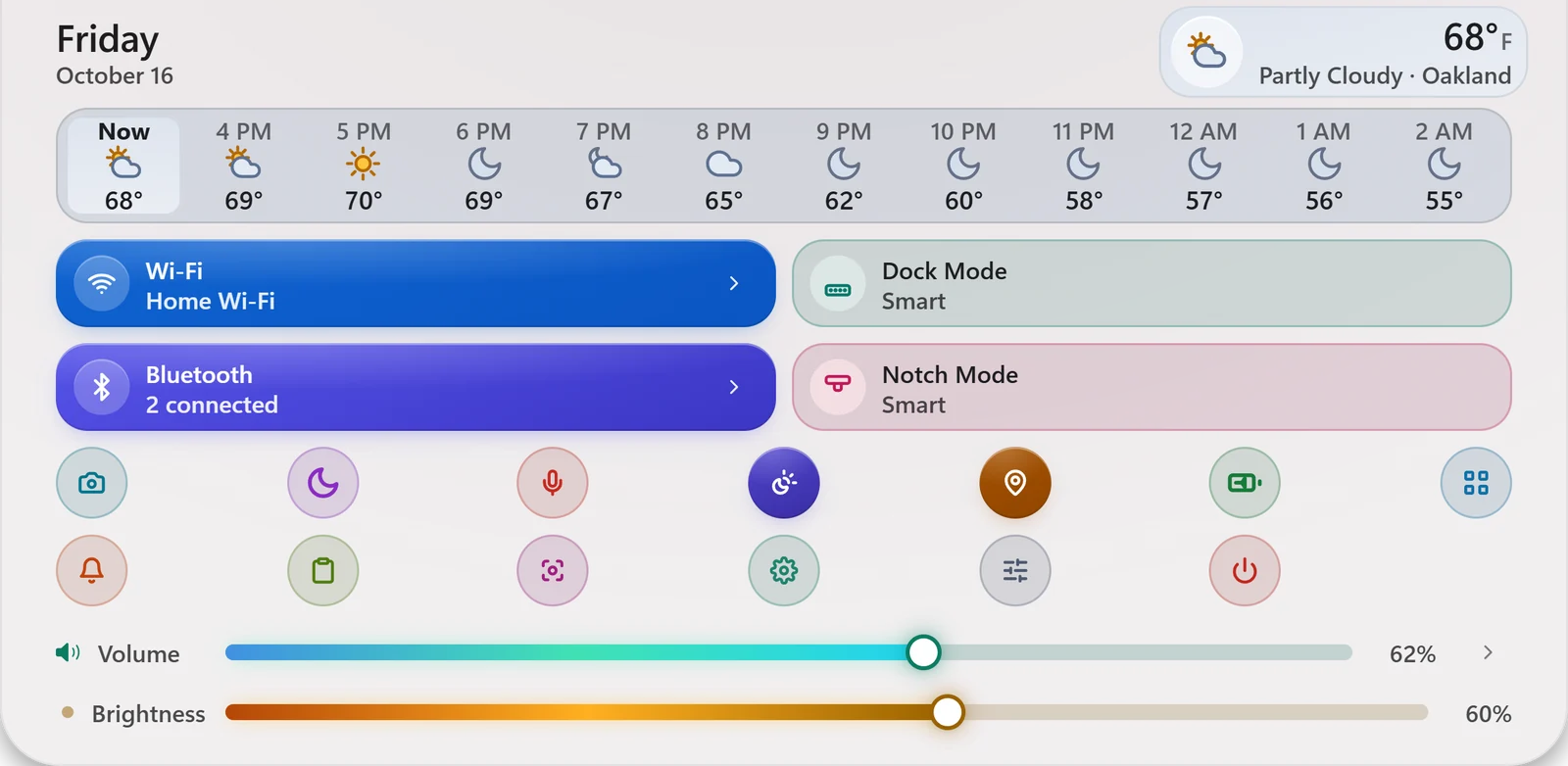
Wi-Fi, Bluetooth, dock and notch modes, volume, brightness and the switches you reach for: Camera off, Do not disturb, Mute mic, Dark mode, Location.
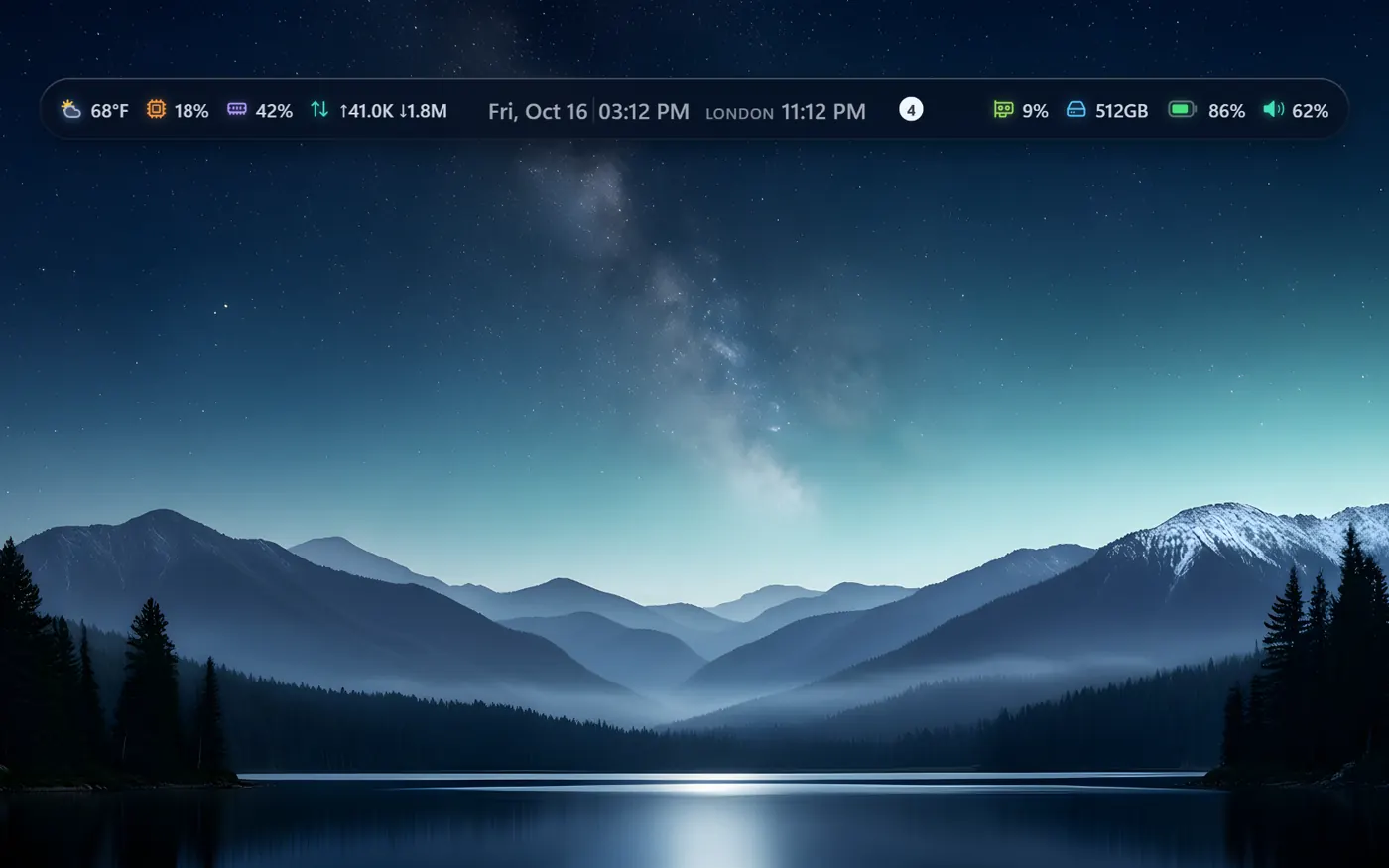
Weather, CPU, RAM, GPU, VRAM, disk, network, battery, volume, brightness, microphone, date. Drag each one to the side you want, and leave out what you don't.
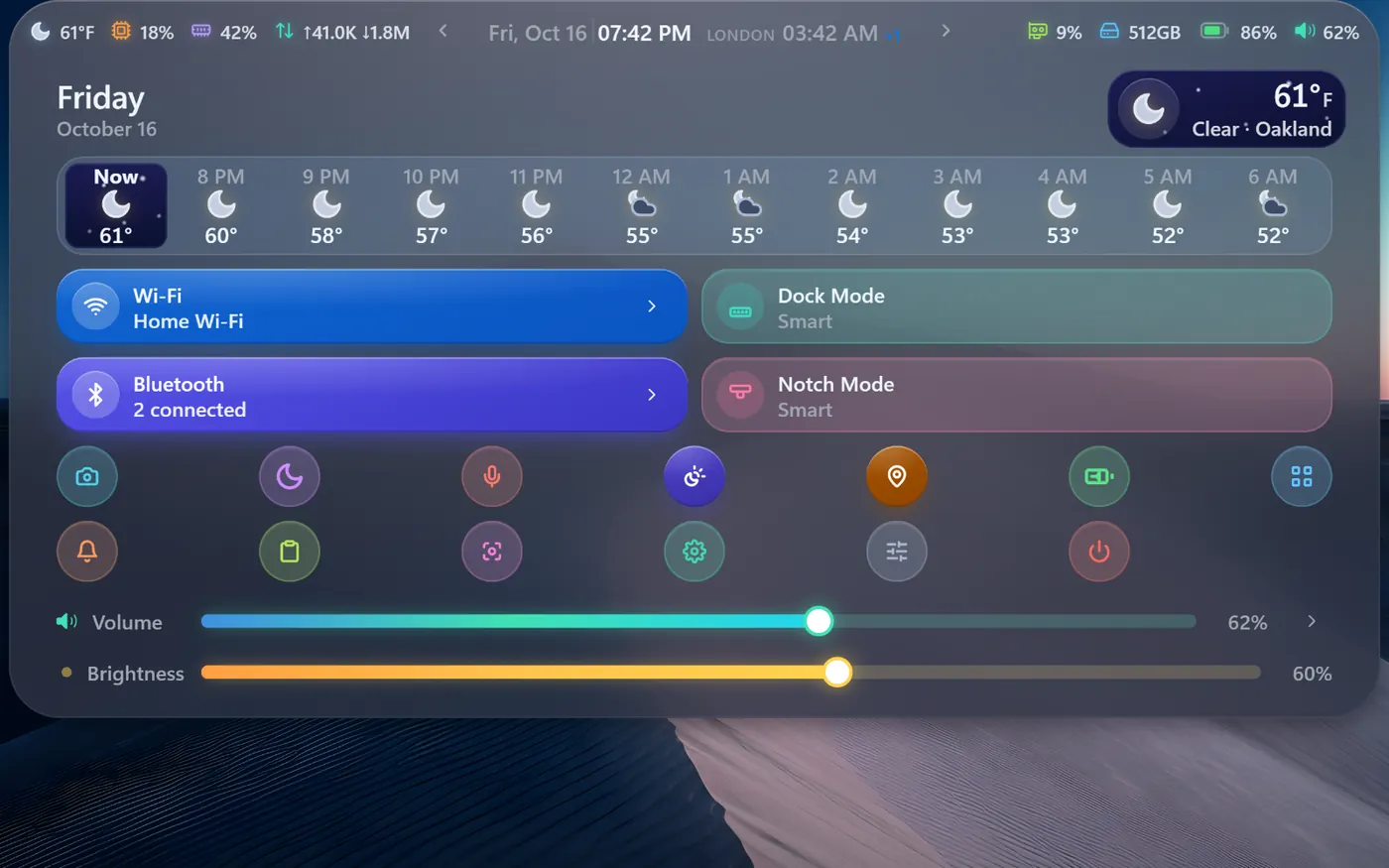
The sky now, and the next twelve hours, drawn by day or by night. Any city. Fahrenheit or Celsius.
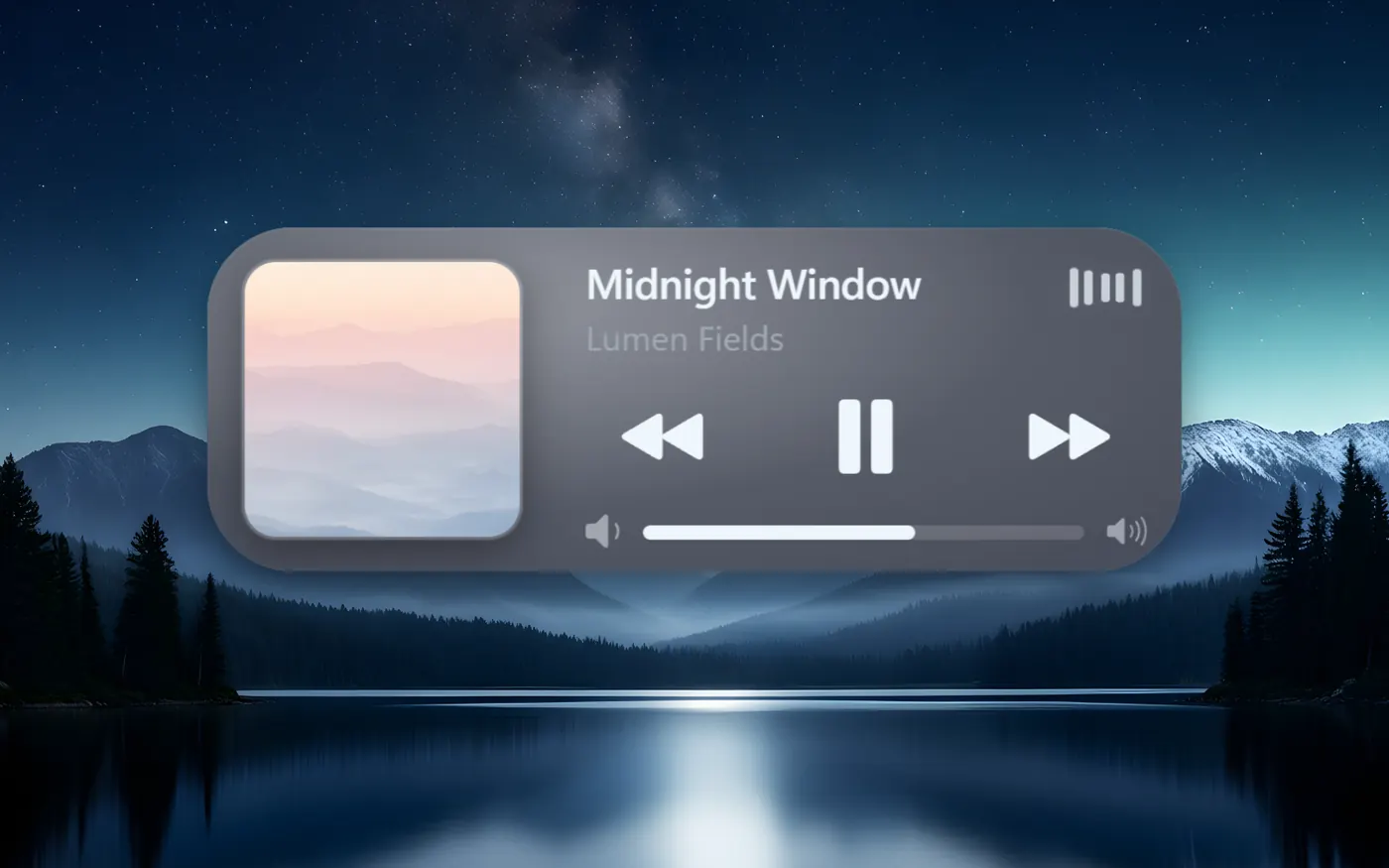
Album art, controls, seeking, and a visualizer that moves with the sound. Five to choose from. Closed, the notch keeps the bars and the cover beside the time.
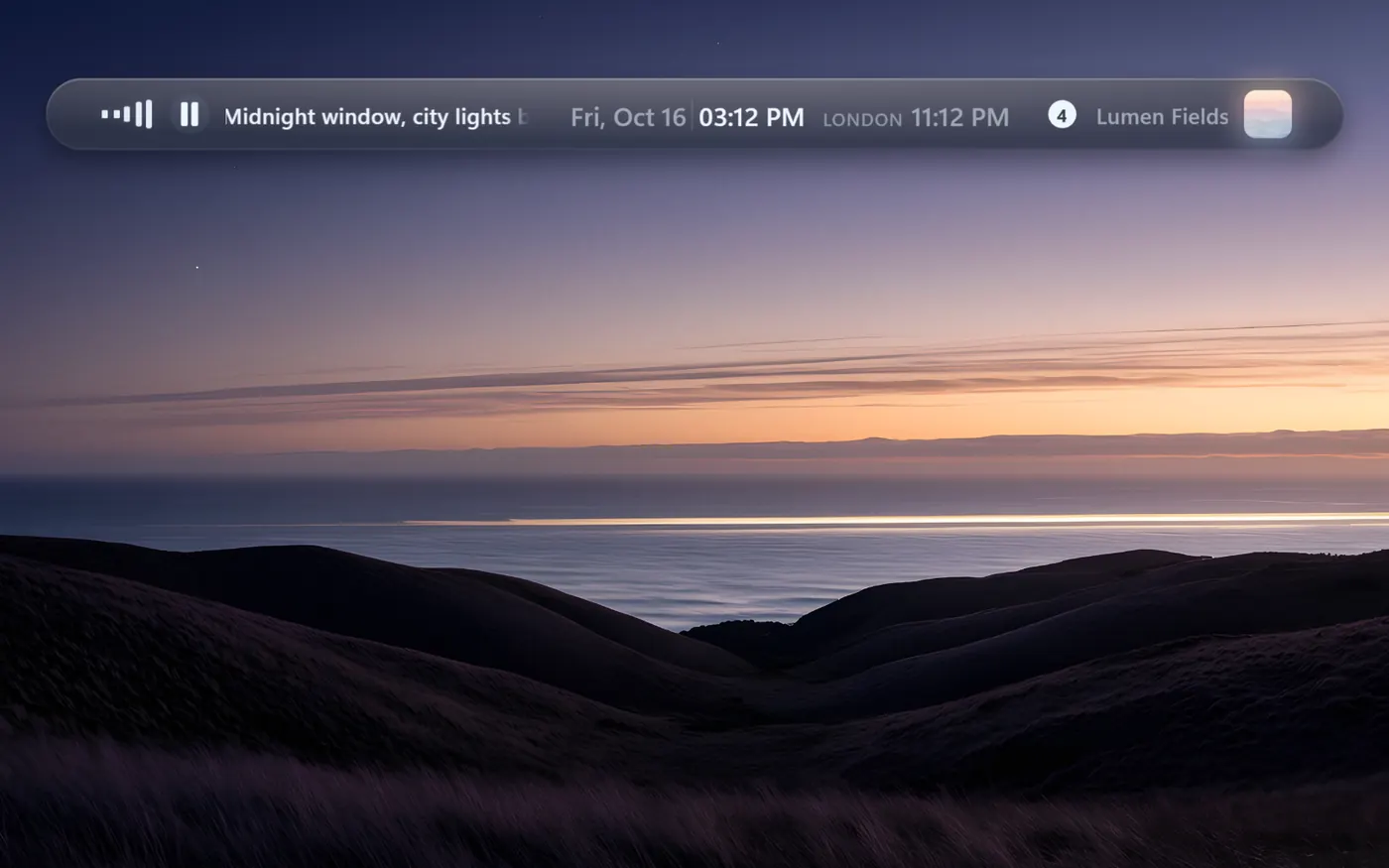
The line being sung, on the closed notch. Off until you turn it on.
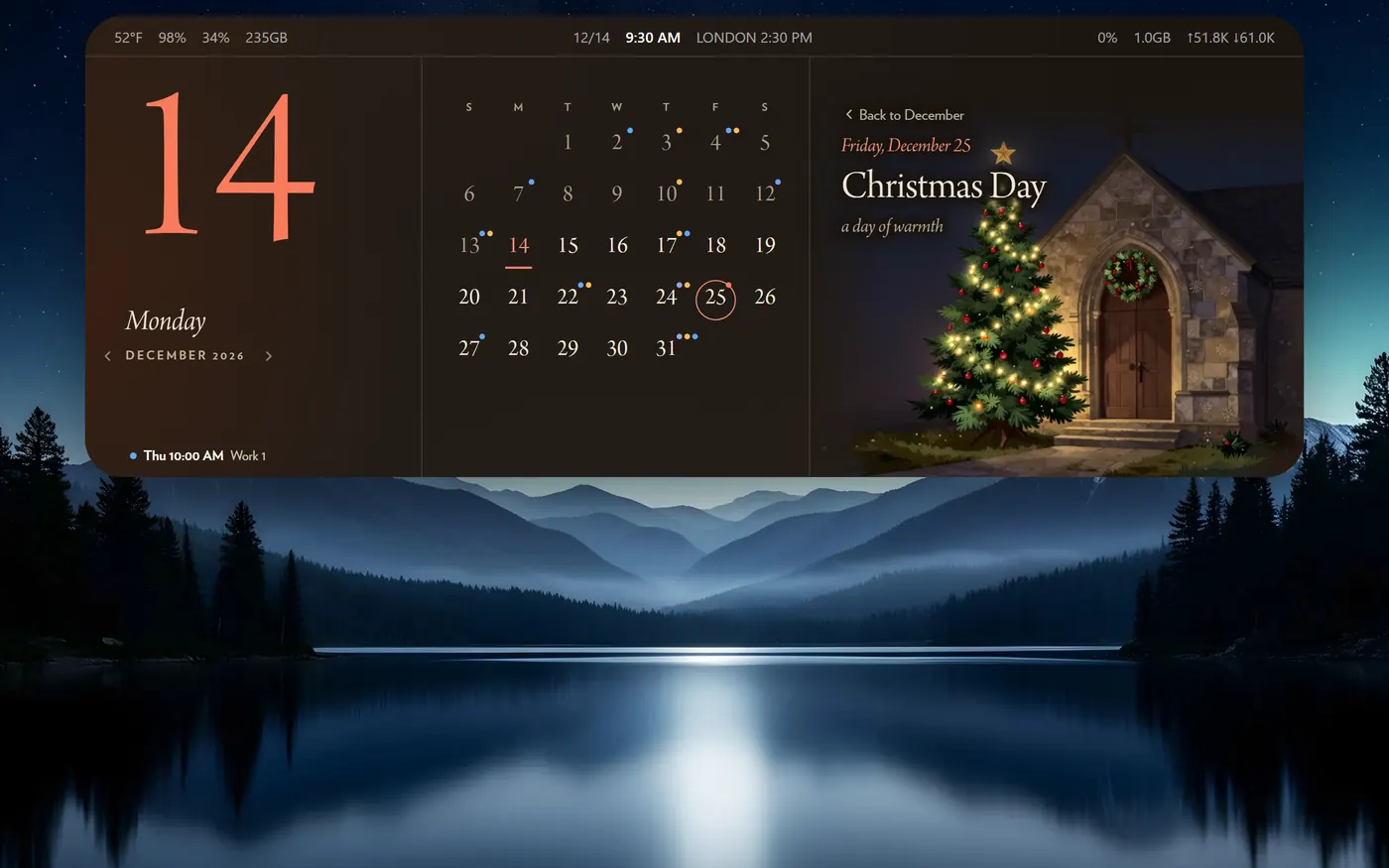
Any country's holidays, four designs, and your own Google, Outlook or iCloud events. More in the next section.
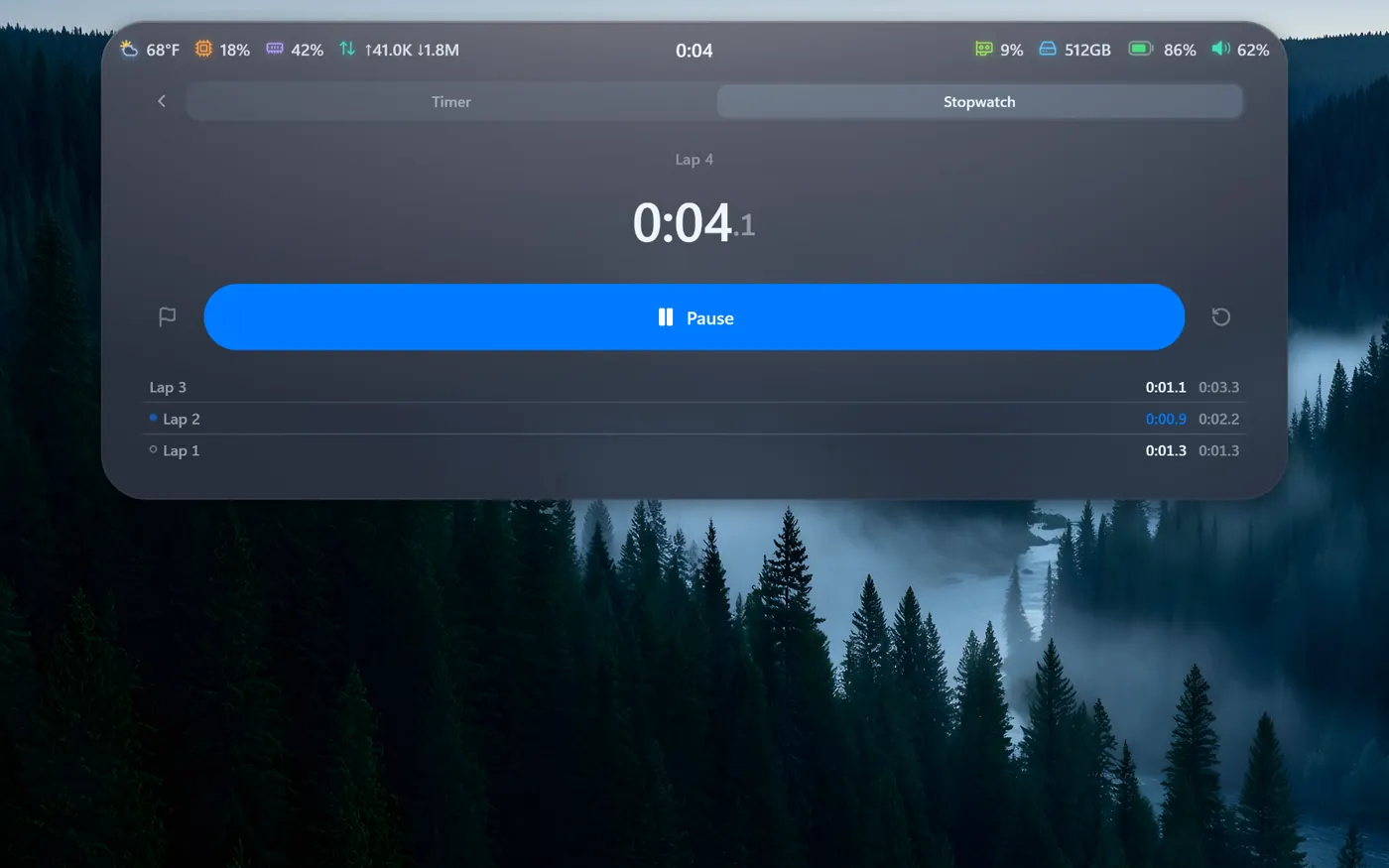
In a panel of their own, one round button in Controls. Timer presets of 5, 15, 25 and 50 minutes, a line round the notch that fills as it runs, and laps on the stopwatch.
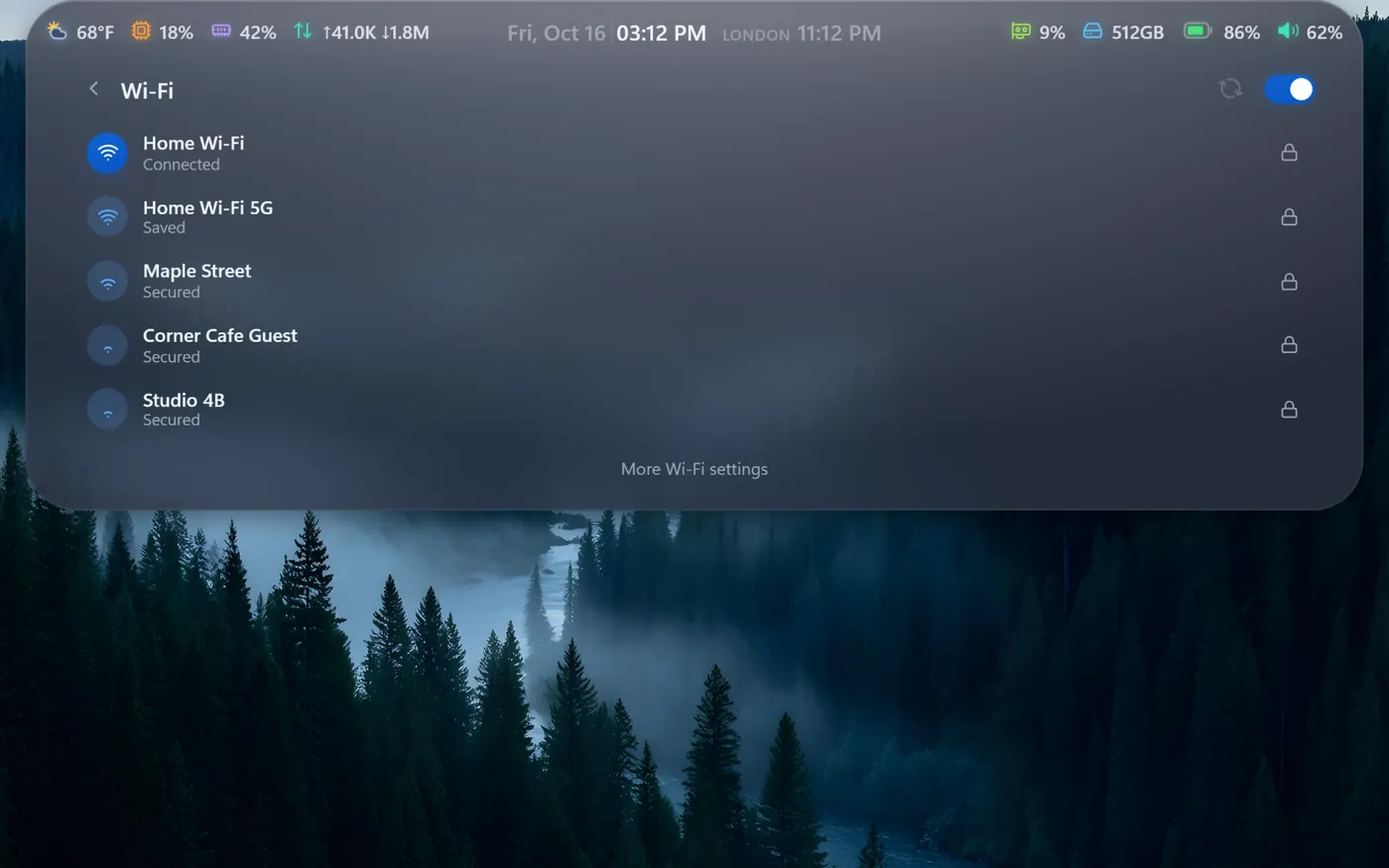
Scan, connect, disconnect and forget networks from the notch.
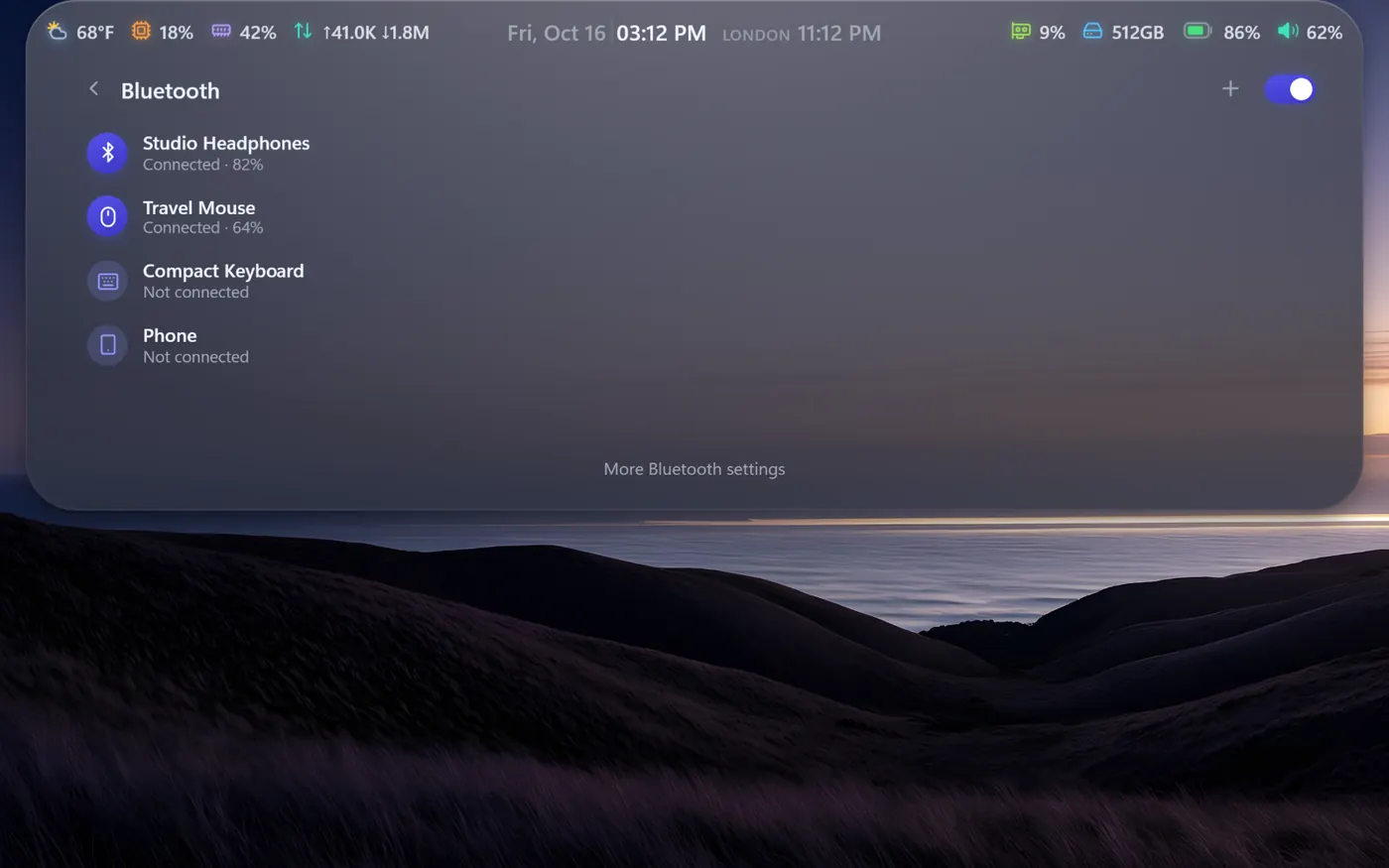
Pair, connect, and see how much charge your headphones have left.
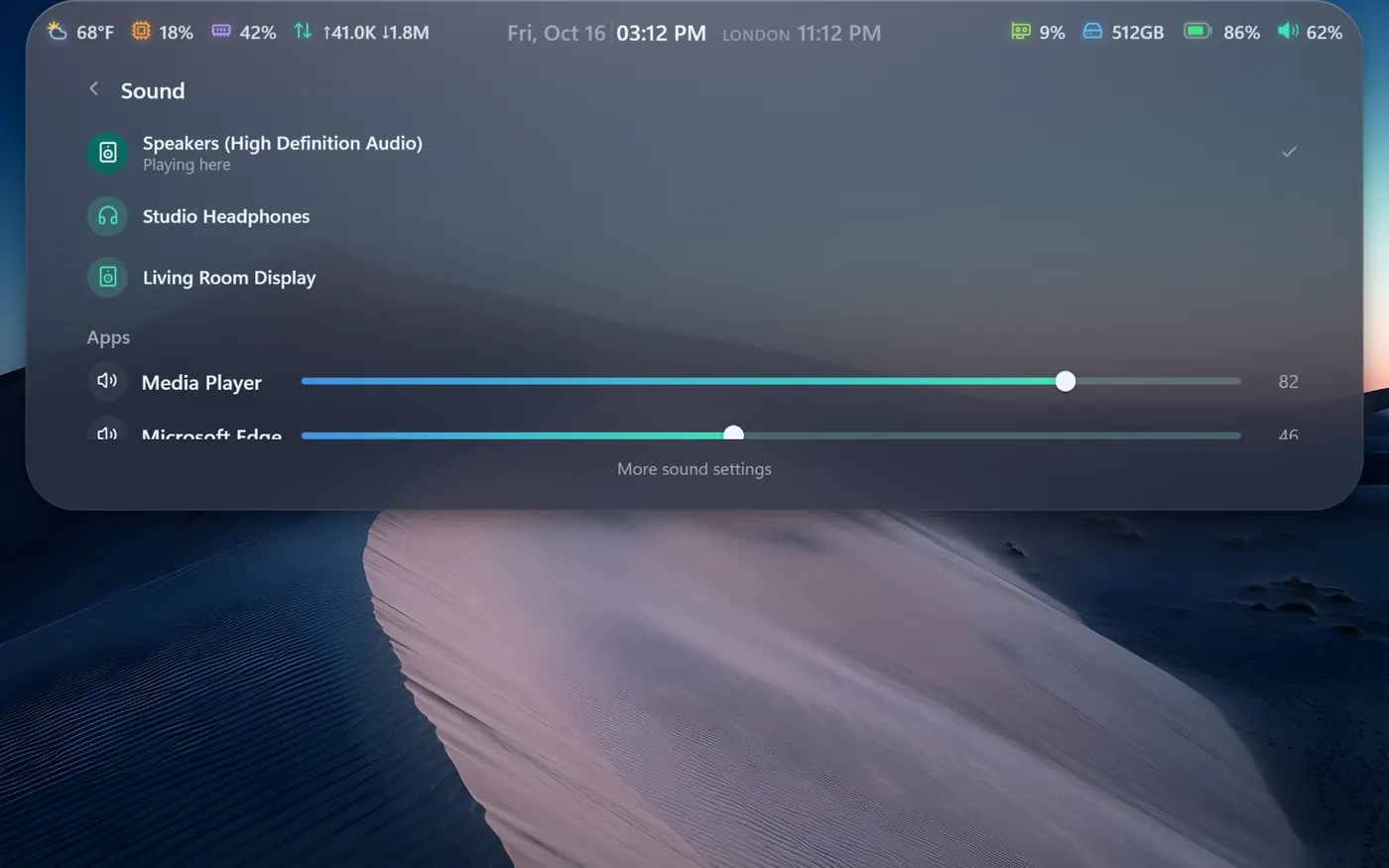
Pick the speakers or headphones, then set and mute each app on its own.
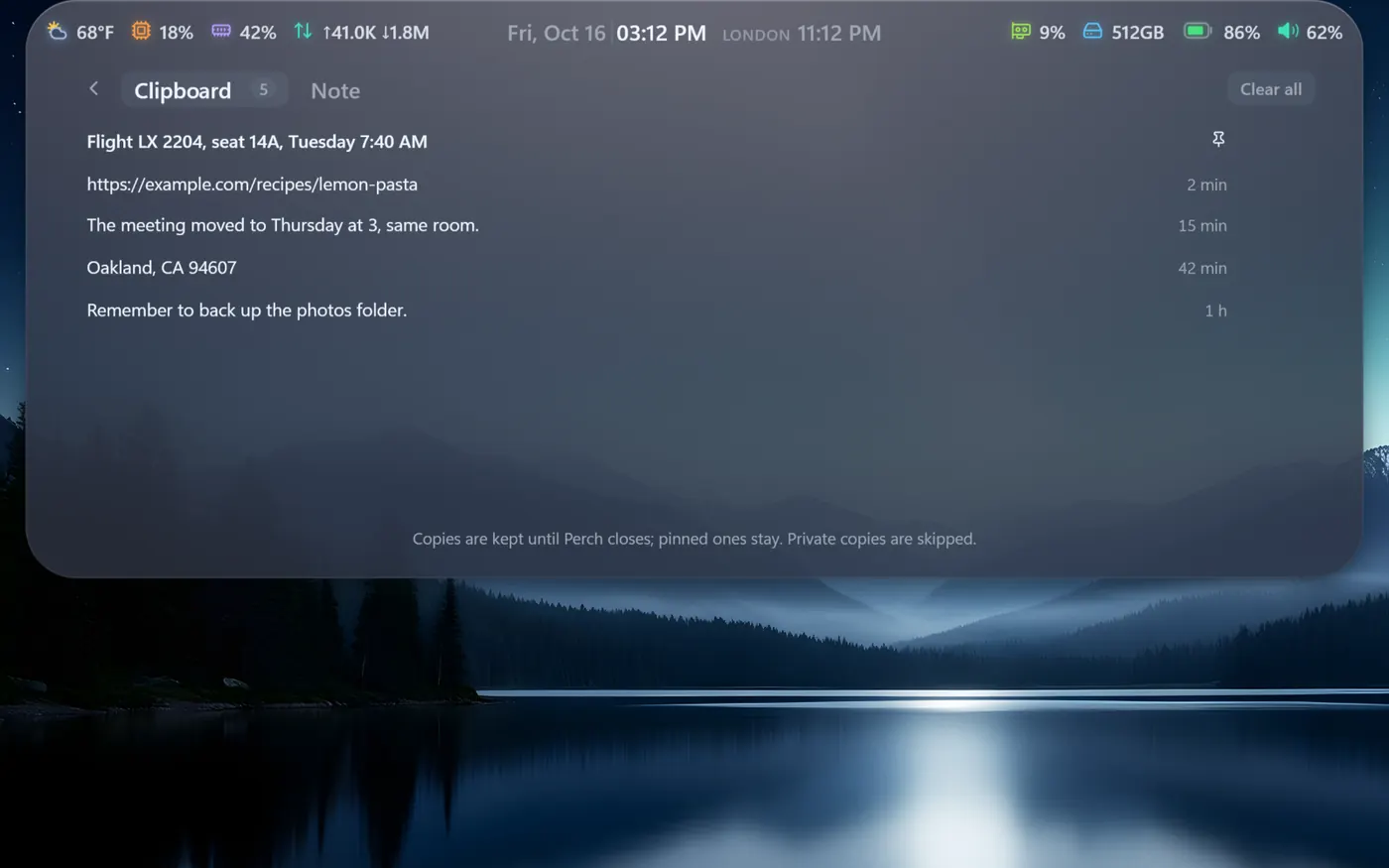
Everything you copied, newest first, pictures too. Pin what you want to keep. Private copies are skipped. A quick note sits one tab over and saves itself.
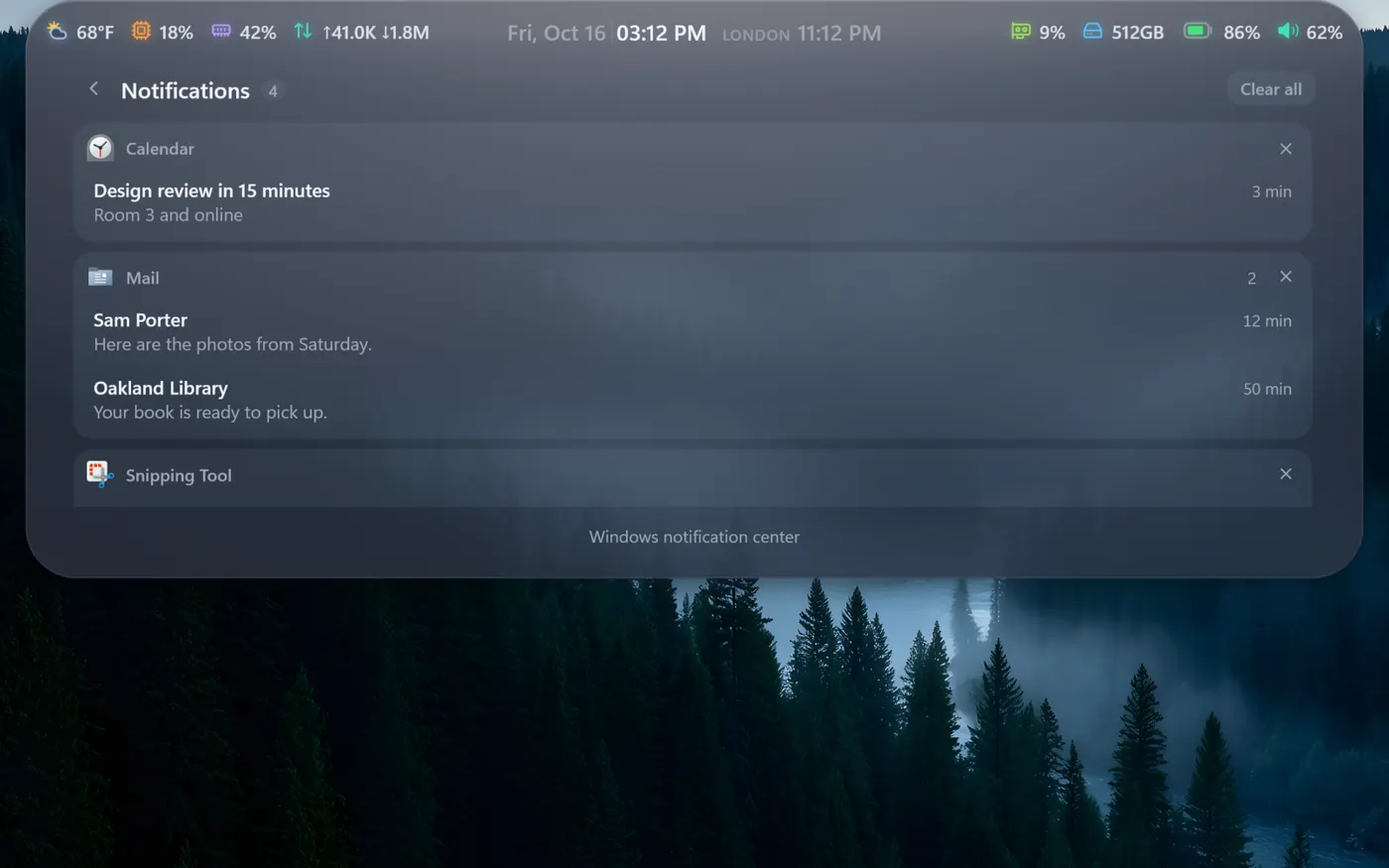
Recent Windows notifications grouped by app, with a count on the notch.
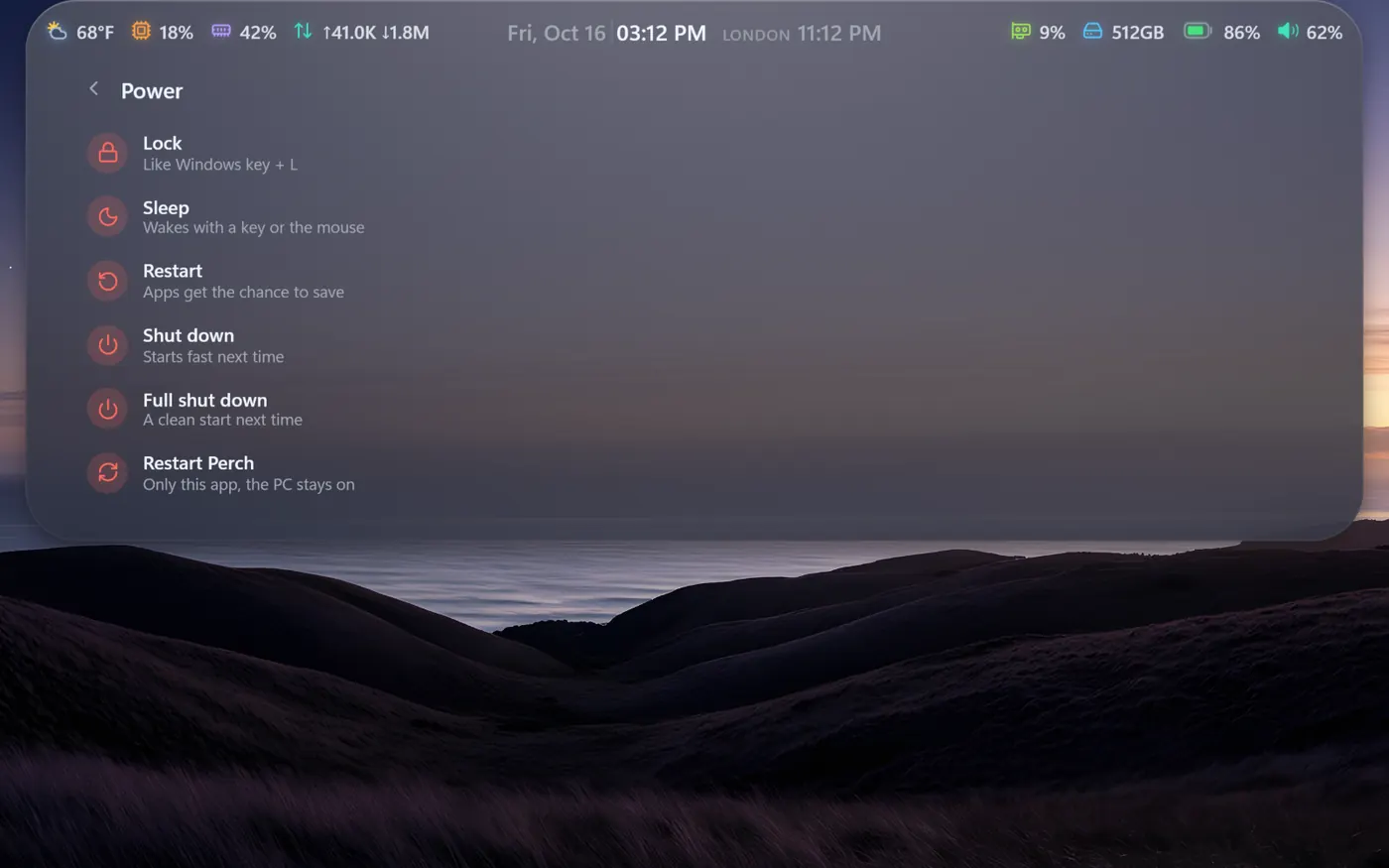
Lock, Sleep, Hibernate, Shut down, Full shut down, Restart. Restart and Shut down ask for a second click, so a slip of the mouse never turns your PC off.
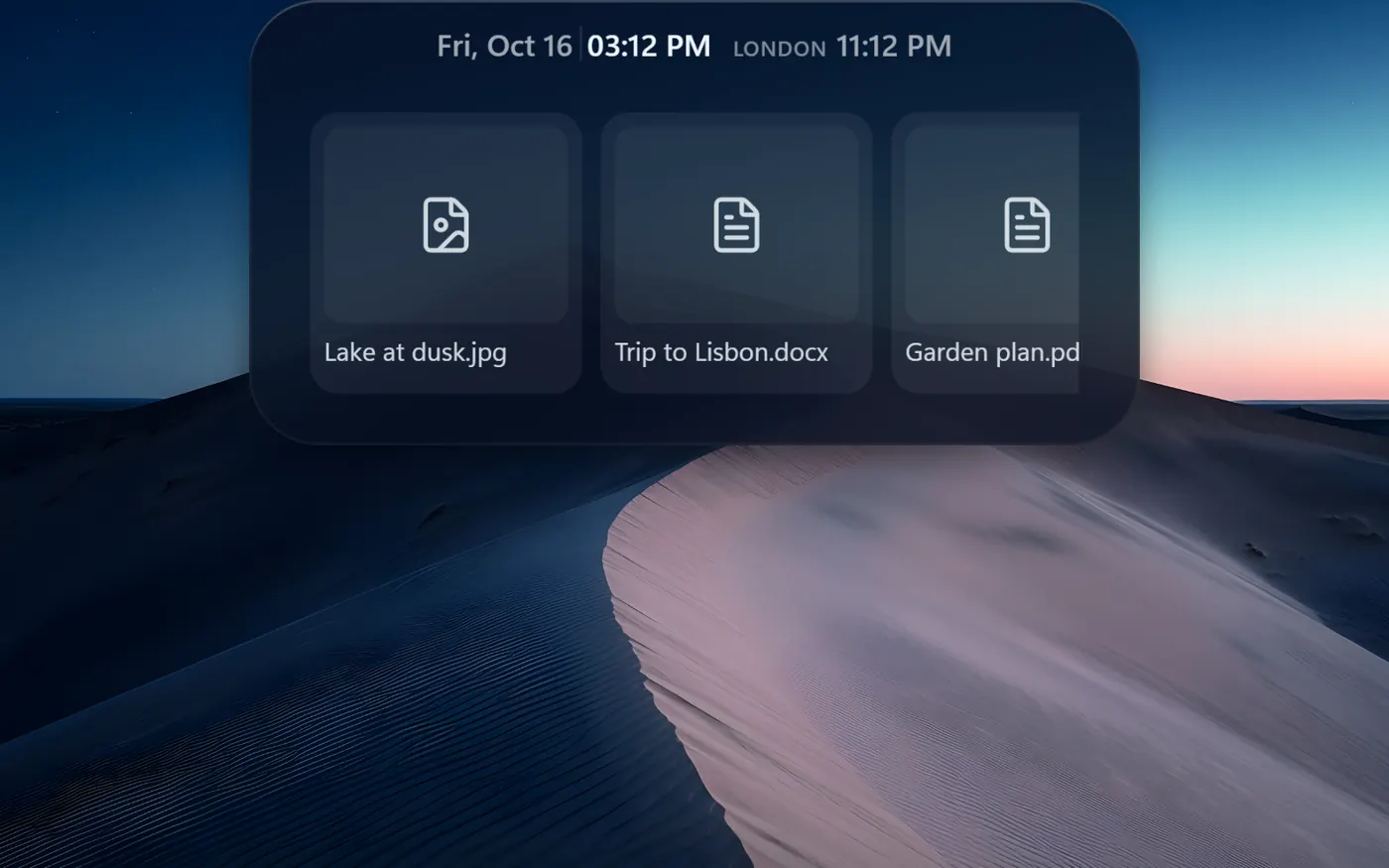
Drag files onto the notch, carry on working, then drag them out where they belong.
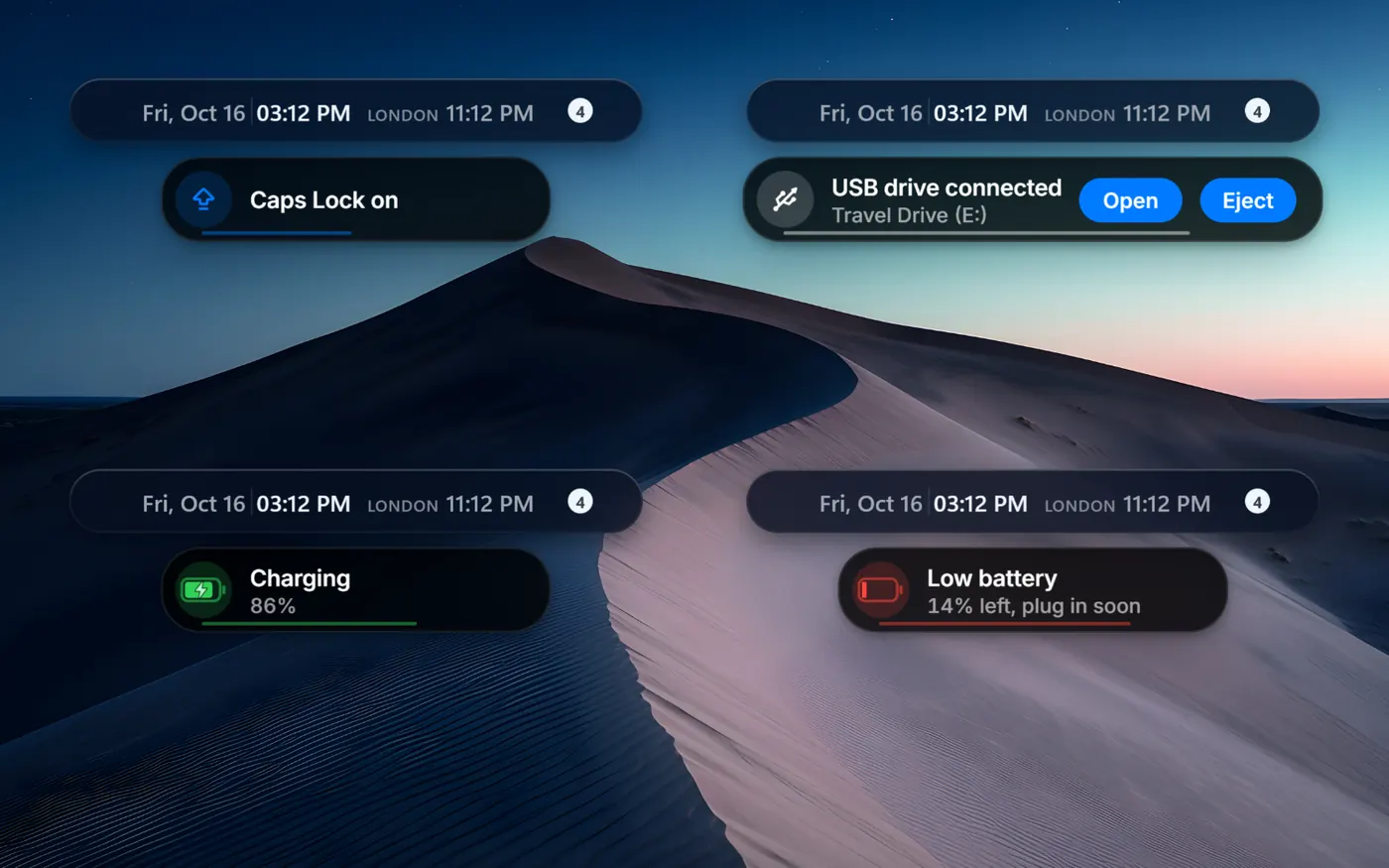
Caps Lock, Num Lock, charging, low battery, a USB drive with Open and Eject, a Bluetooth device coming and going, a preview of a copied picture.
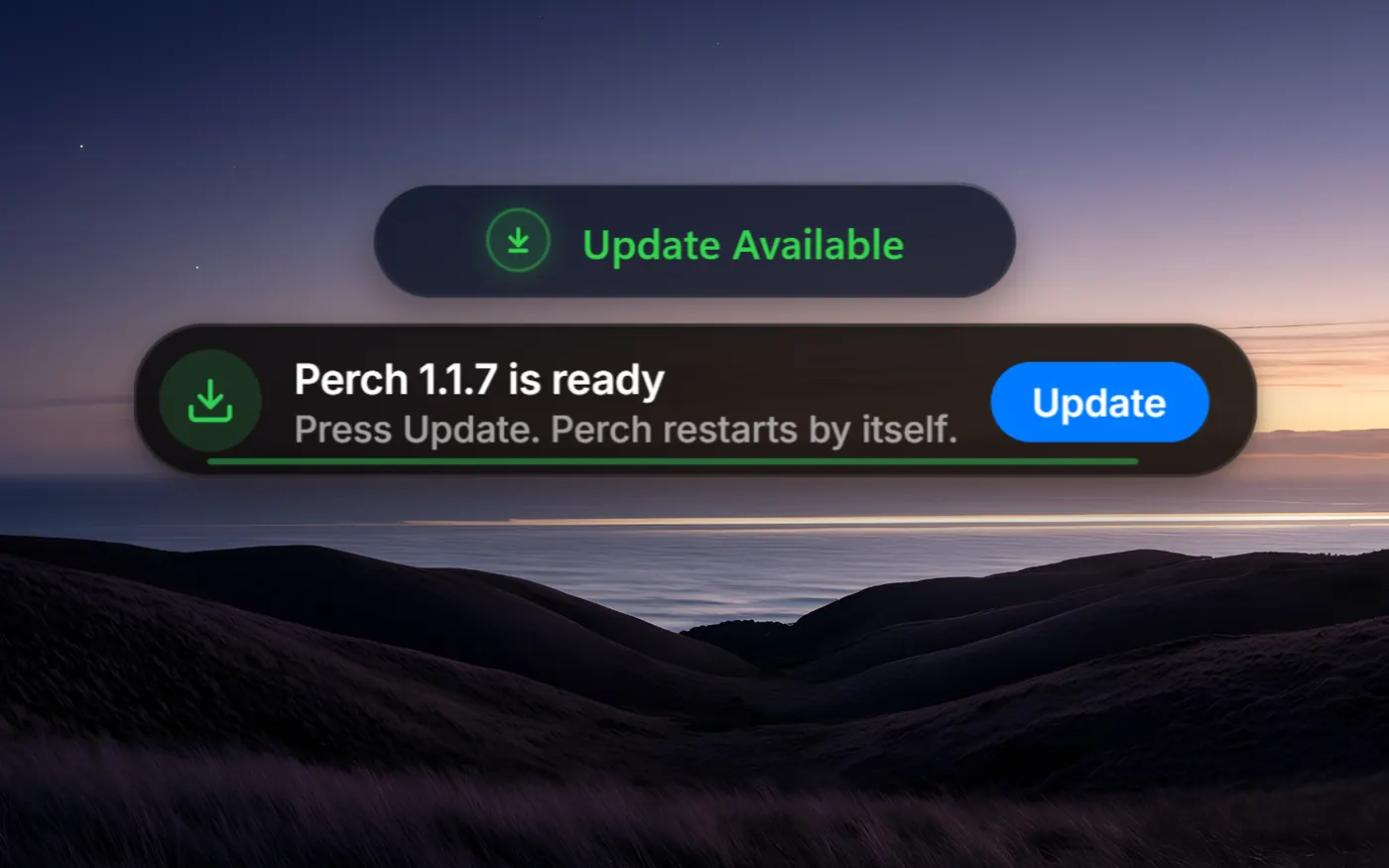
The notch says a new version is ready, with an Update button, and nothing installs until you press it. Turn on Auto update and it installs by itself, an hour after a release, with no question.
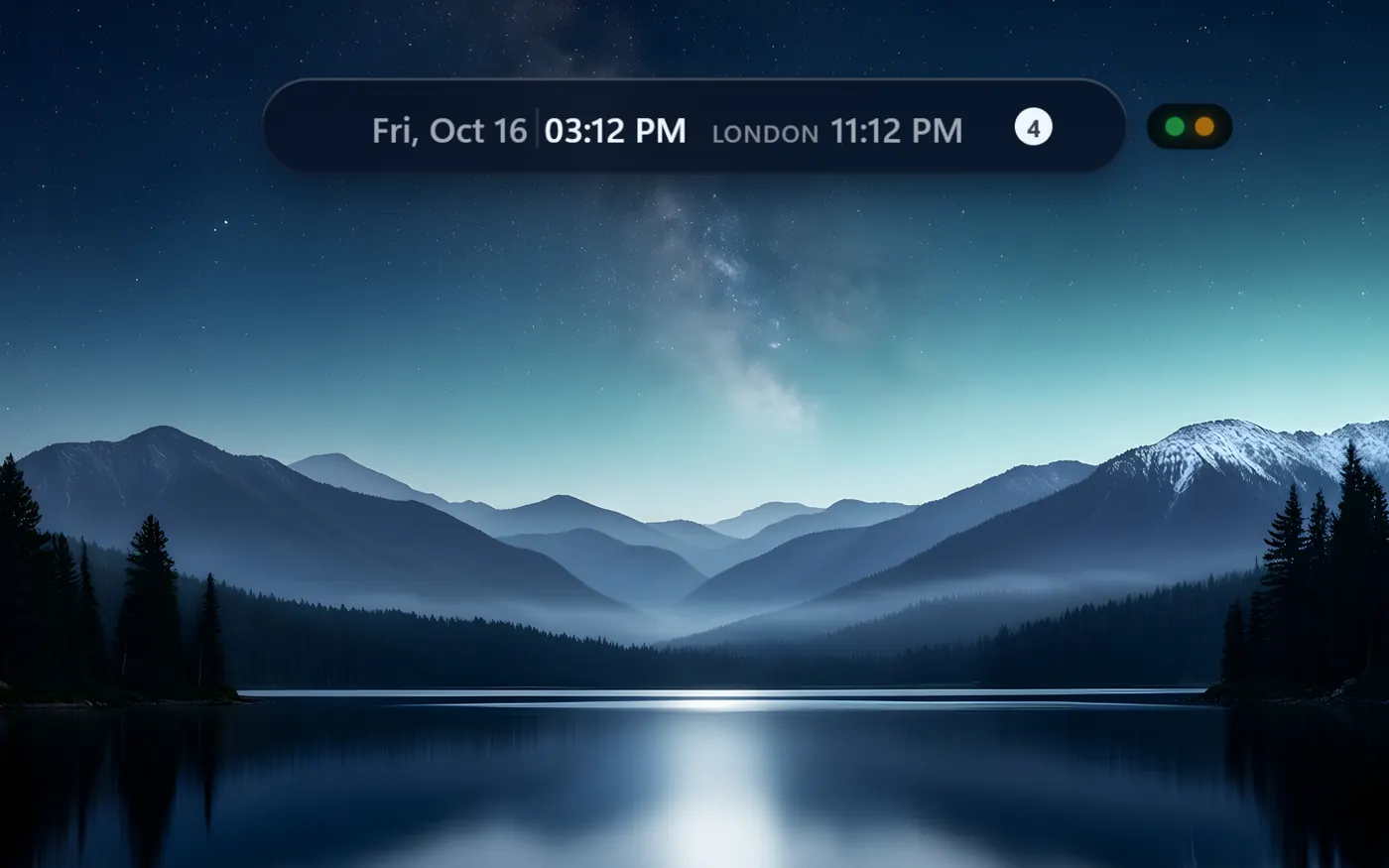
An orange dot while an app uses the microphone, green for the camera. Point at it to see which app.
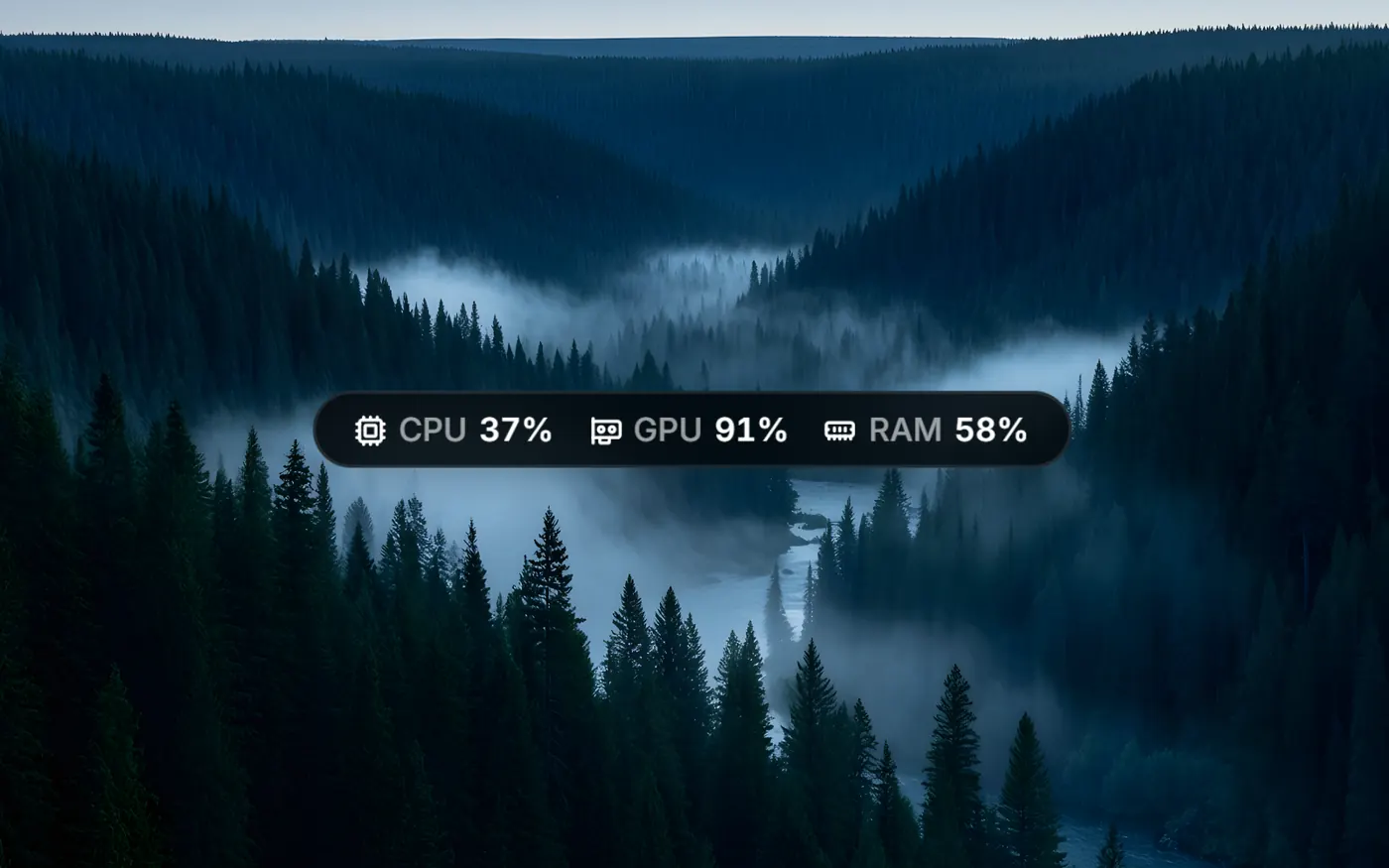
The notch steps aside over full-screen apps. Over a game you can have a tiny strip with CPU, GPU and RAM instead.

They match the rest of Perch, with a mixer for each app. Or keep the Windows ones. It's a switch.
The calendar has a section of its own, right below.
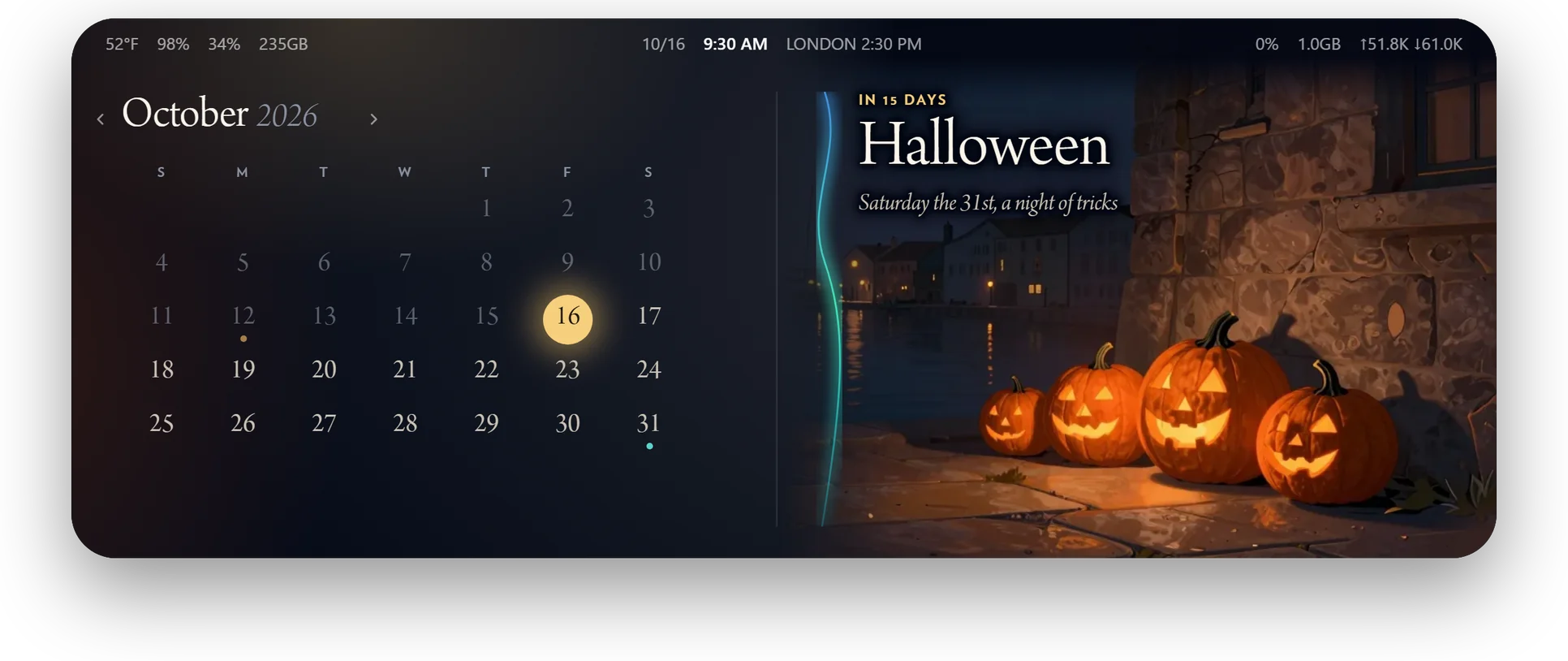
Today, the next holiday, and a painted place for every free day.
Open the notch on its calendar and it starts on today. It begins with the holidays of the United States; add any country, or several, and their holidays fill the month too. The big ones come with a painted picture.
Four designs
One click each in Settings. Every picture here is the real calendar.
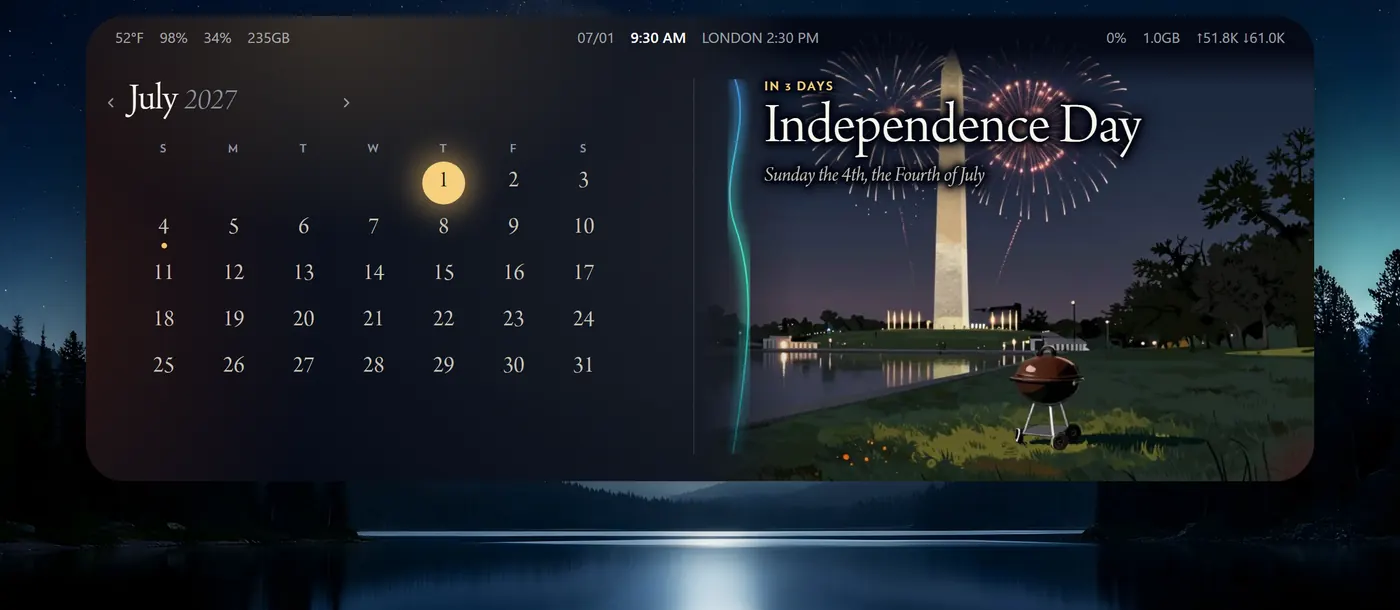
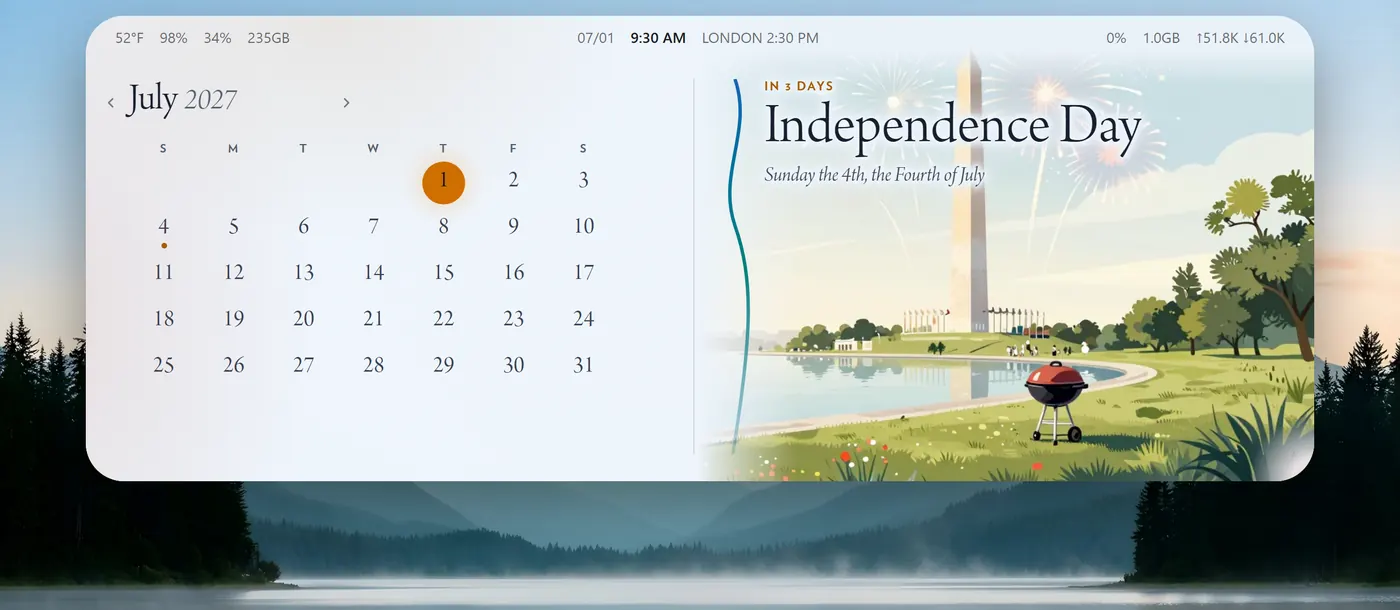
The month on the left. On the right, the next holiday large, the rest of the month listed under it, and a thin river of light between the two.
Shown: the Fourth of July, three days out.
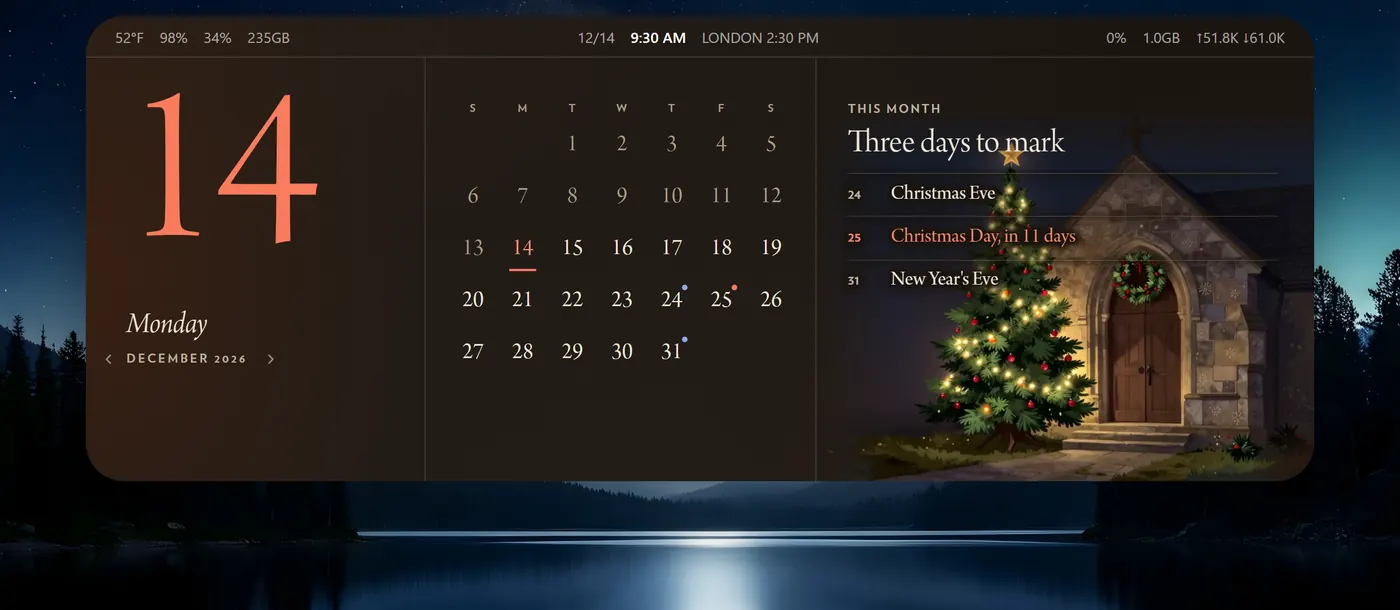
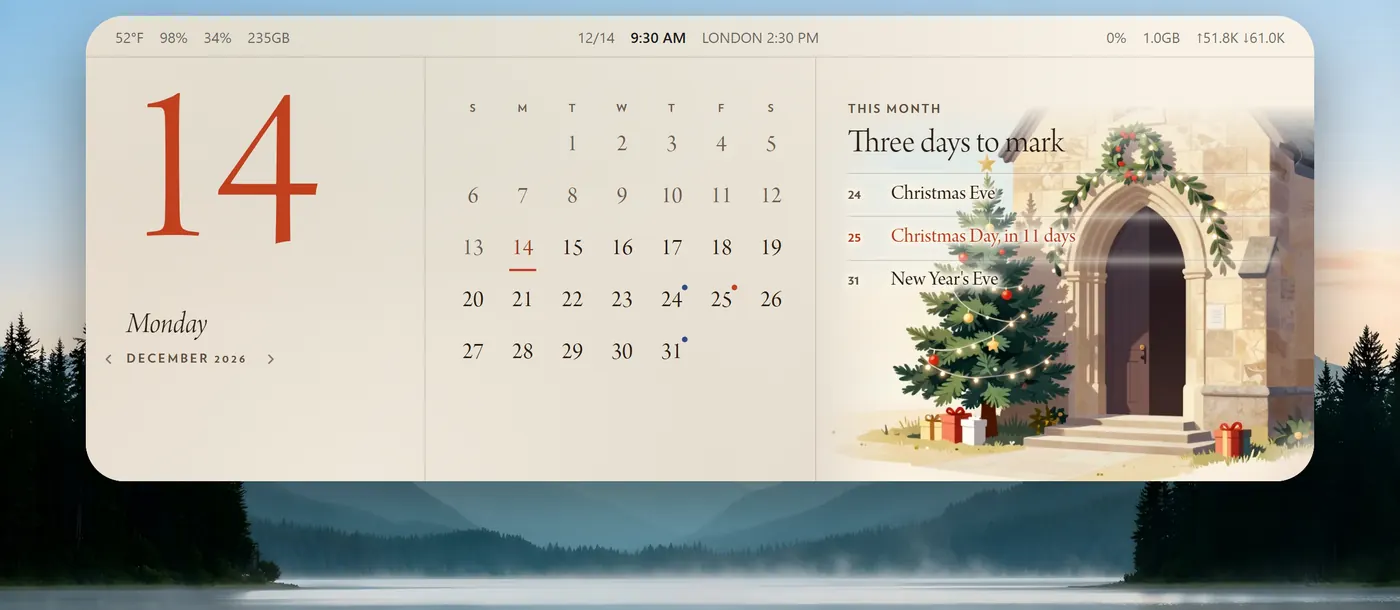
A page from an almanac. Today's date large in red, the month beside it, and the days to mark this month counted and listed.
Shown: December, with Christmas Day in 11 days.
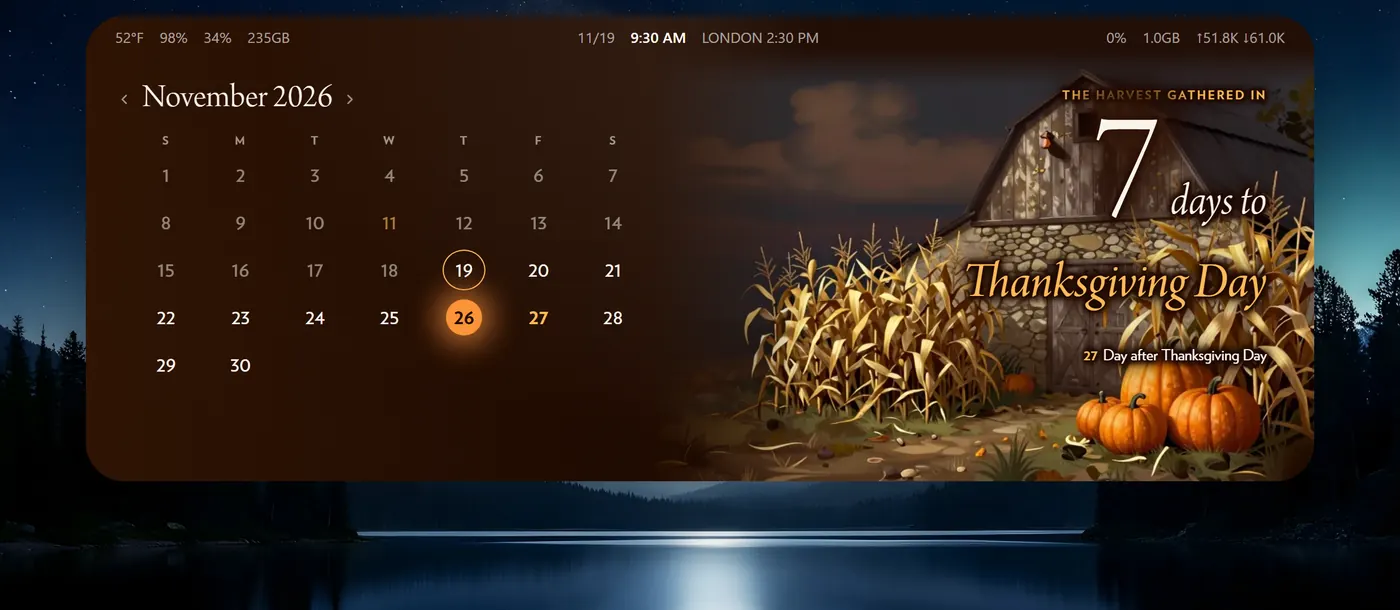
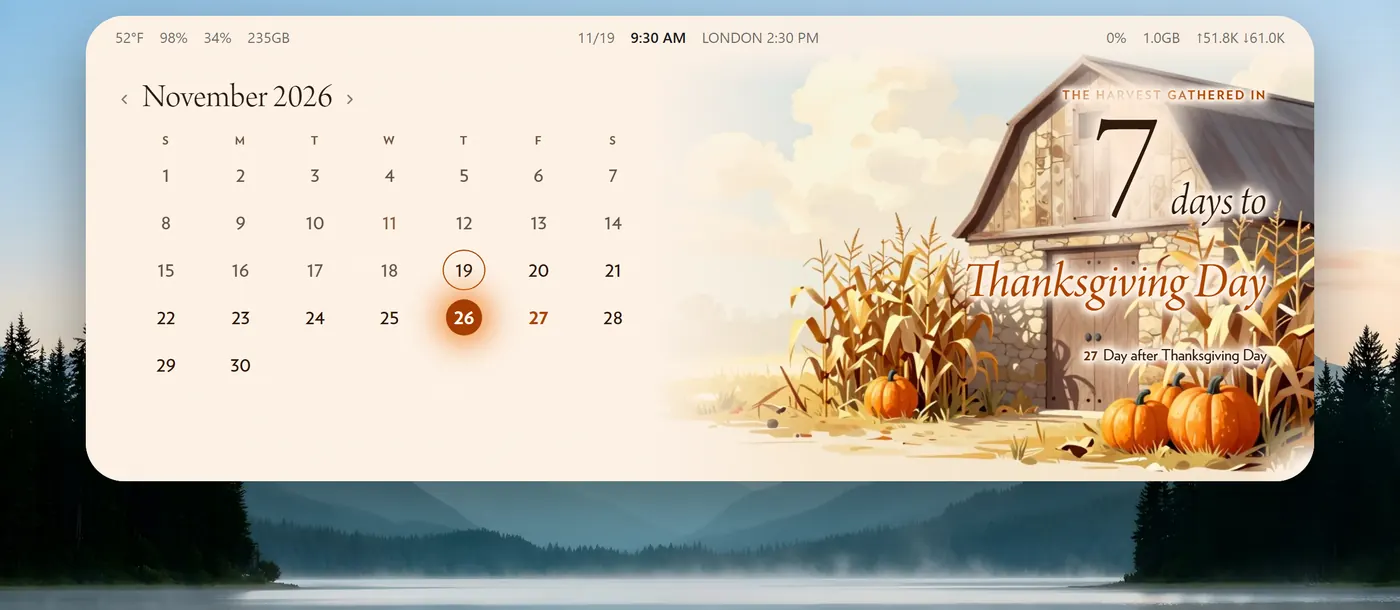
The month beside one holiday's countdown, set over that holiday's own painting.
Shown: seven days to Thanksgiving.
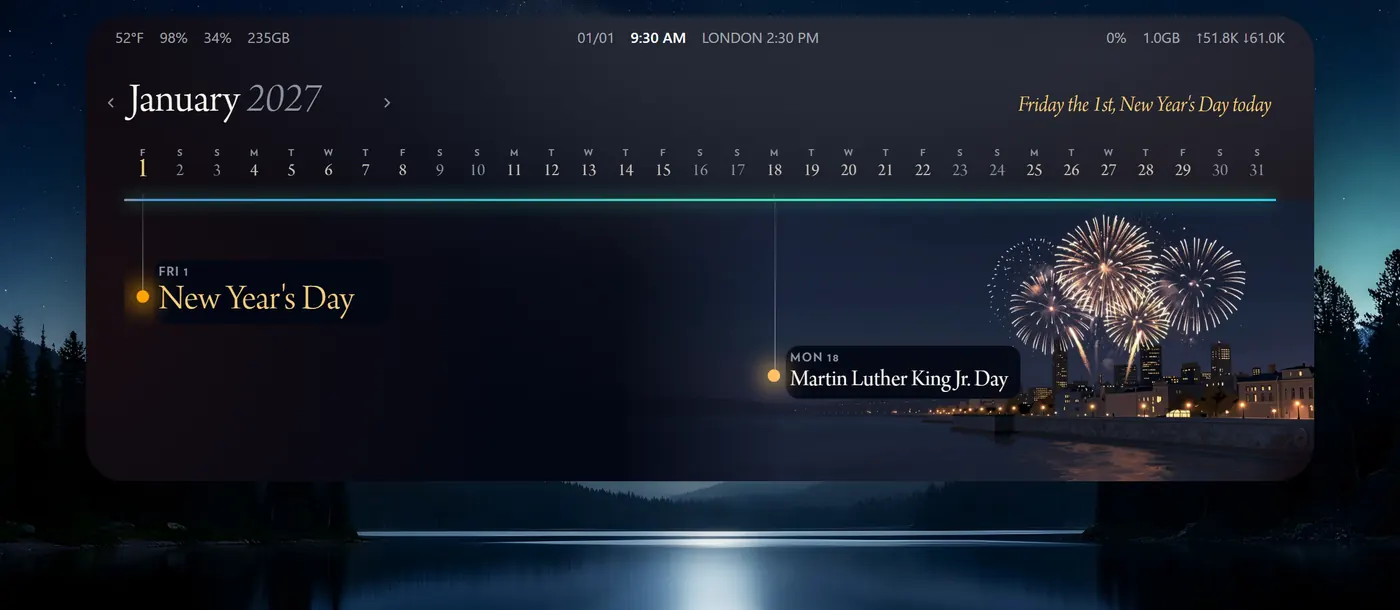
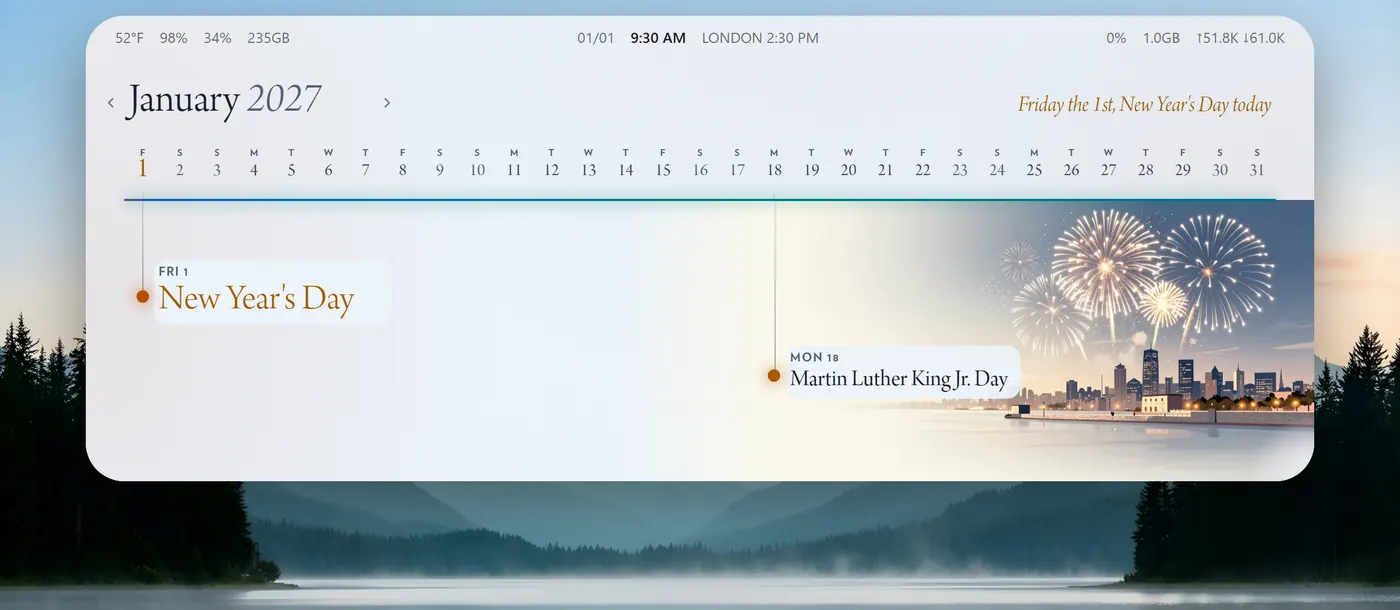
The month as one glowing line. Each holiday hangs from its own day on a thread.
Shown: New Year's Day, today.
Each big holiday has a picture painted for it, in a dark and a light version that follow the panel. Here are twelve of the American ones.


January 1


February 14


Third Monday in February
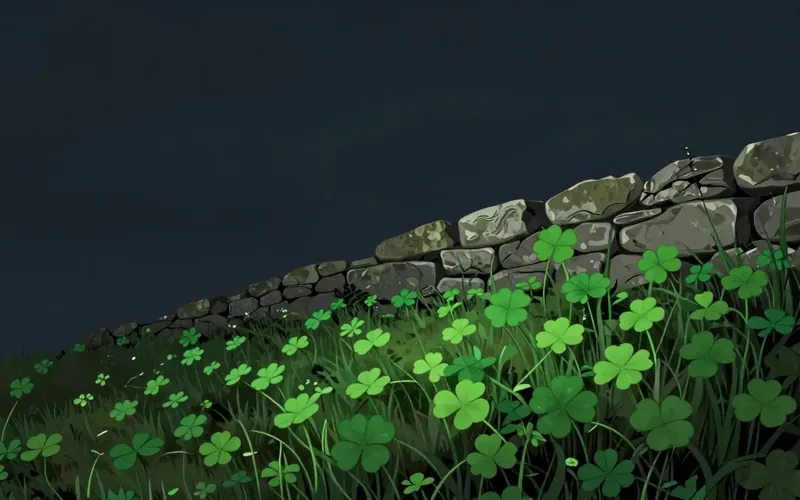
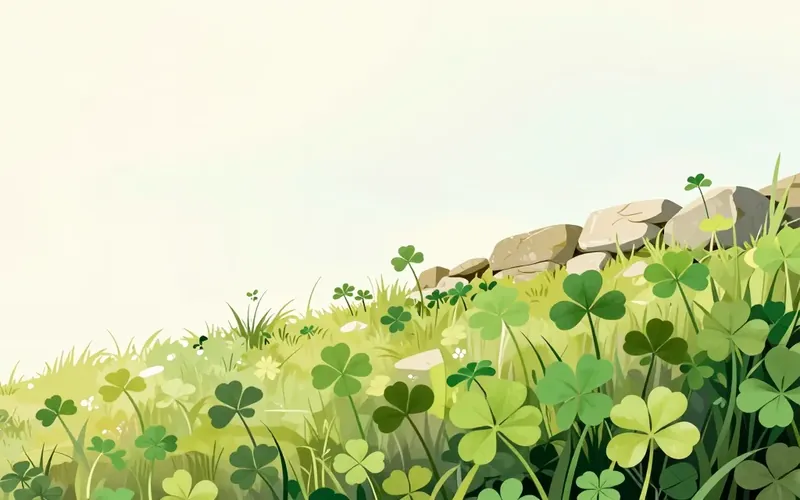
March 17

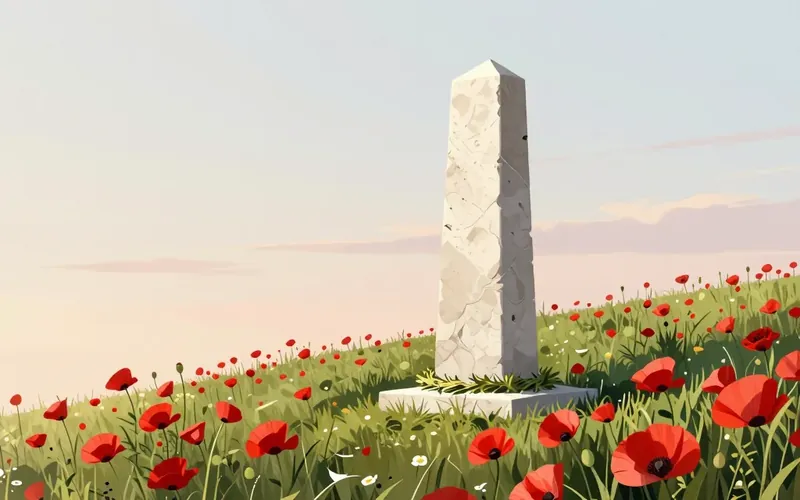
Last Monday in May


Third Sunday in June


July 4


October 31


November 11
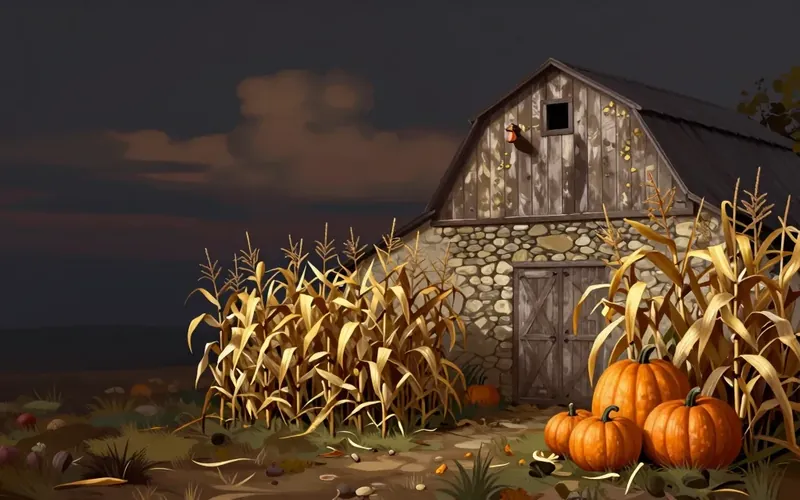
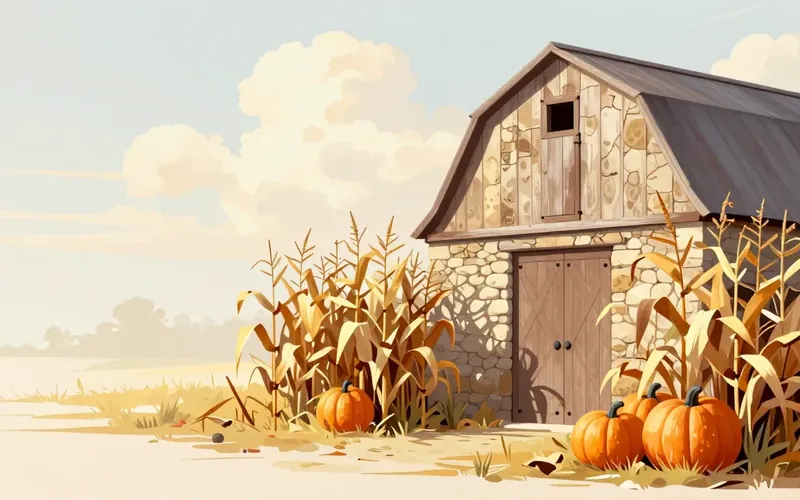
Fourth Thursday in November


December 24

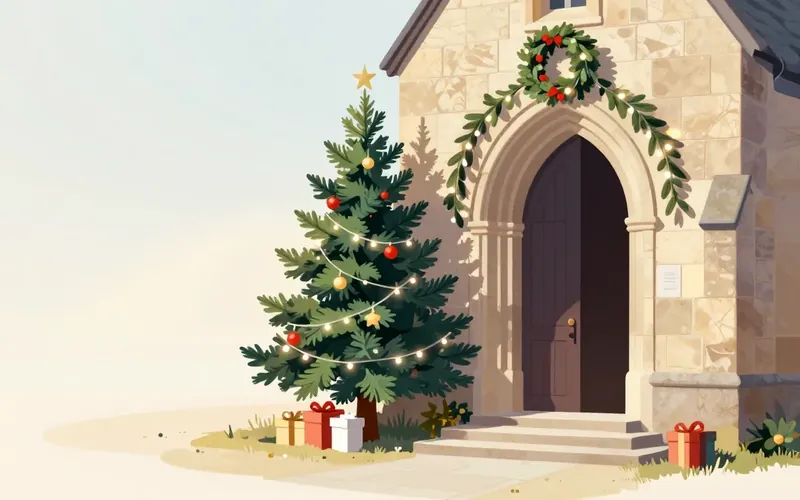
December 25
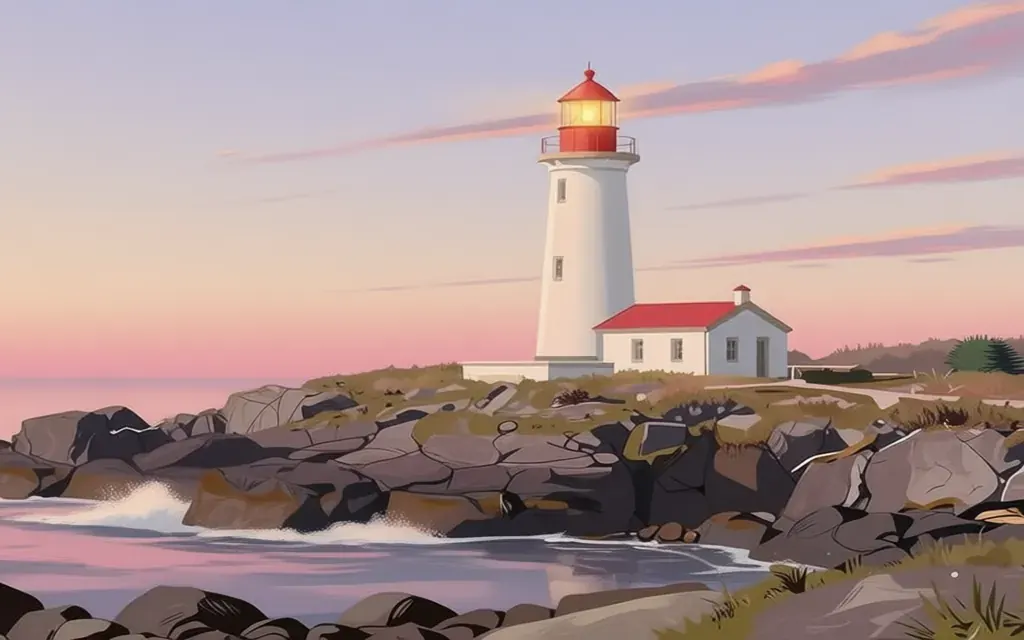
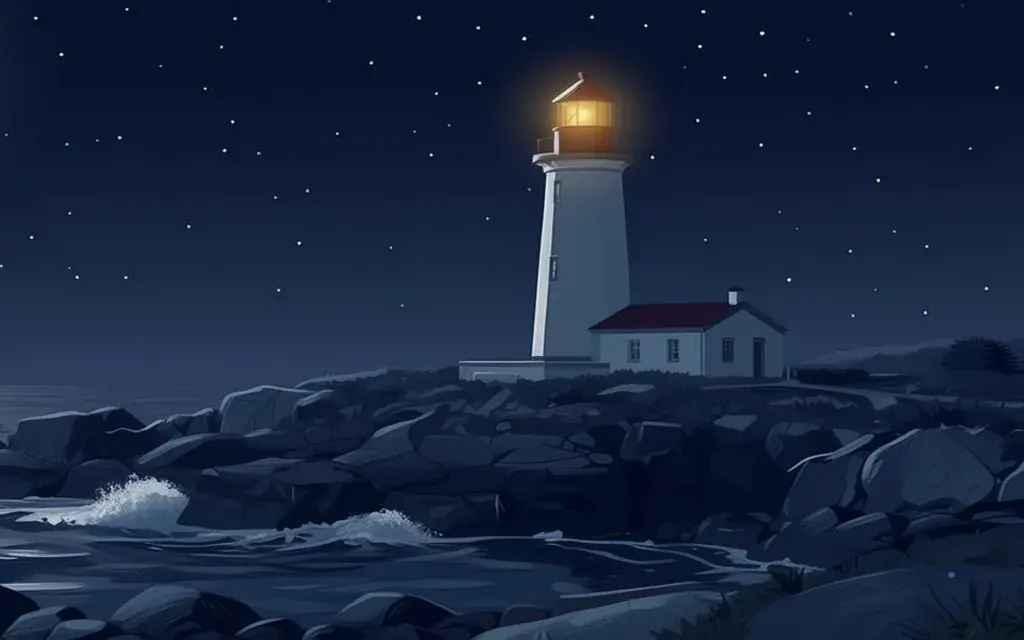
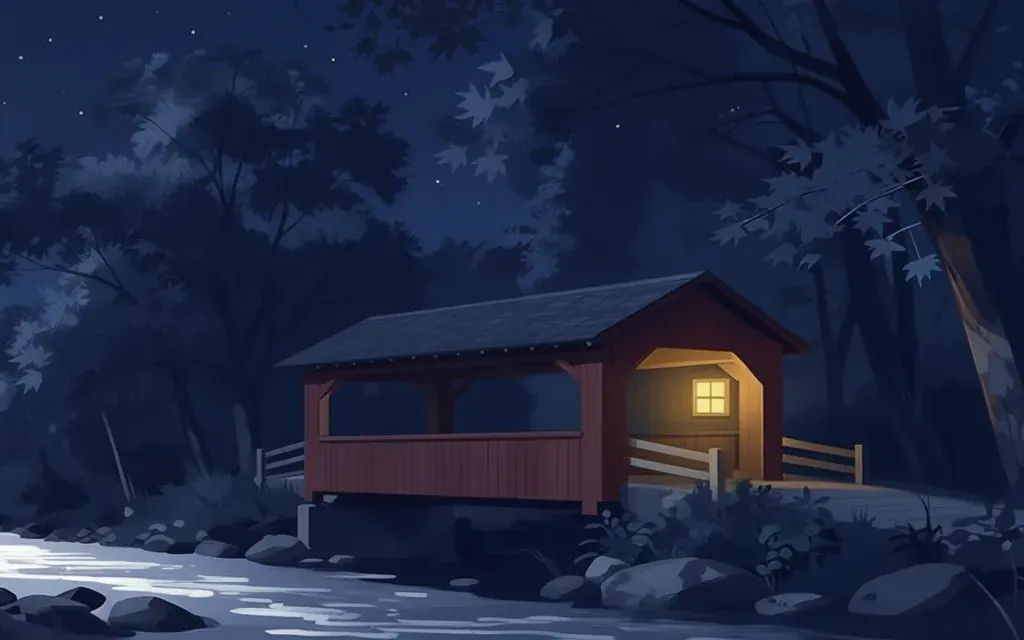
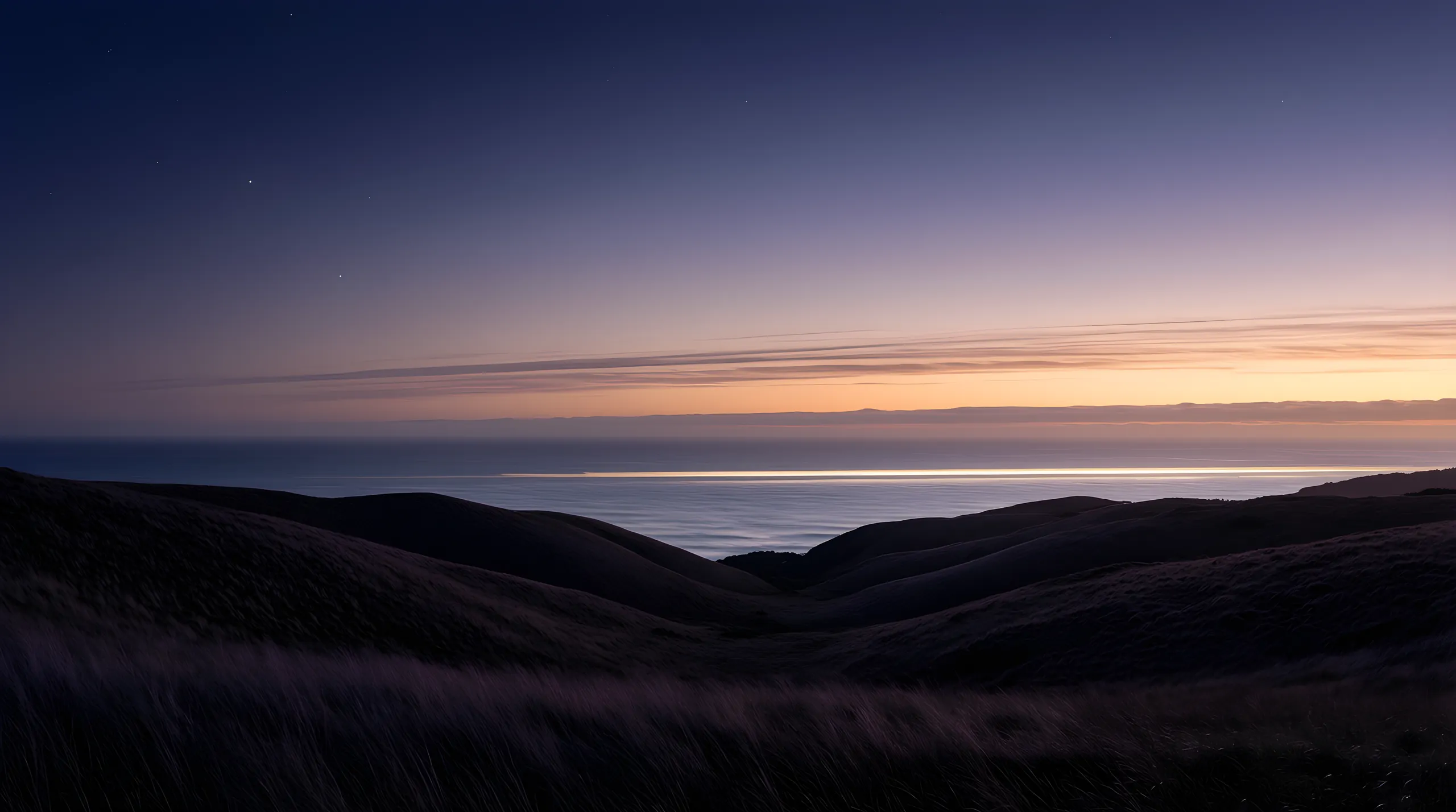
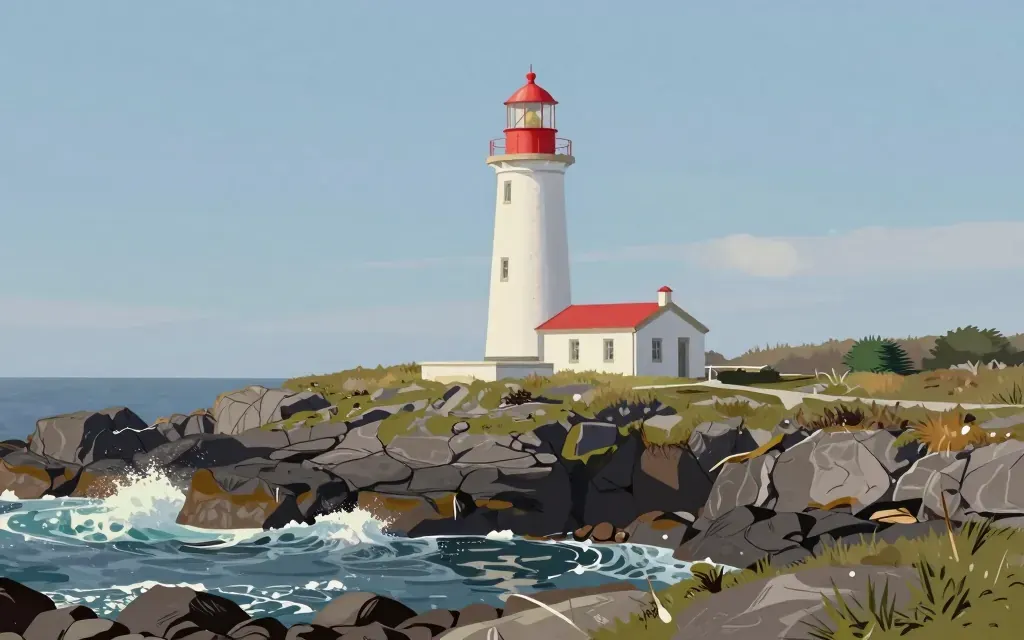
Tap a date with nothing on it and the calendar shows one of 60 painted places. A date keeps its place. From six in the morning it is painted by day; after six in the evening it turns to night on the dark panel, and to dusk on the light one.
Here are four of them. Pick the hour.



Your own events show too. Settings walks you through getting the link from Google Calendar, Outlook or iCloud, step by step. Perch only reads it, and checks for new events every 15 minutes. The panel comes in Normal or Small. Public holidays and observances show at first; religious days are one switch away. No faith is chosen until you pick one; pick one and its days lead the month.
The taskbar, grown up. Run your mouse along these icons.
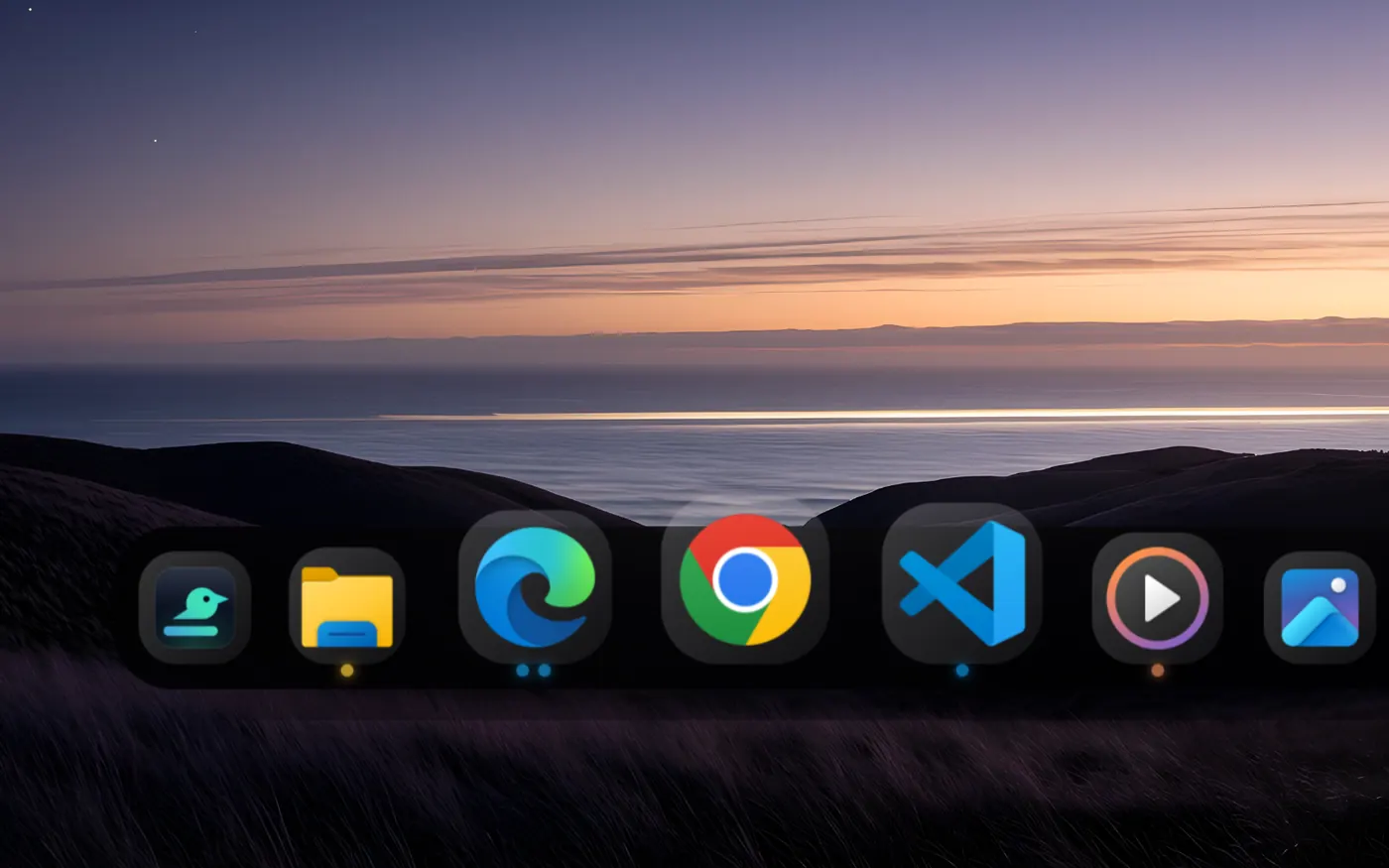
Icons grow as your pointer passes, and you choose how far: the zoom size, and how many neighbours grow with it.
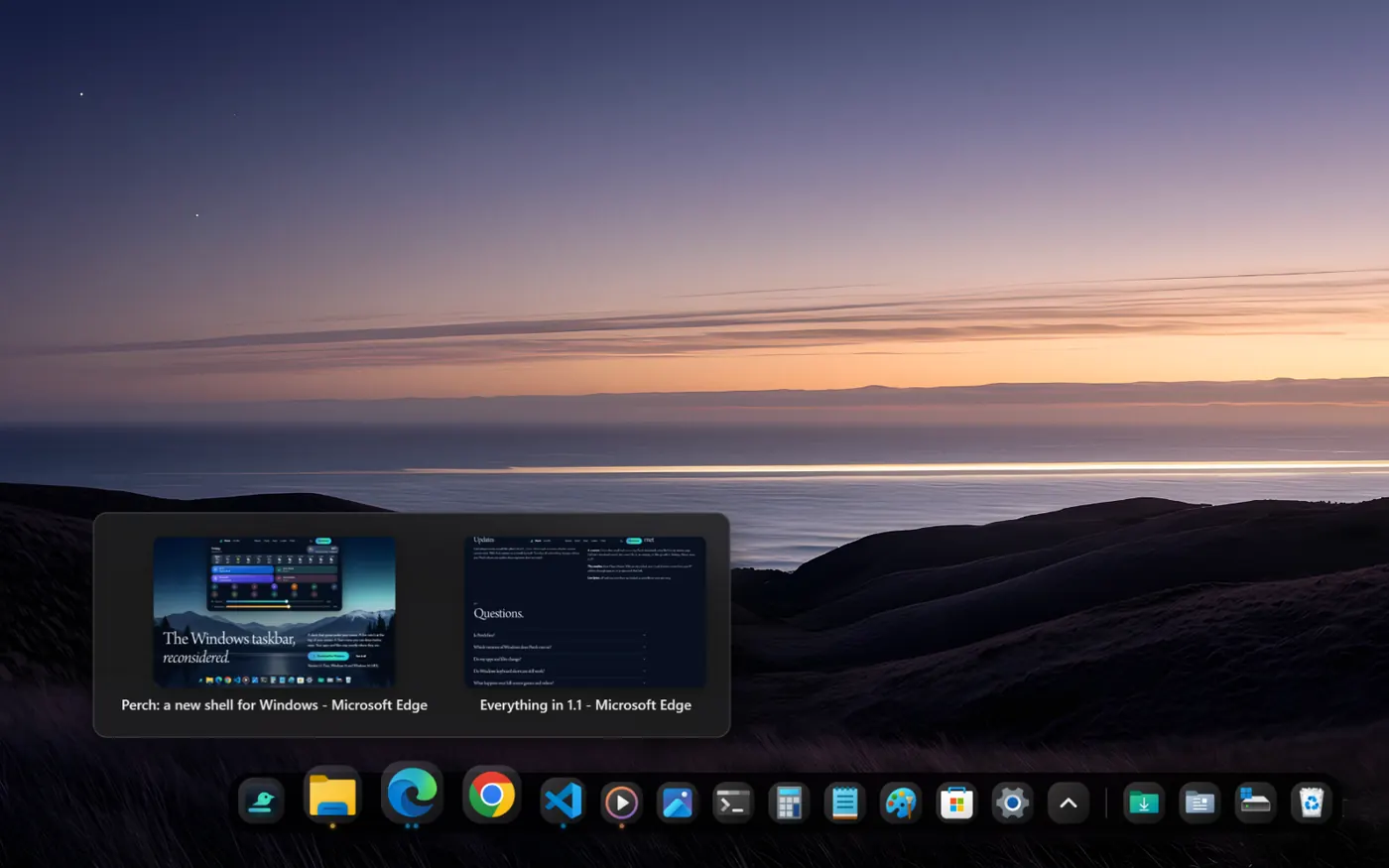
Hover an open app for live previews of each of its windows.
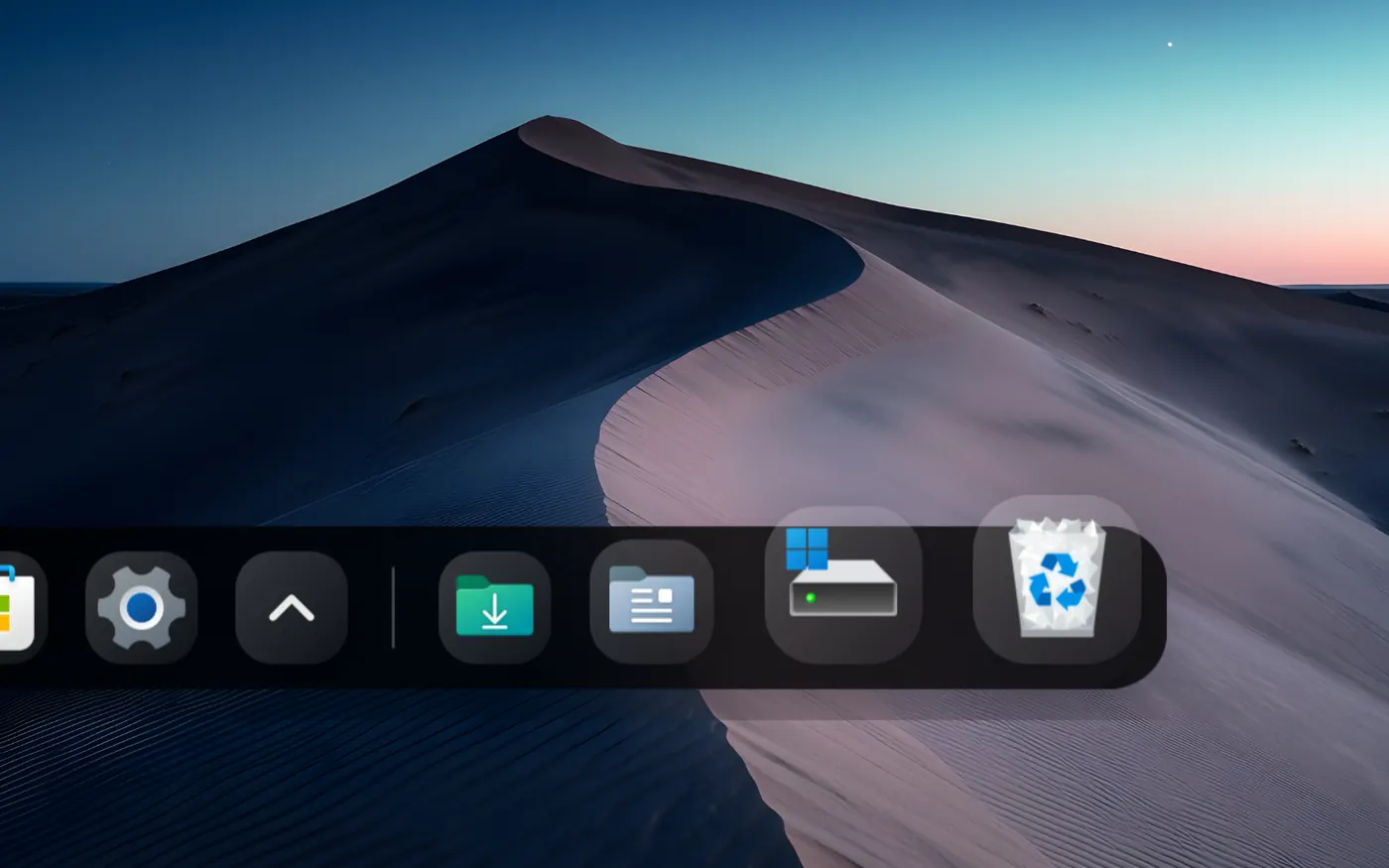
Fixed, removable and network drives, your special folders, any folder you add, and the Recycle Bin at the end, all beside your apps.
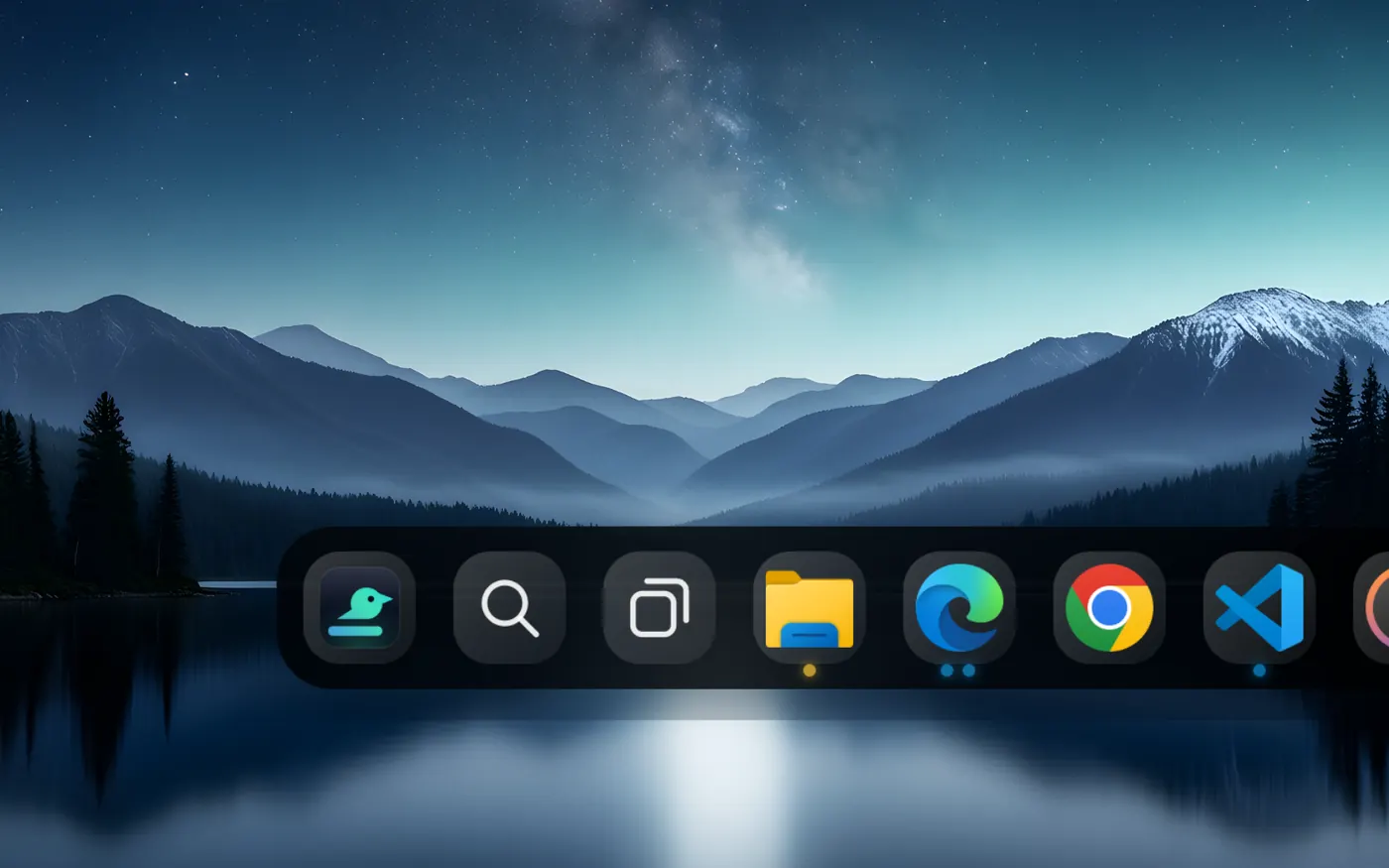
Search, Task View and Show desktop, each one optional. Your own picture on the Start button, if you like.
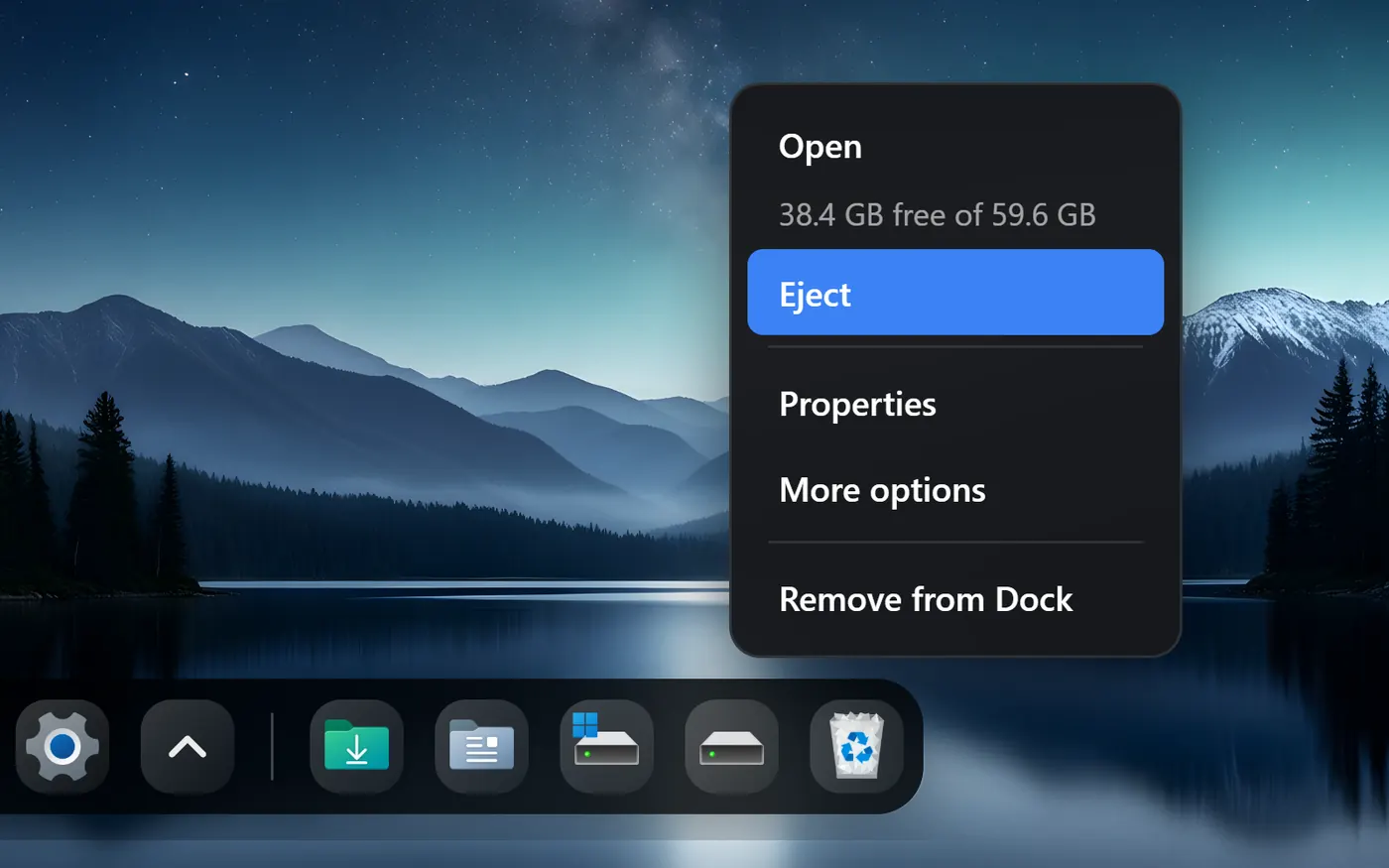
It stays beside your drives while it is in. Right-click it for Eject, without hunting for the tray icon.
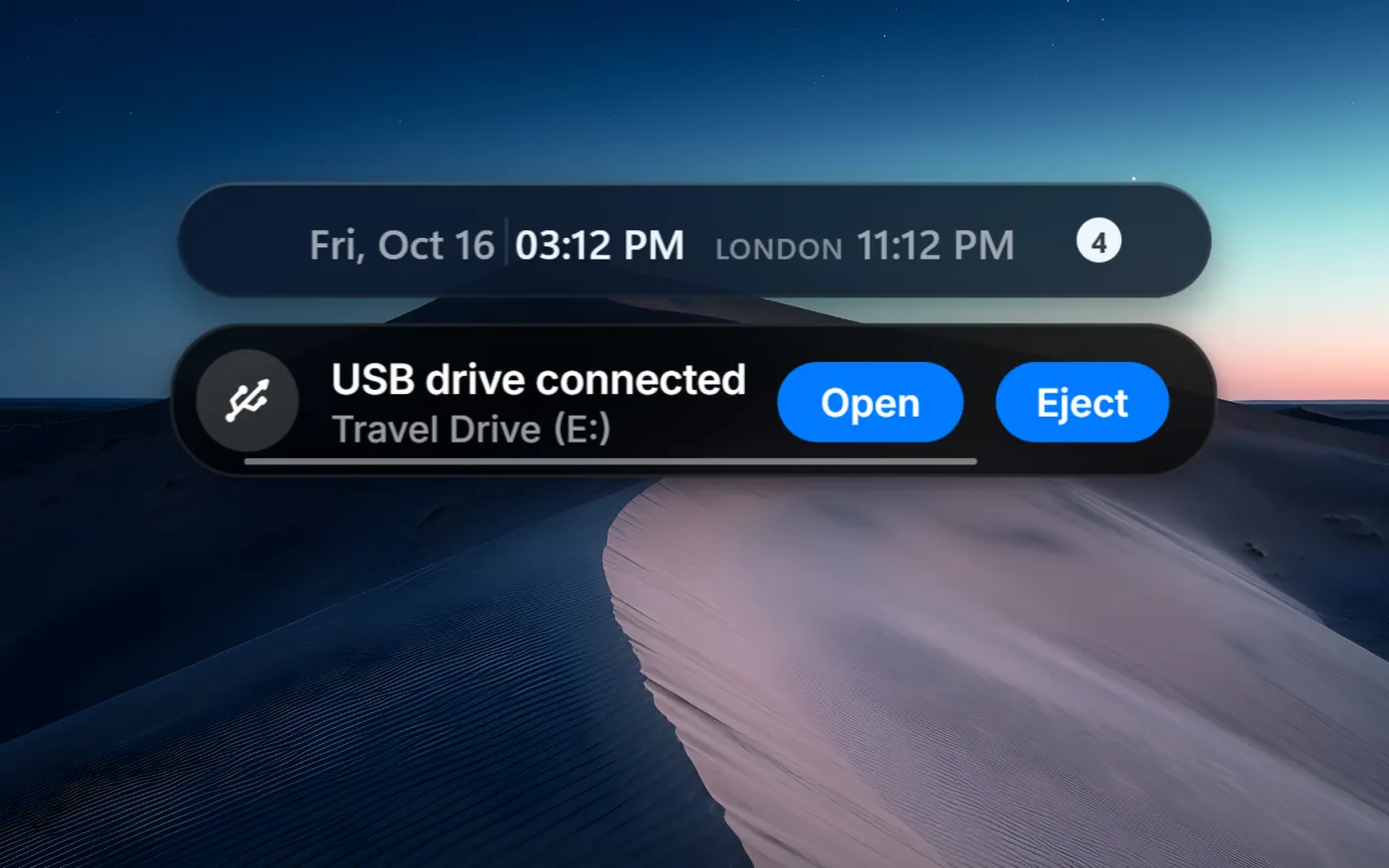
The moment you plug it in, one click either way.
Thumbnails work as on the Windows 11 taskbar: rest on one and its window shows full size, while the dock and the thumbnails stay up. On a touch screen, swipe a thumbnail up to close its window, or press and hold an icon to move it. And the small things: icons that bounce when an app opens, unread badges, Win+1 to 9 for your pins, a hide that knows when a window needs the room, and over a full-screen game or video it stays hidden until you press the Start key, the same rule the taskbar follows.
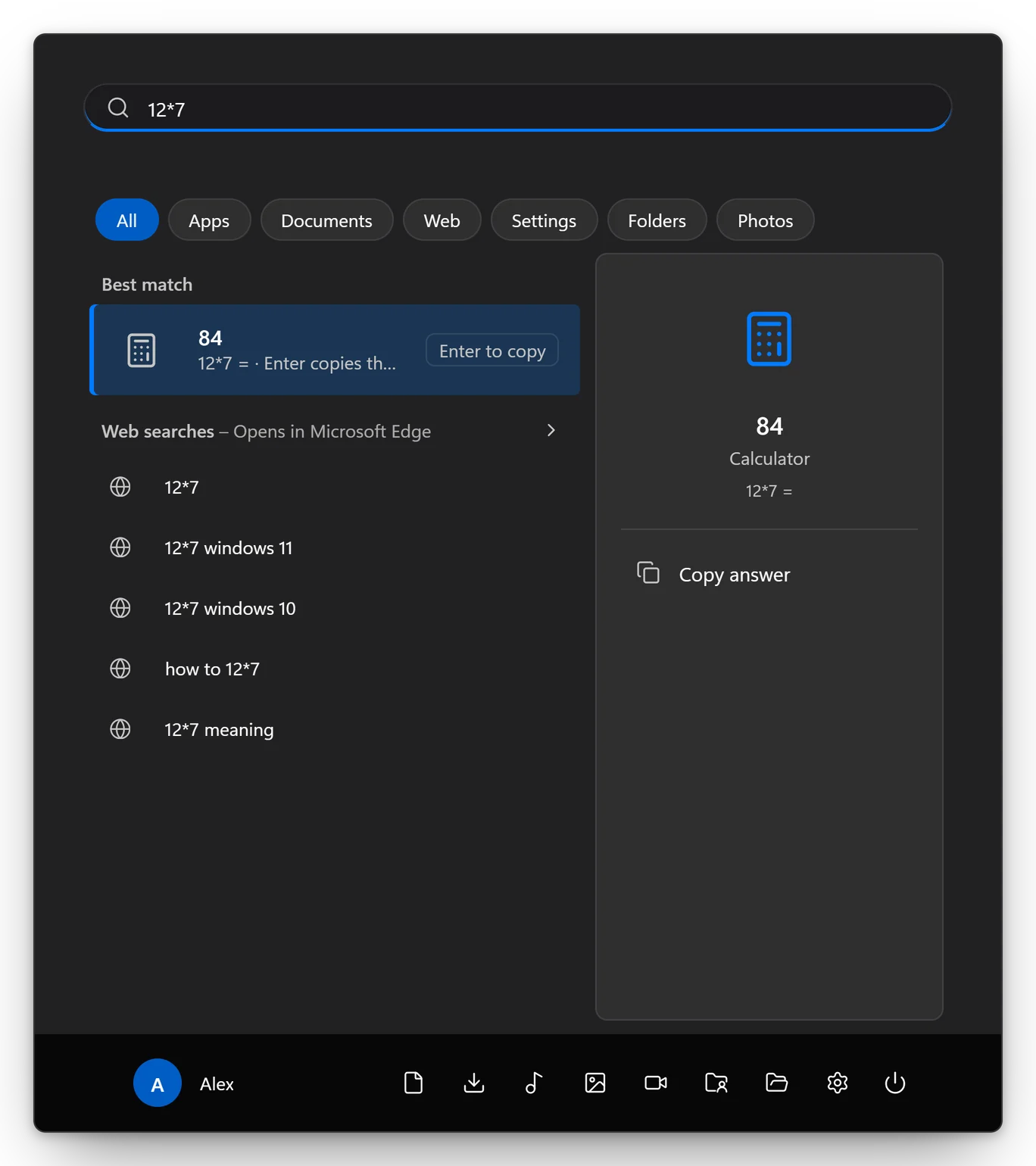
Press the Windows key and it opens, in the middle, the way you left it. Ninety-four designs. One very quick search box.
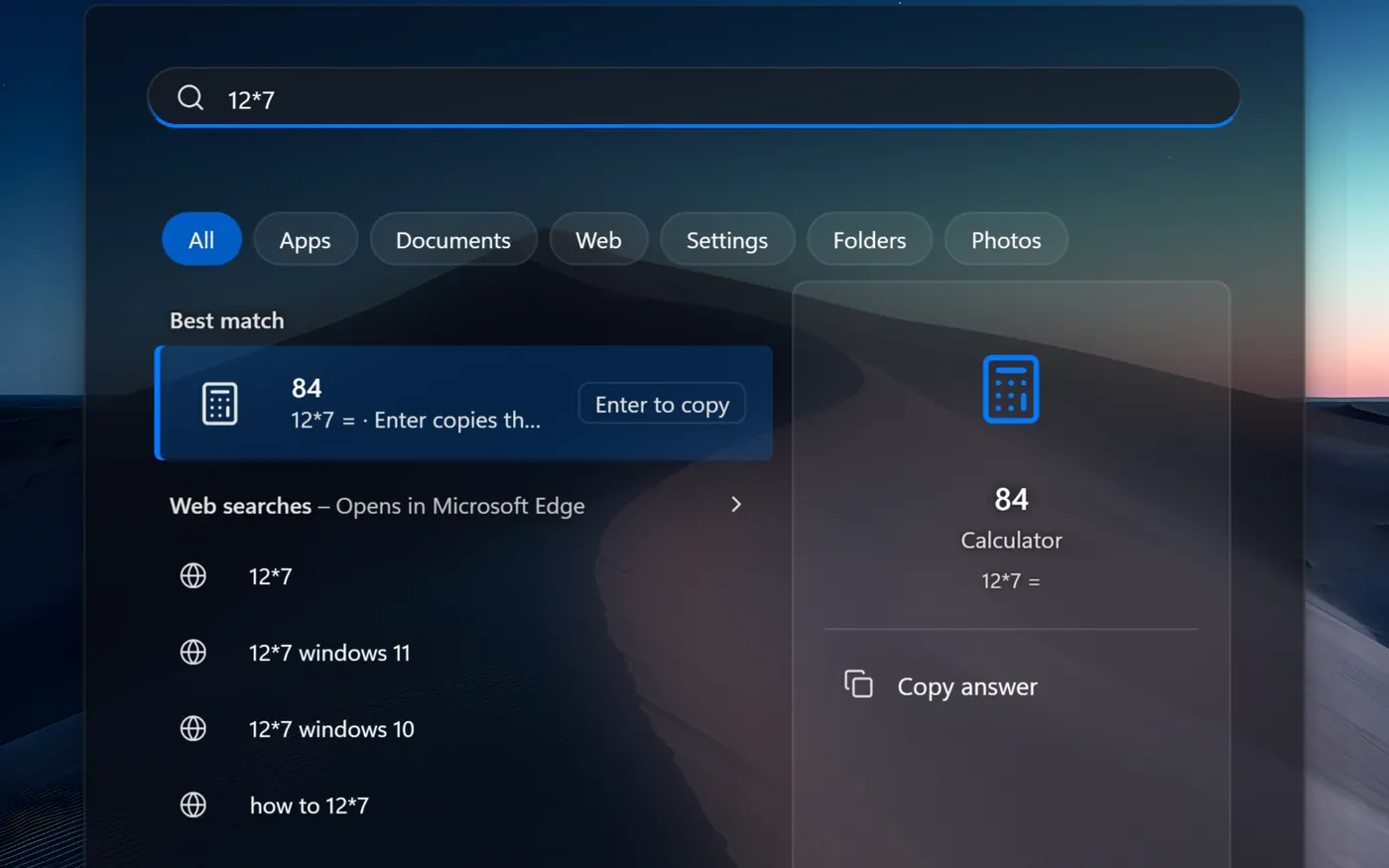
12*7 is 84.Type arithmetic and the answer is the best match, before any web result. (3.5*4)^2, 200*15%. Press Enter to copy it.
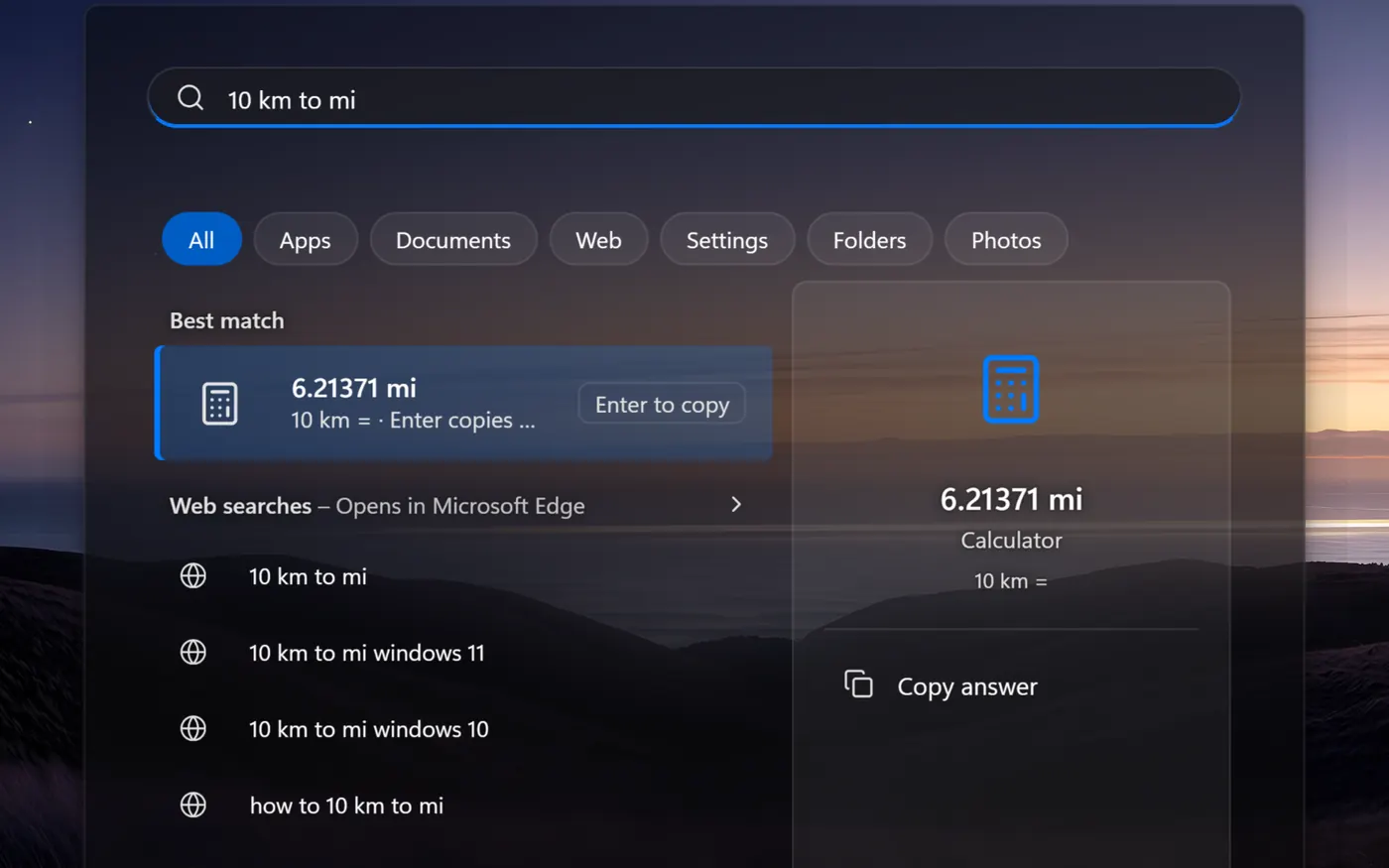
10 km to mi.Lengths, weights, temperatures: 5kg in lb, 100 f to c. The answer is 6.21371 mi, and it's on your clipboard with one key.
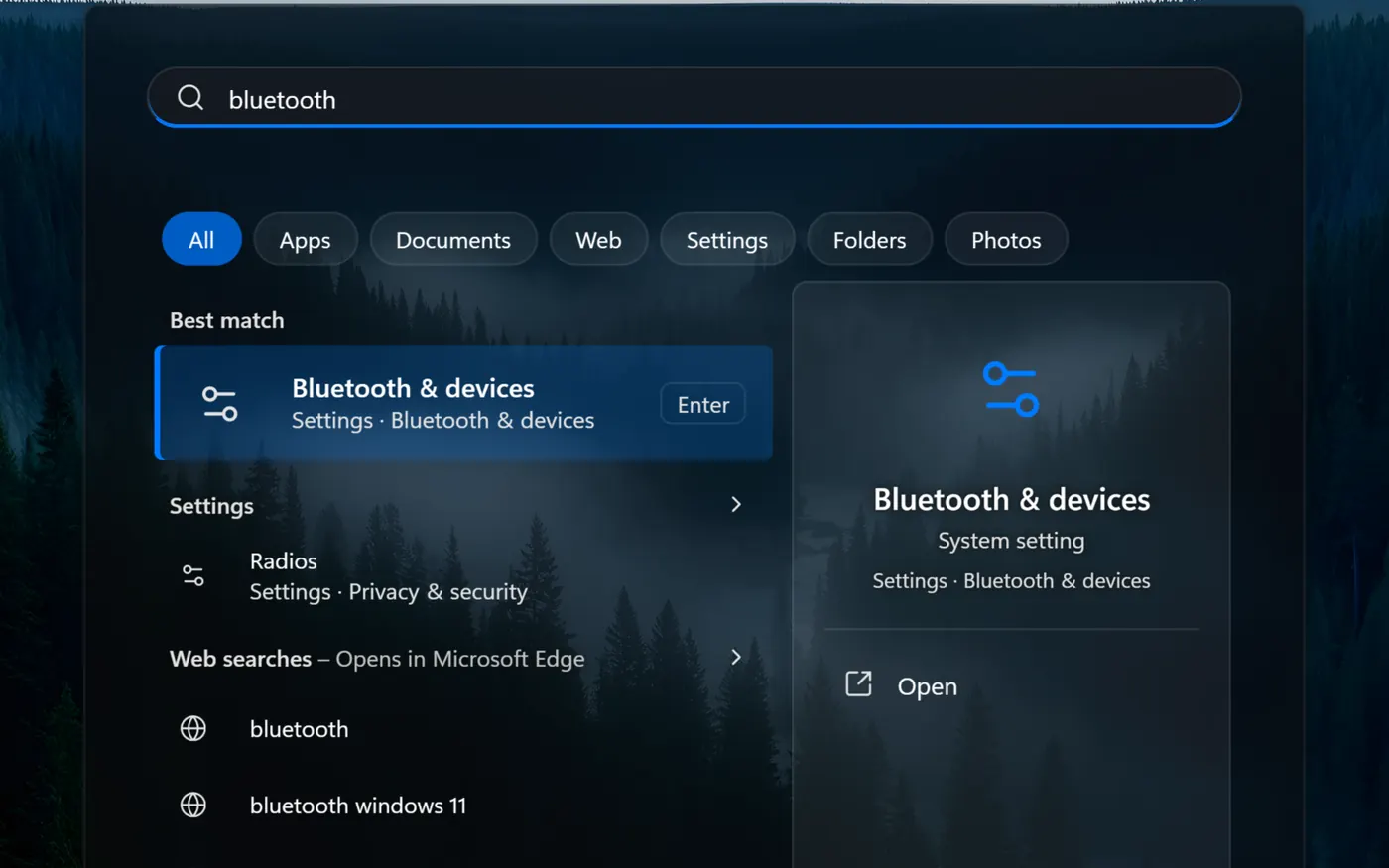
Type bluetooth and land on the page, by its name, its Windows 10 name or the words people actually use. Filter chips narrow it: Apps, Documents, Web, Settings, Folders, Photos.
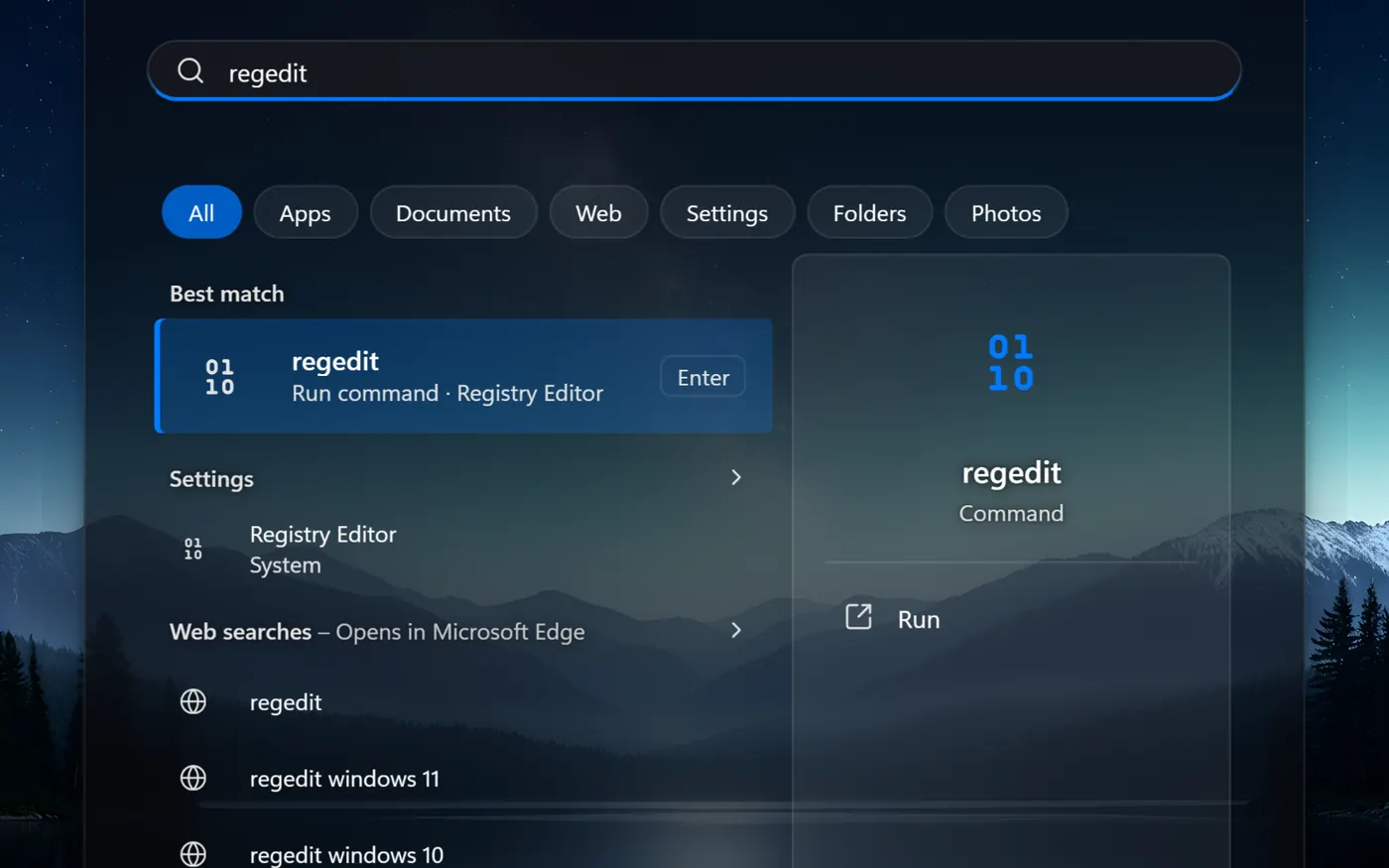
regedit, a drive path, a network share. Type it and press Enter. Control Panel pages and admin tools are all there.
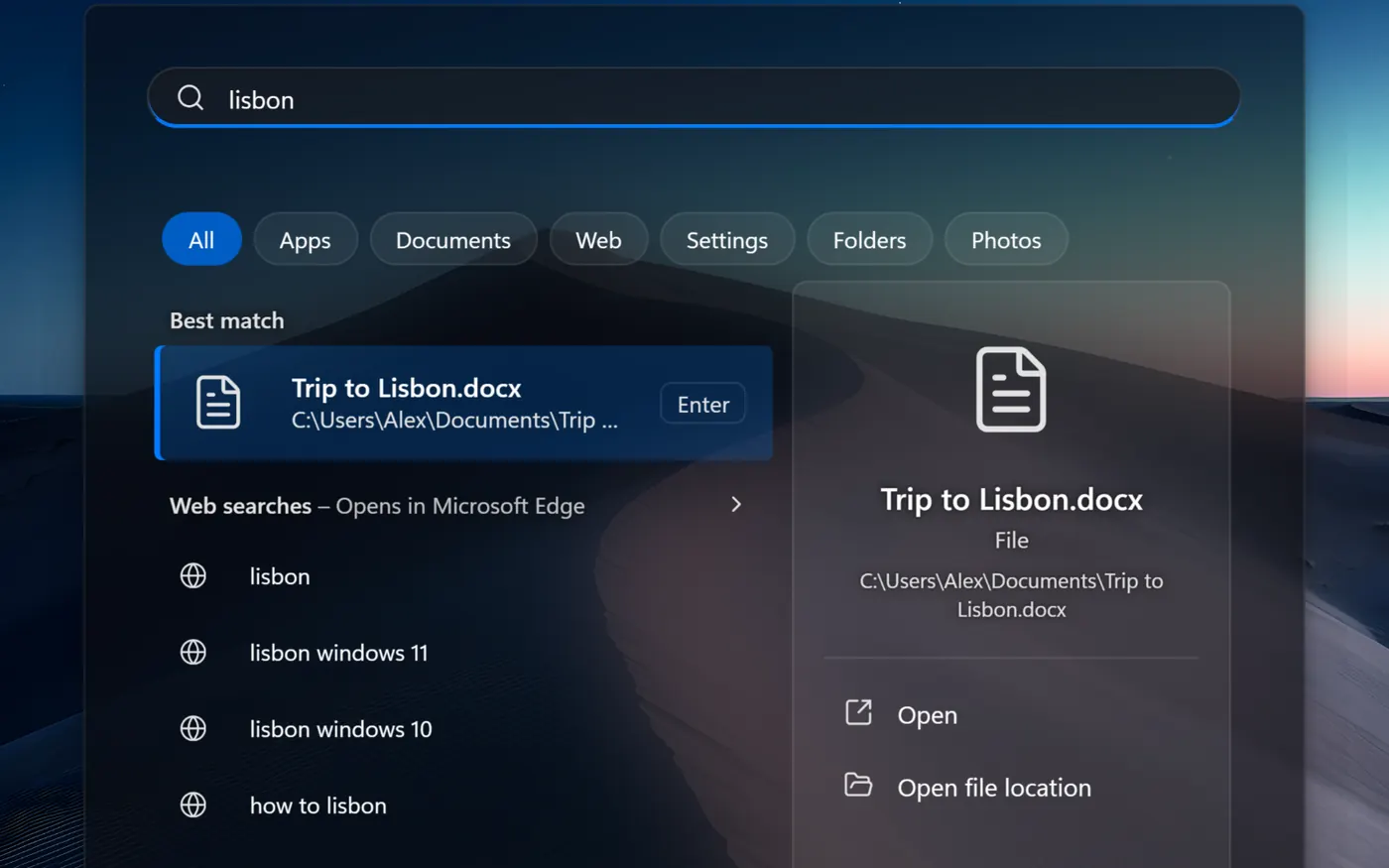
Recent documents, pictures and folders, with a preview pane that shows the file and lets you open it or its folder.
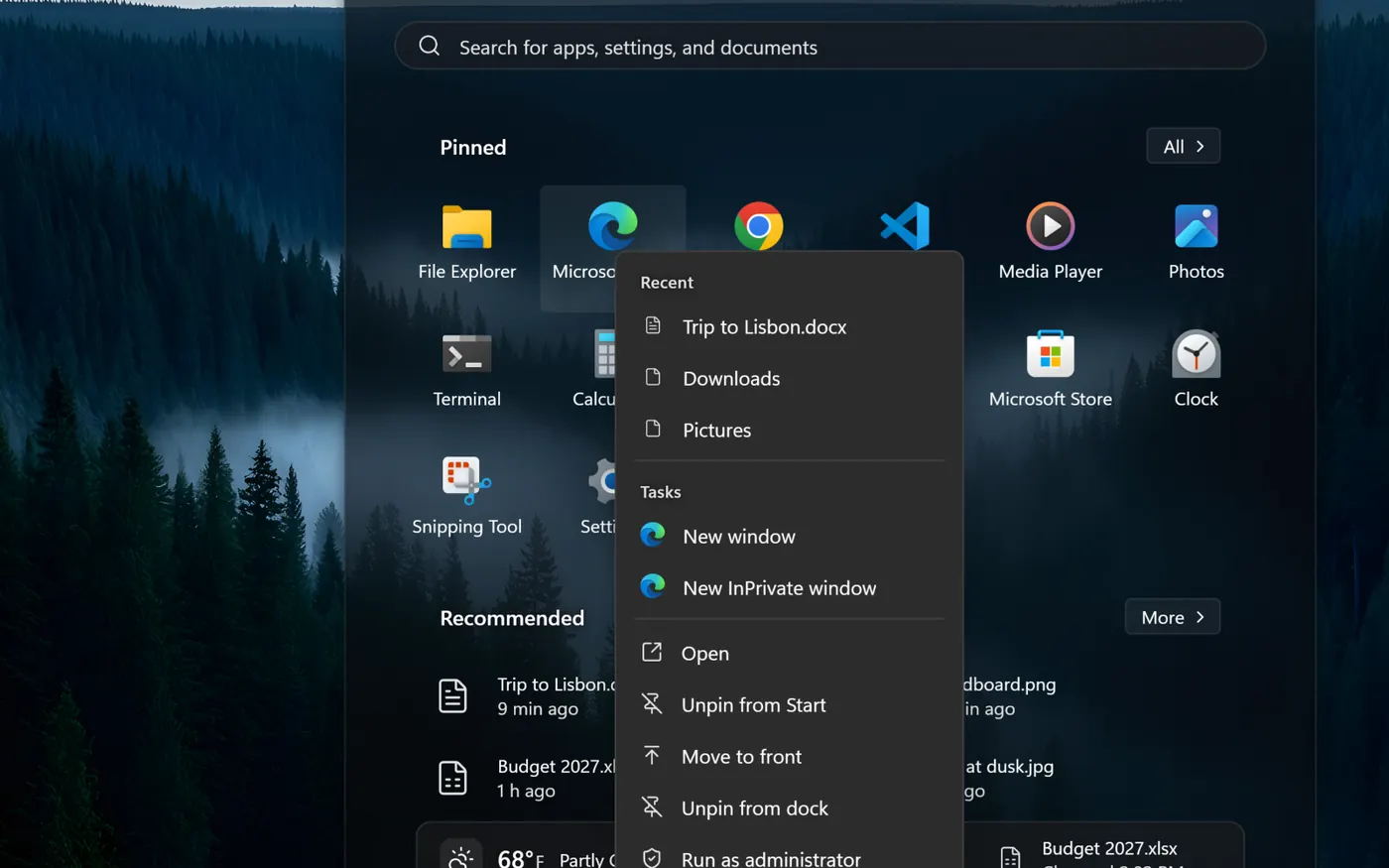
Right-click an app for its recent files and tasks, the way the taskbar used to do it.
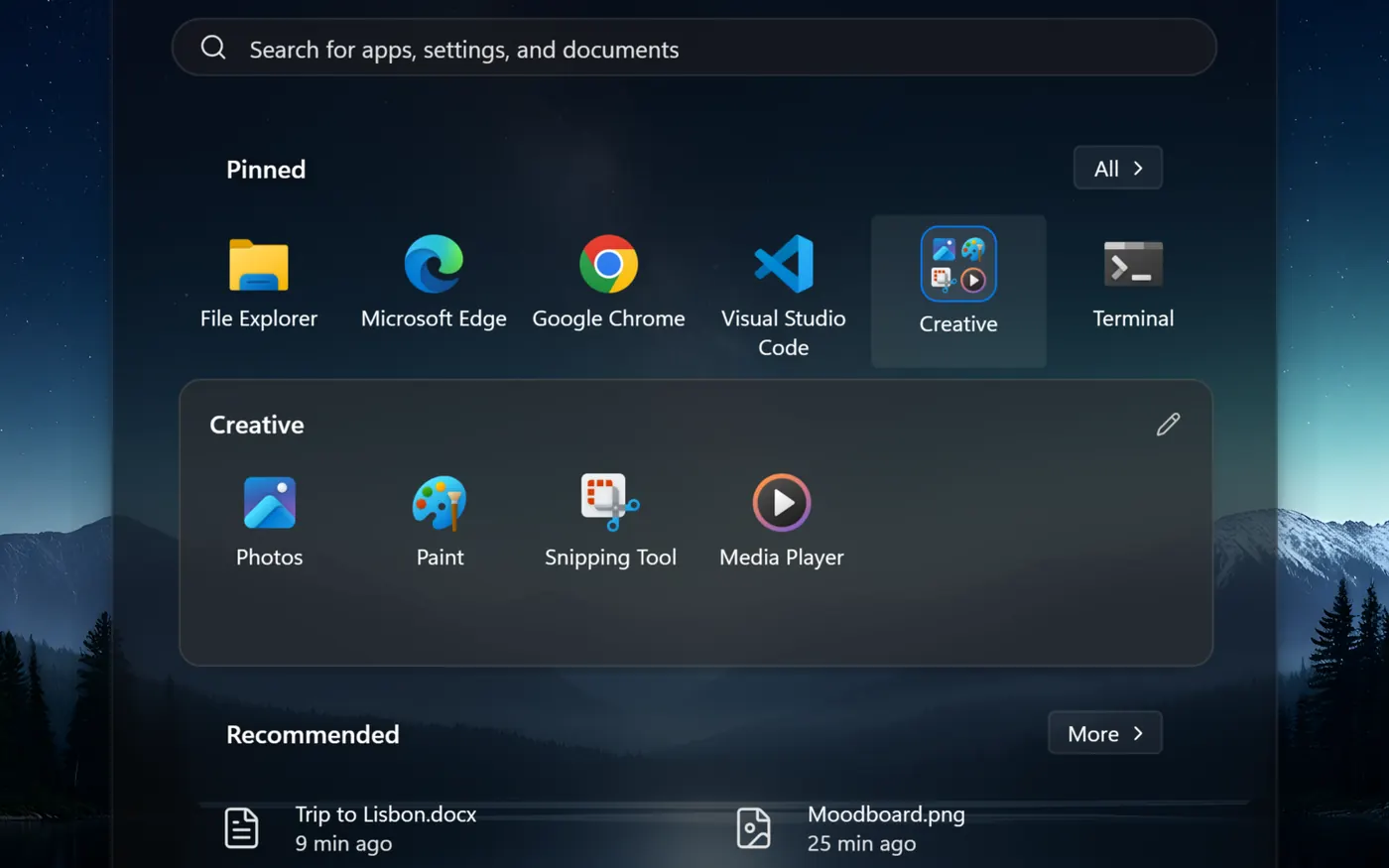
Drop one pin on another and they make a folder. Rename it, reorder it, take it apart.
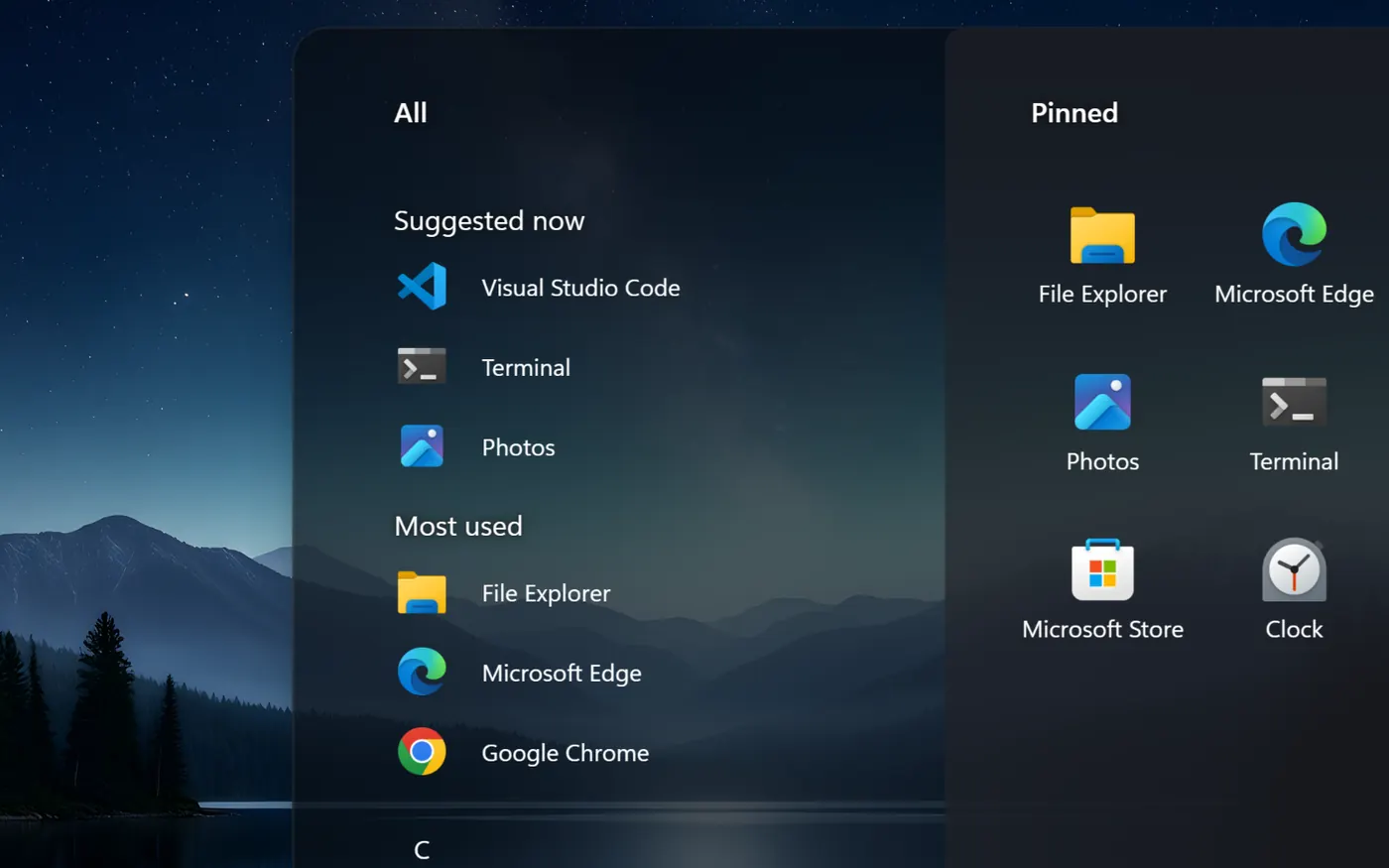
Suggested now lists the apps you open at this hour, weekdays apart from weekends. Each count fades by half every 30 days, so old habits leave on their own.
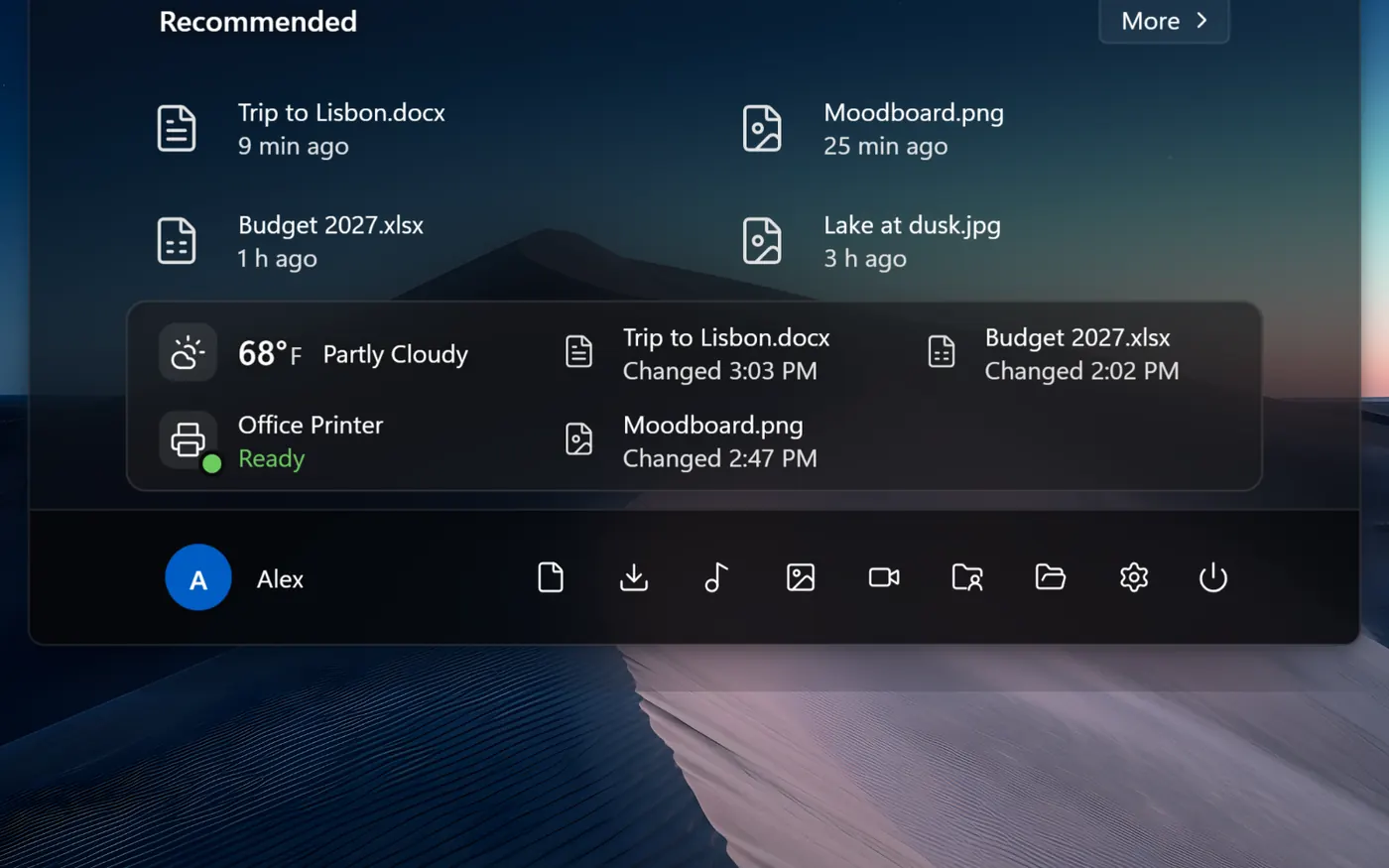
The weather, whether your printer is ready, and the files you changed today, in the Modern and Windows 11 designs.
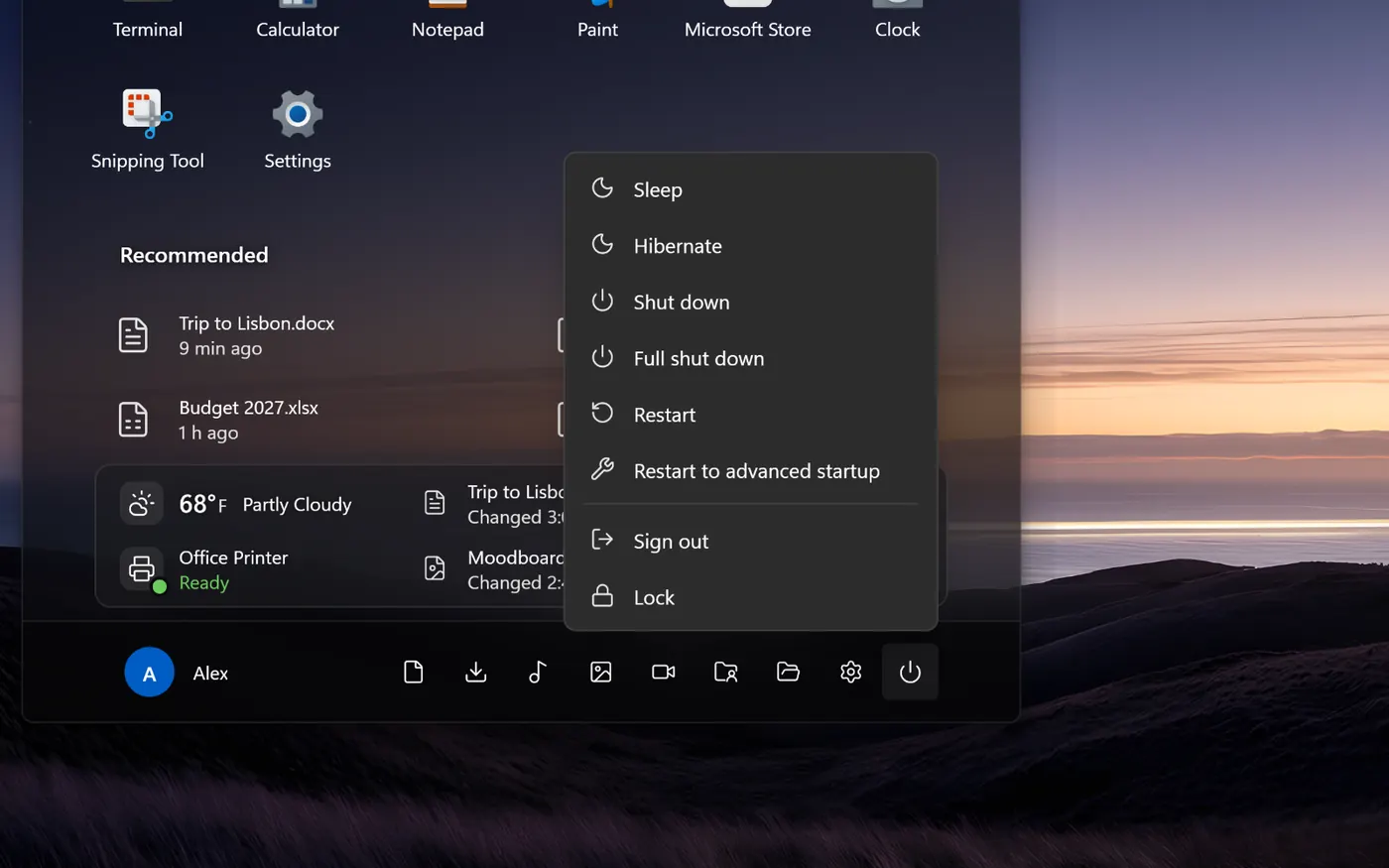
Sleep, Hibernate, Shut down, Full shut down, Restart, Restart to advanced startup, Sign out, Lock.
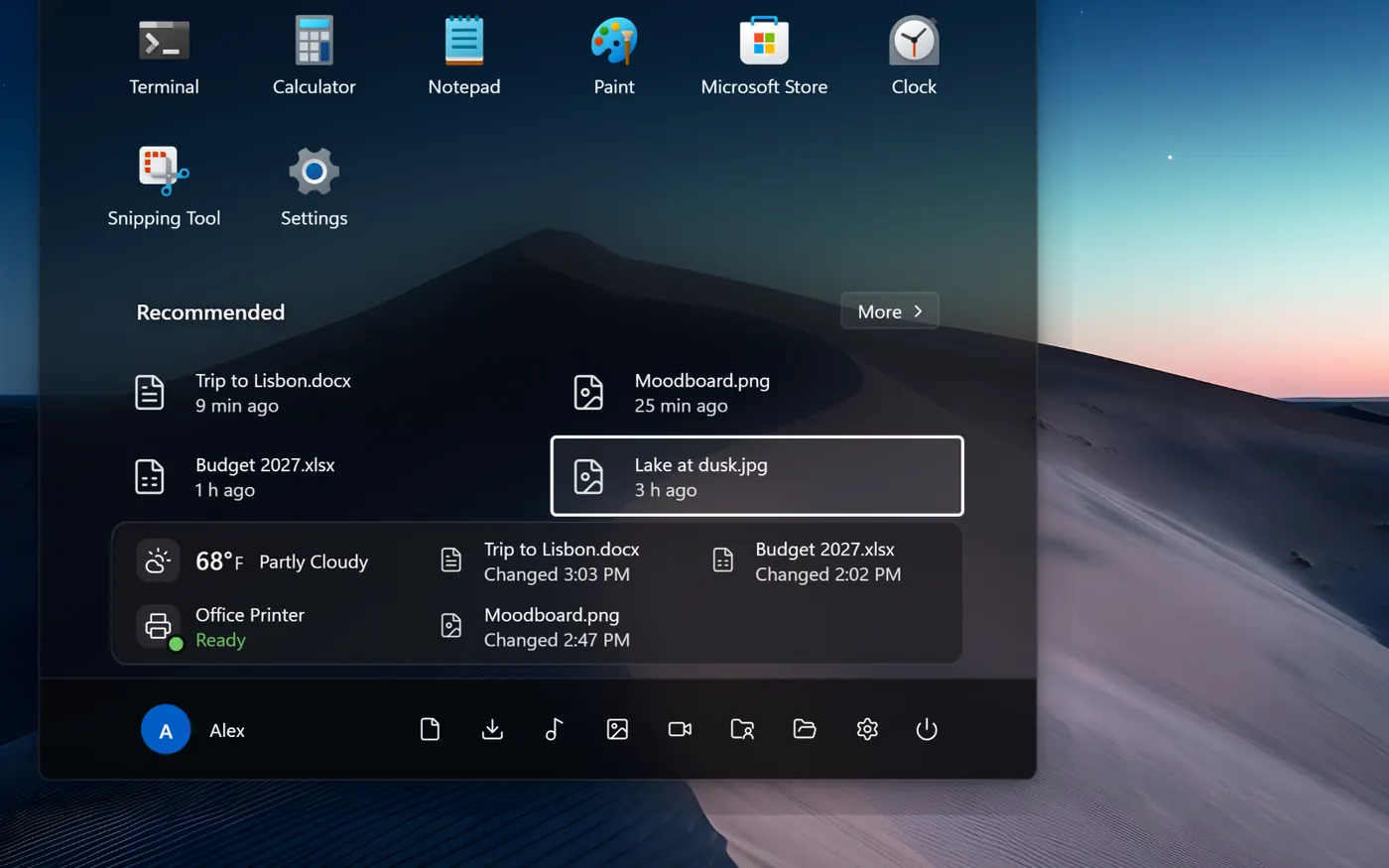
Arrows follow what is on screen, whatever the design. Tab moves between sections, typing searches, Esc always goes back.
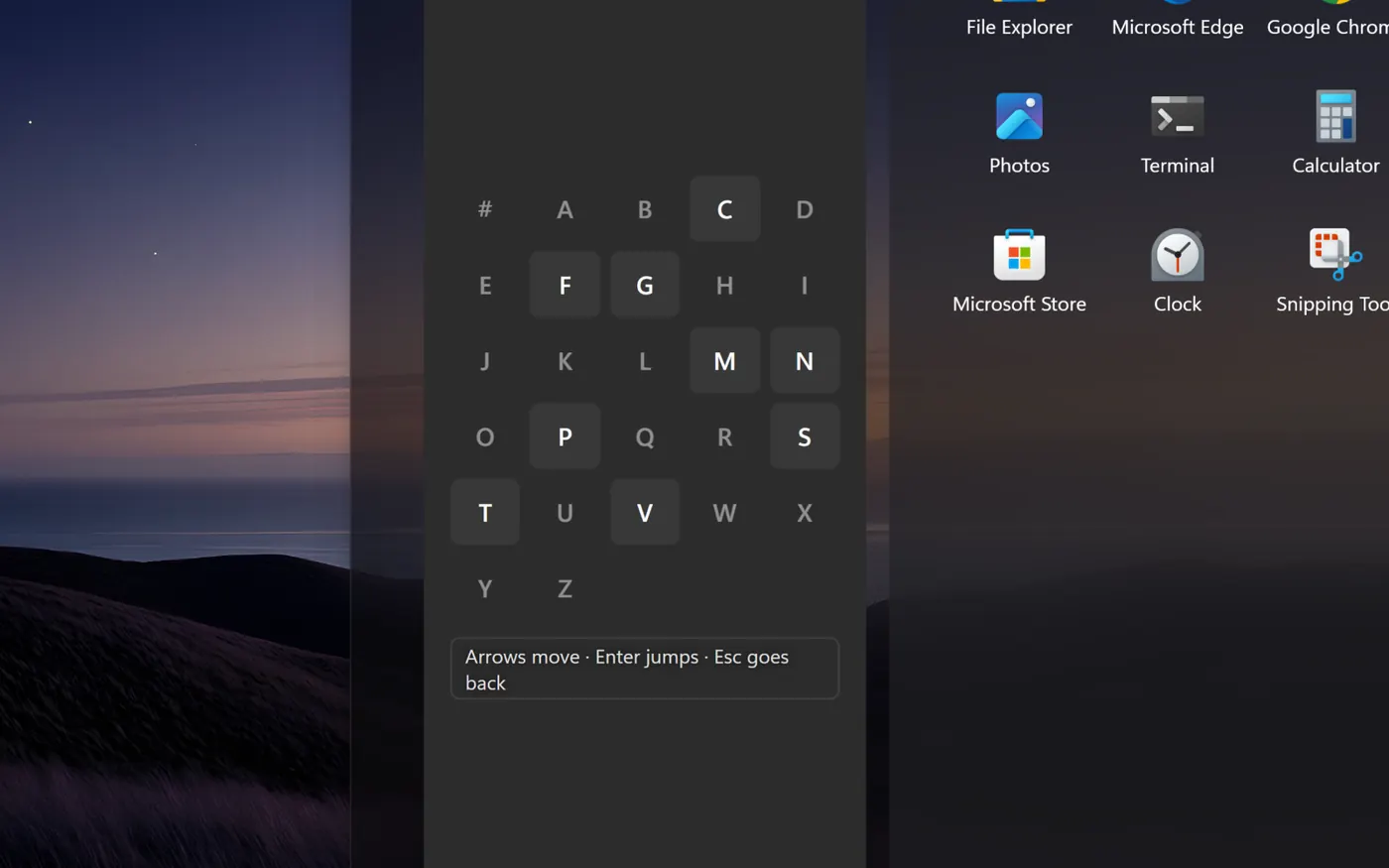
All apps comes with folders and a letter grid. Press a letter and you are there.
They search the same and hold the same pins as every other design. One click each in Settings.
Two big corners, mirrored like a petal. Mint for your pins, blue-violet for your apps, a glass bar below.
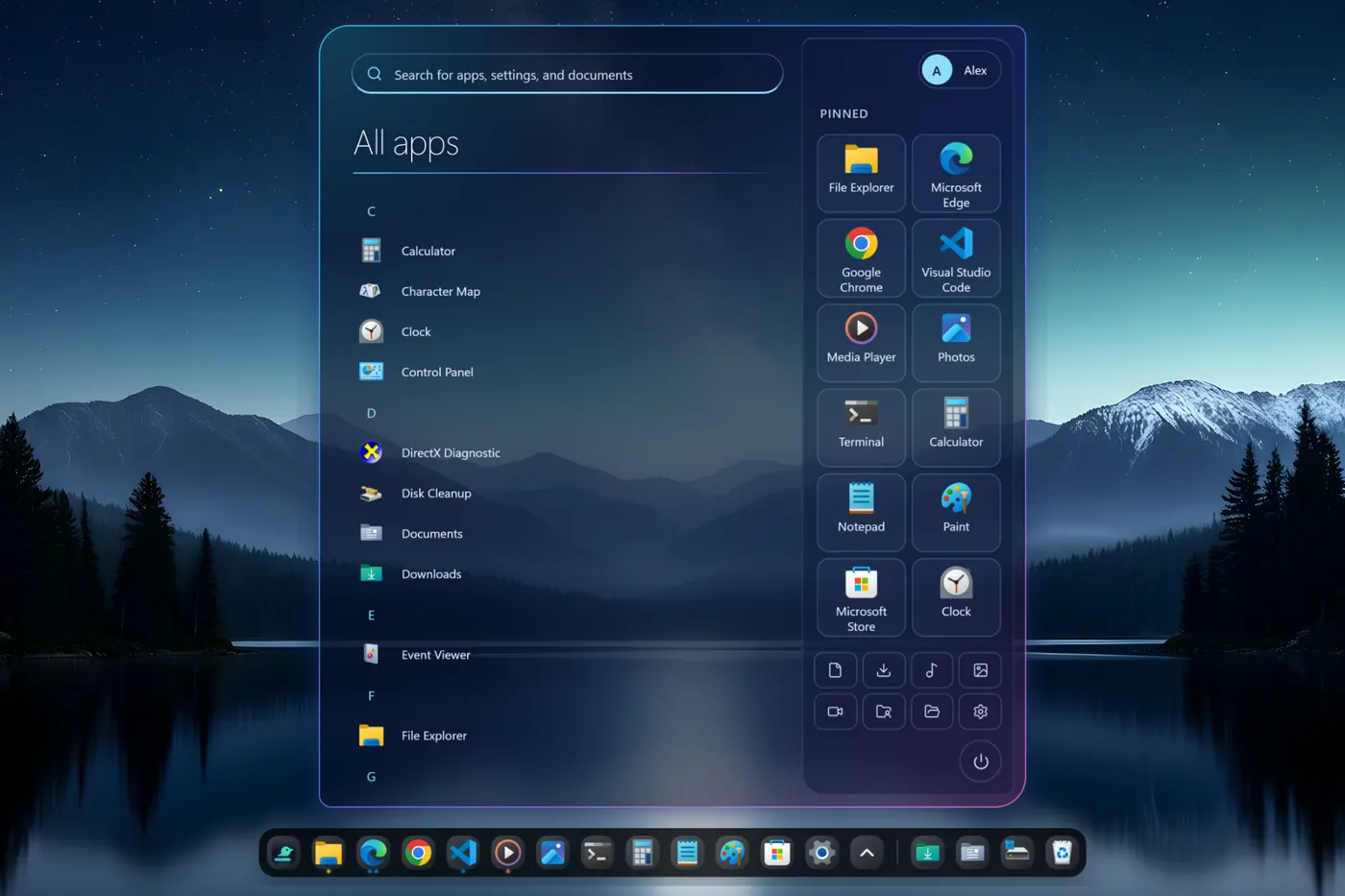
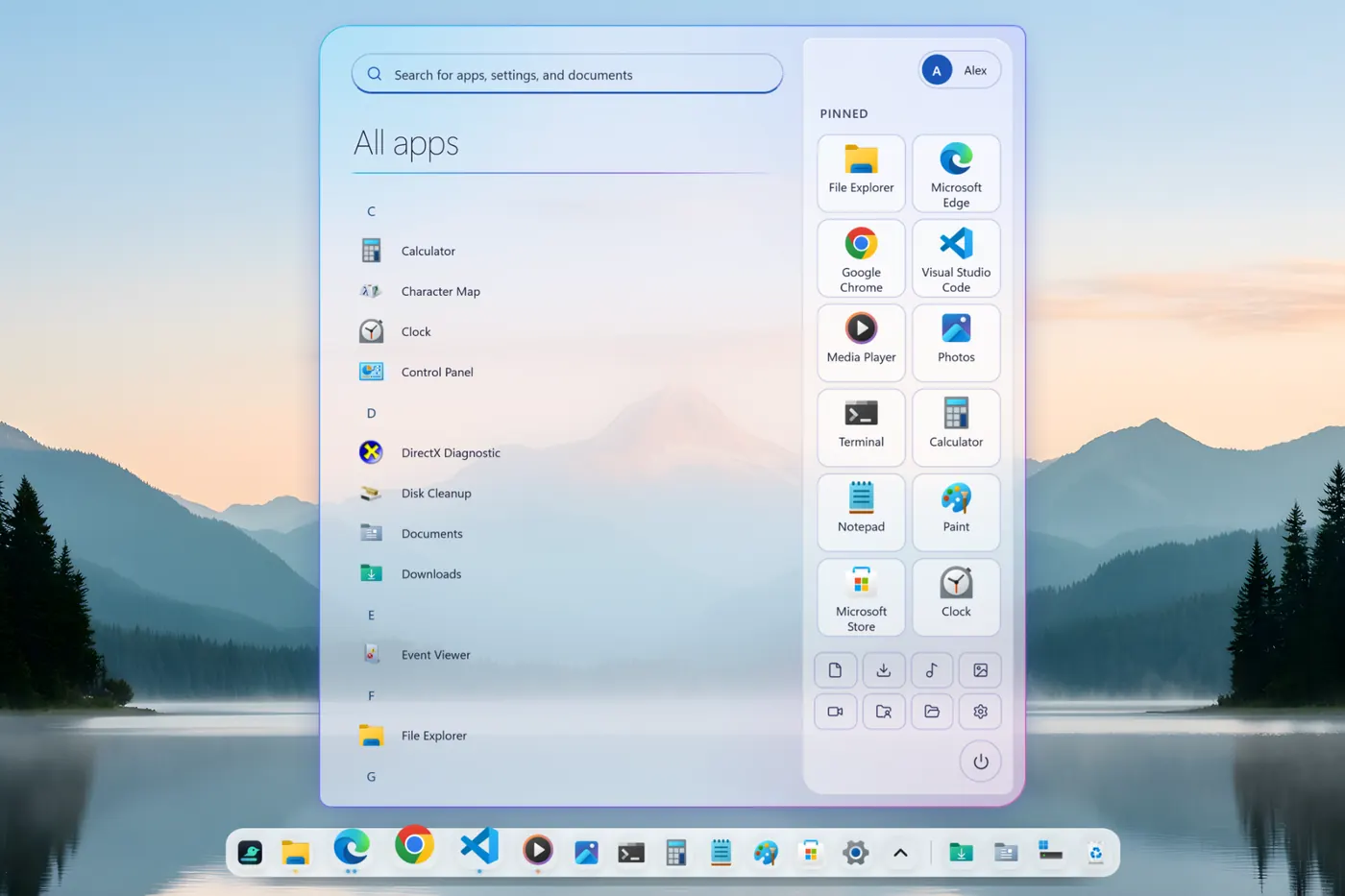
One tall panel, a long All apps list, and a rim of light that runs from cyan to pink.
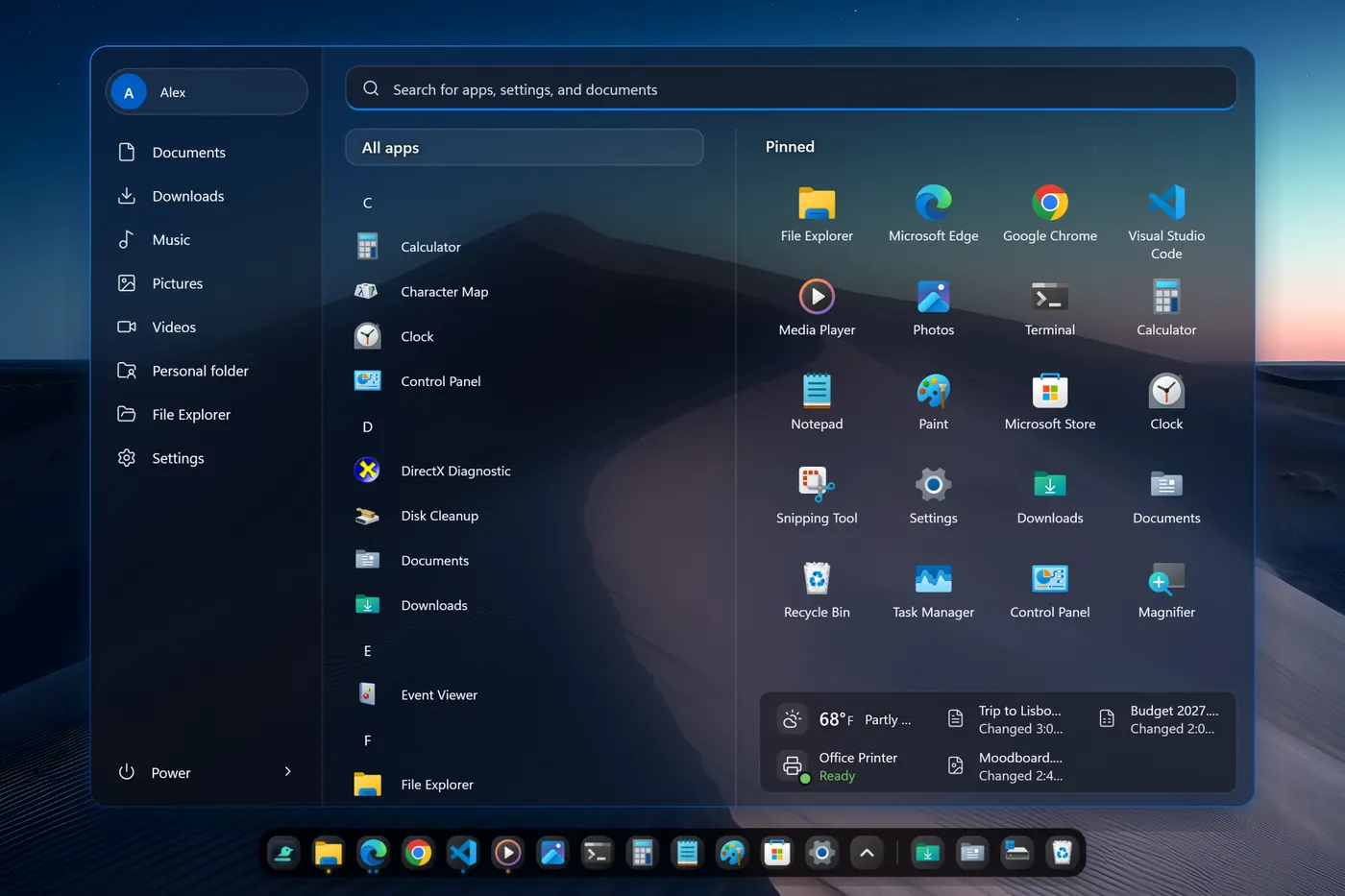
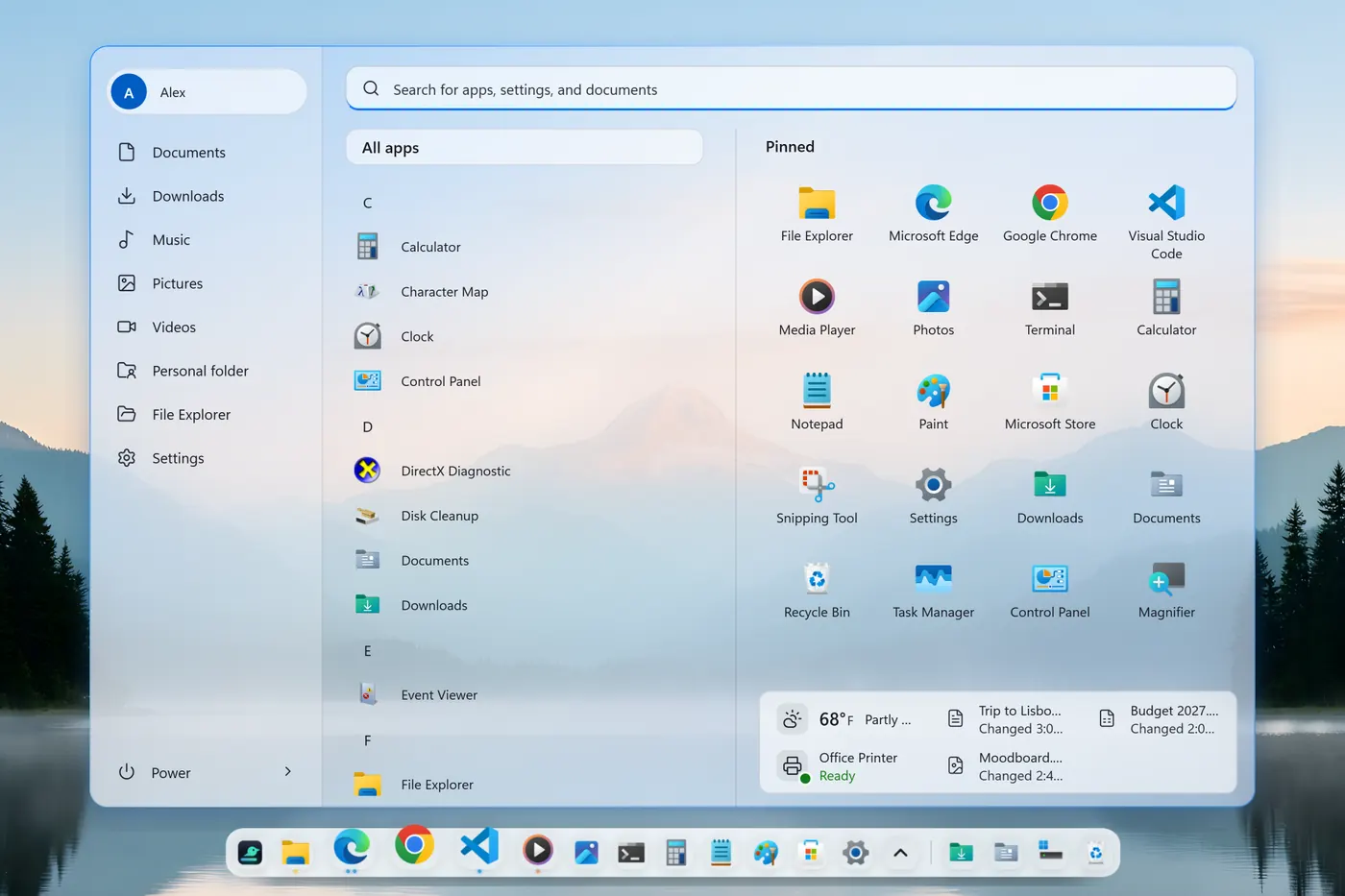
Places, All apps and Pinned side by side in one wide panel, rimmed in your own accent colour.
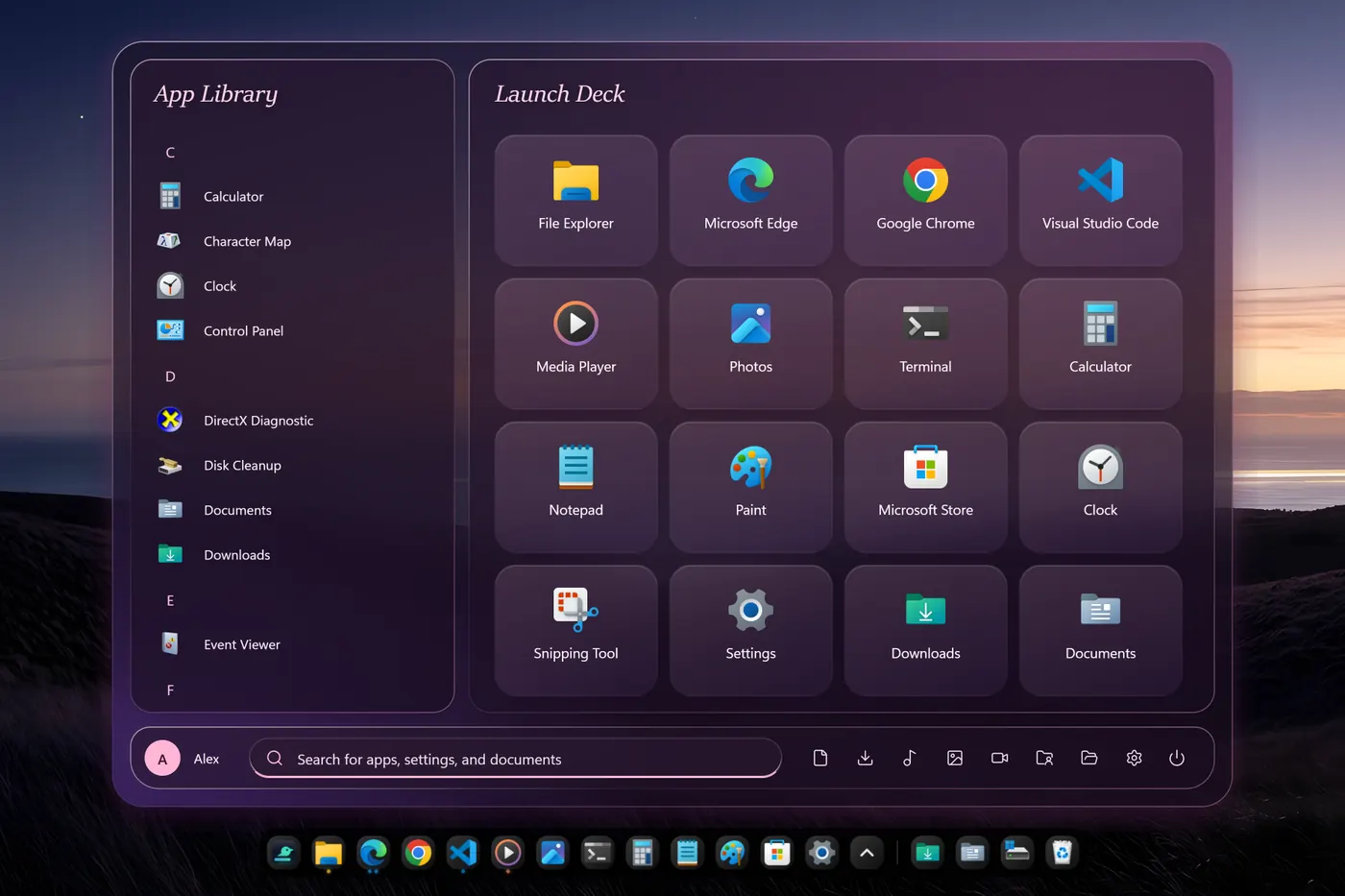
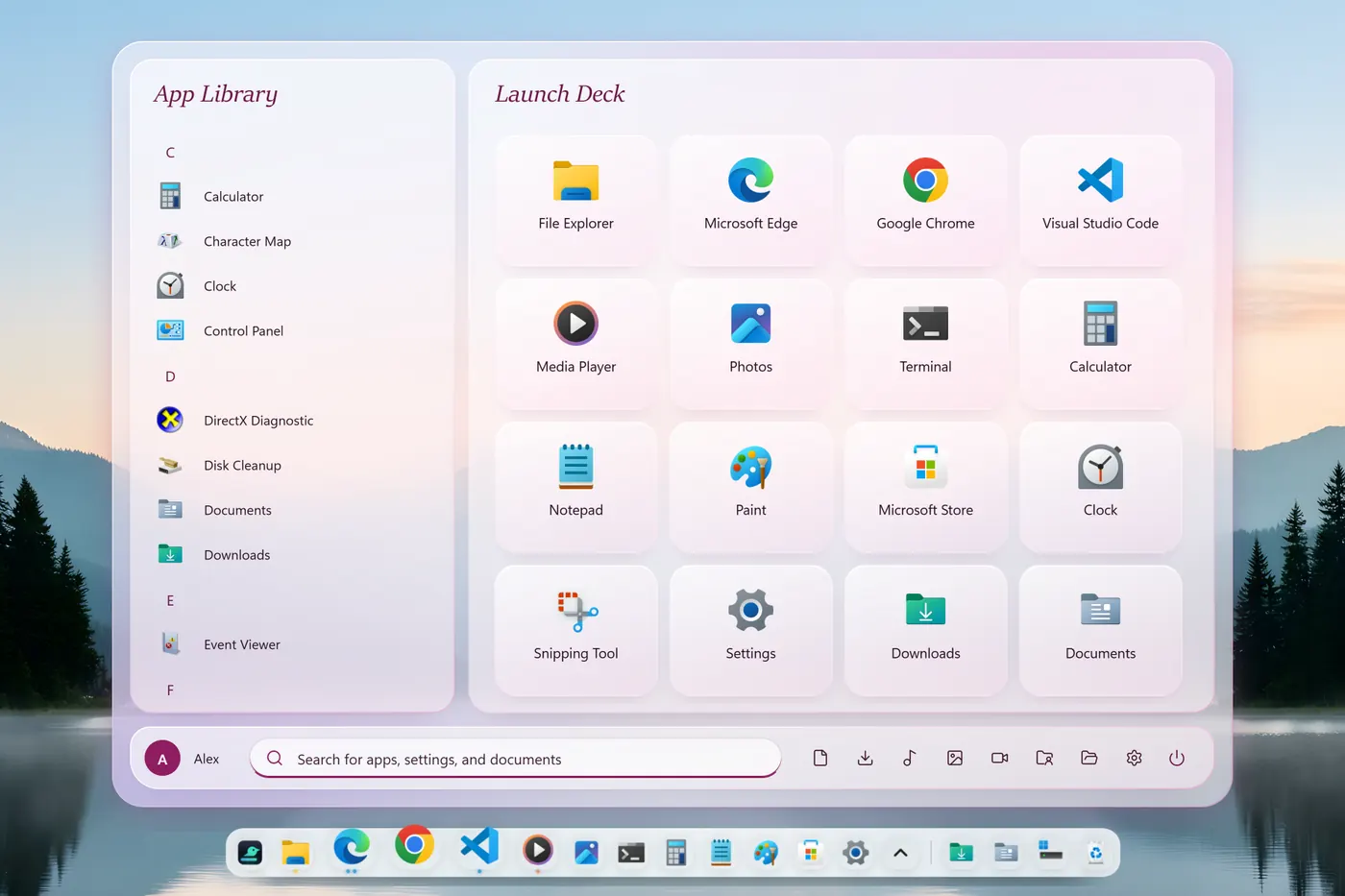
An App Library beside a Launch Deck of large tiles, over a slim dock, in rose and plum.
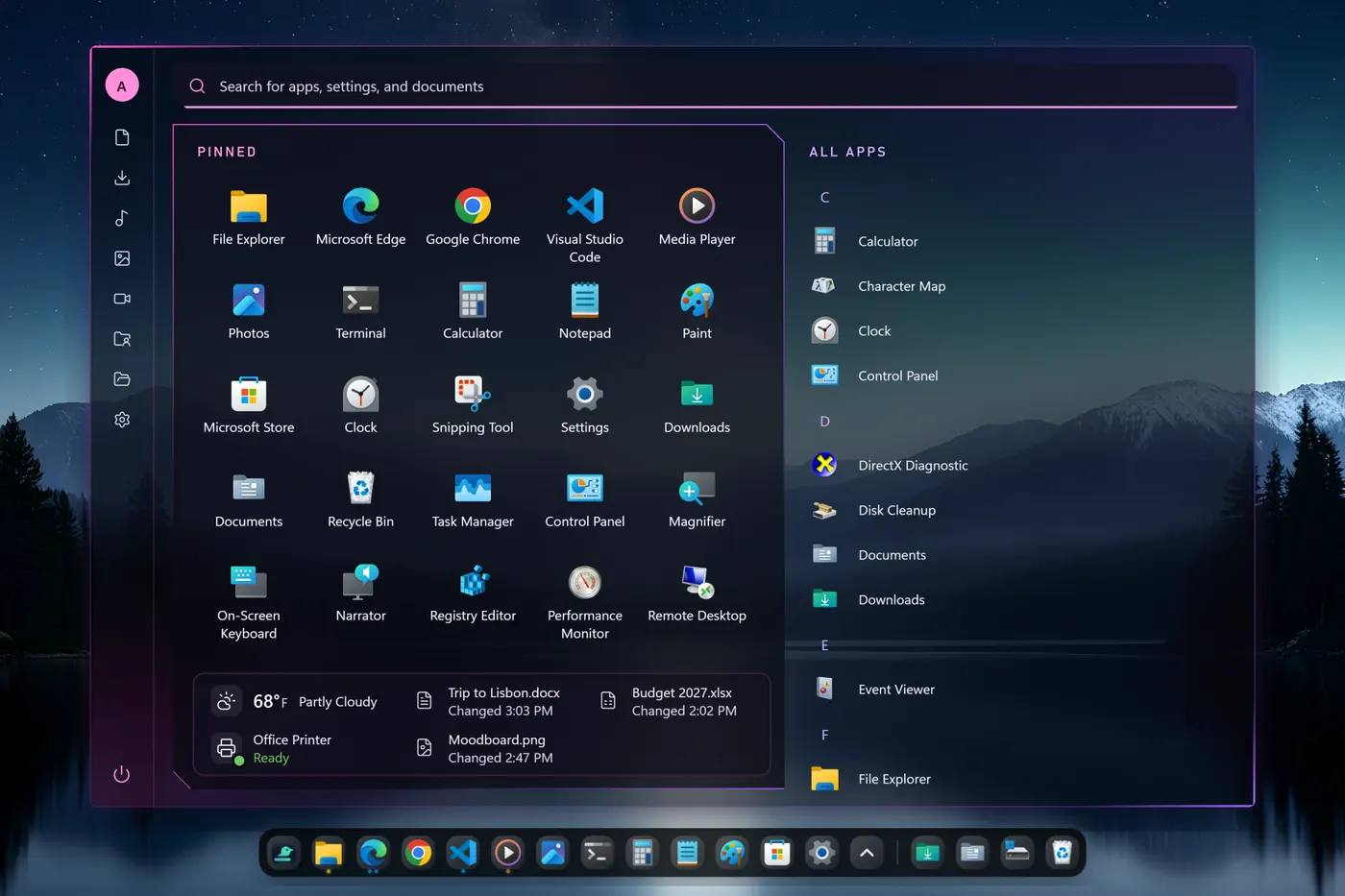
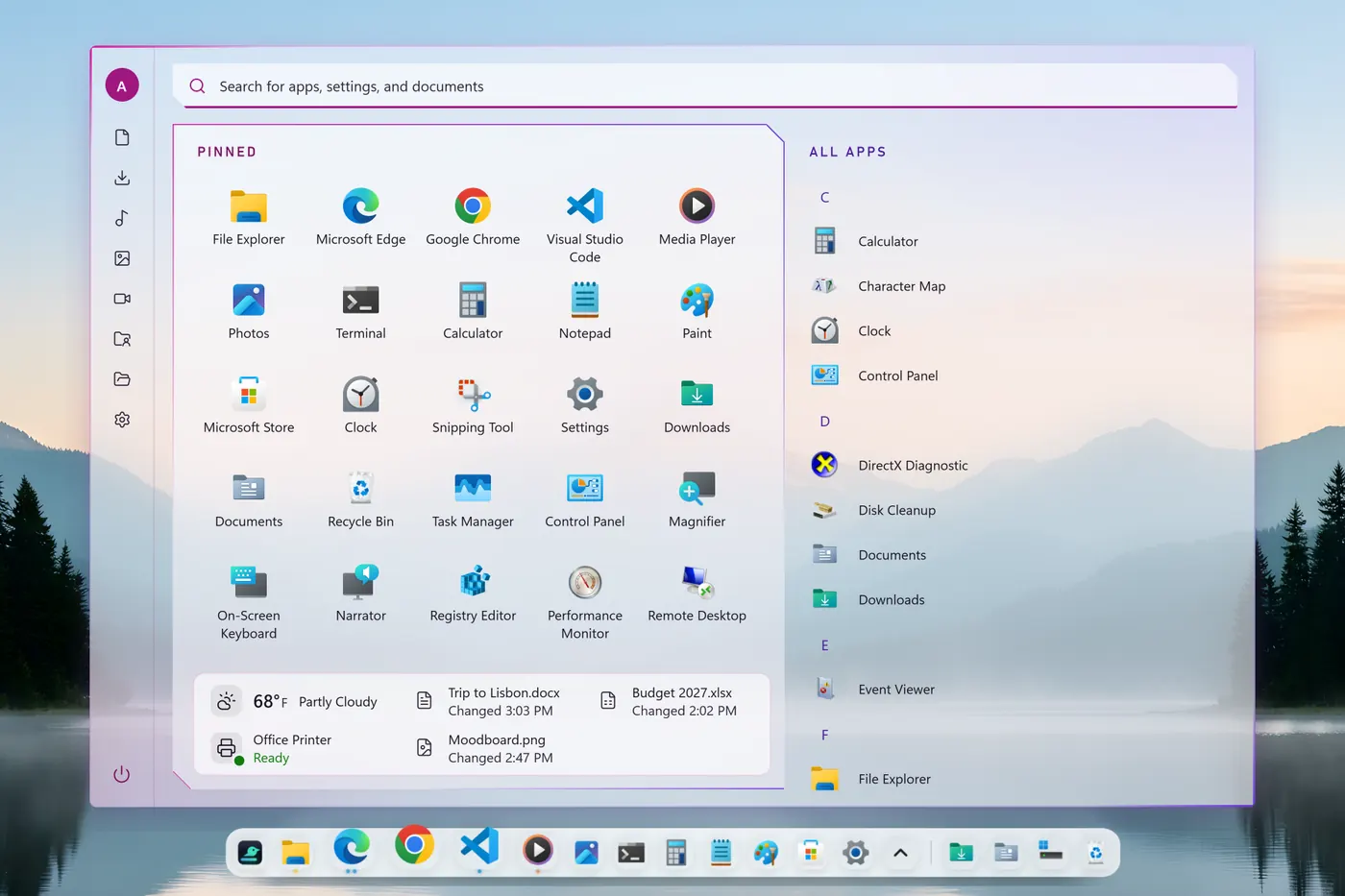
Gaming glass. Cut corners, thin pink and purple edges, nothing soft about it.
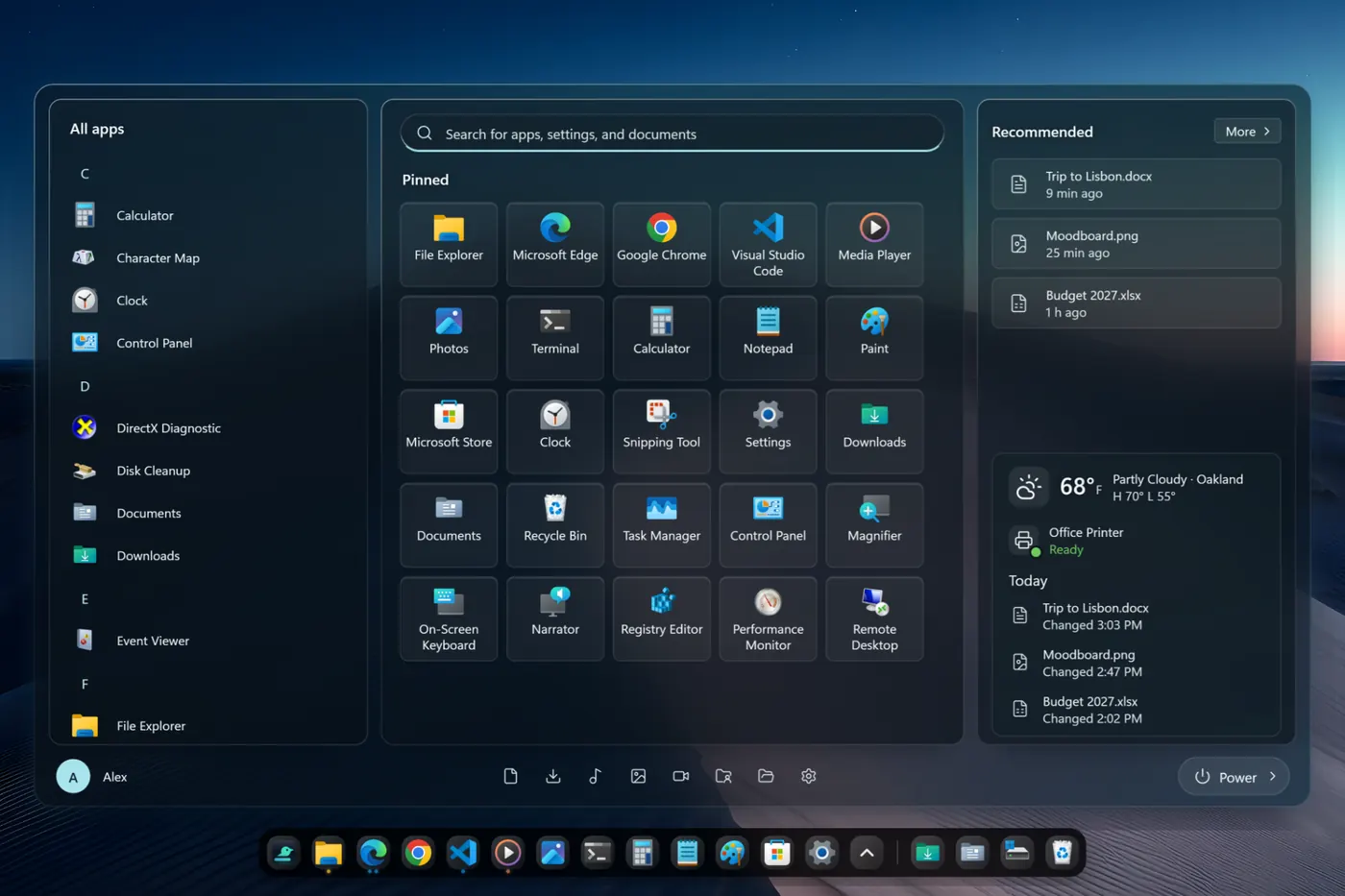
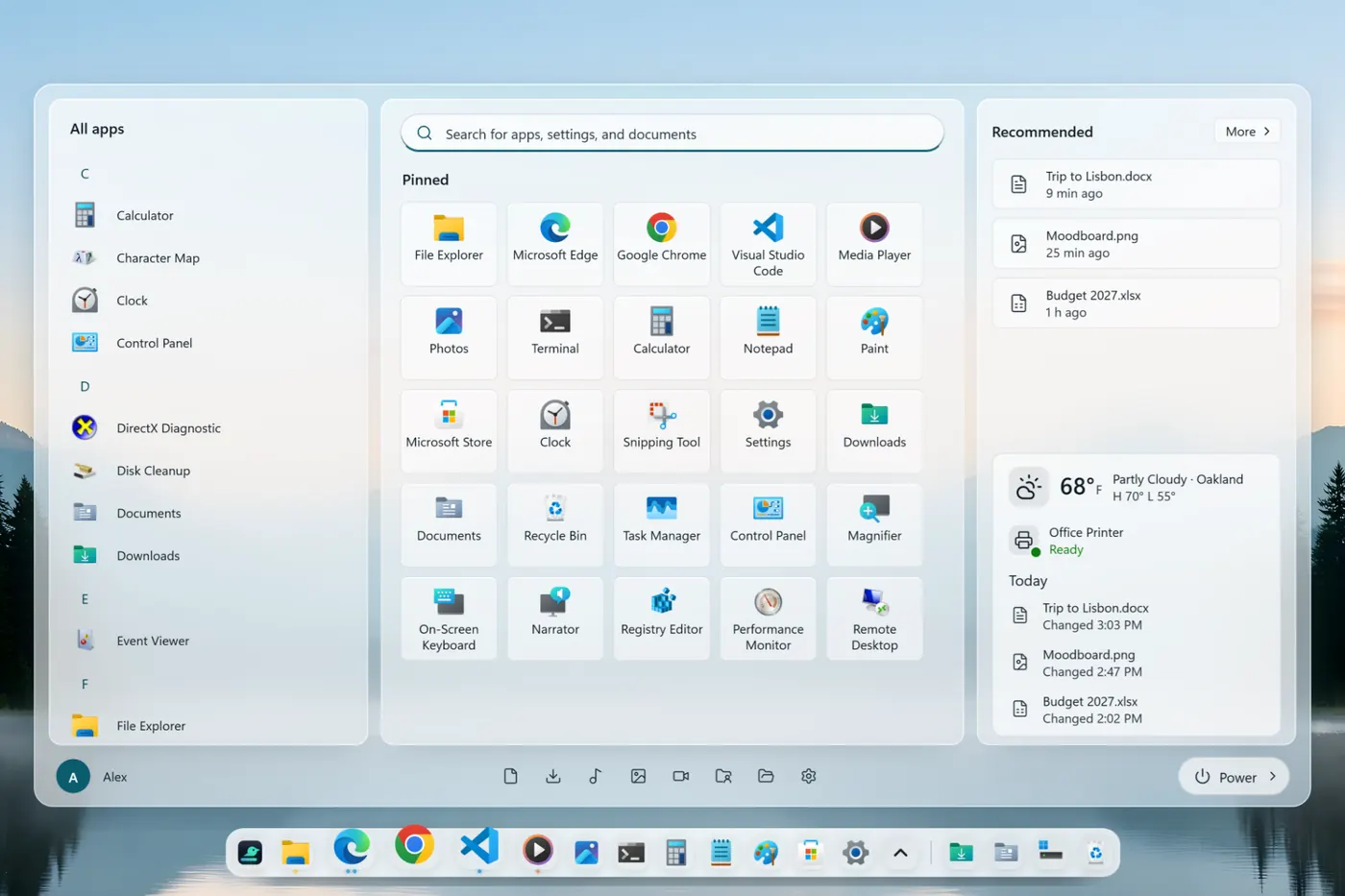
All apps, Pinned and Recommended in three frosted columns. Or two, with a wider deck.
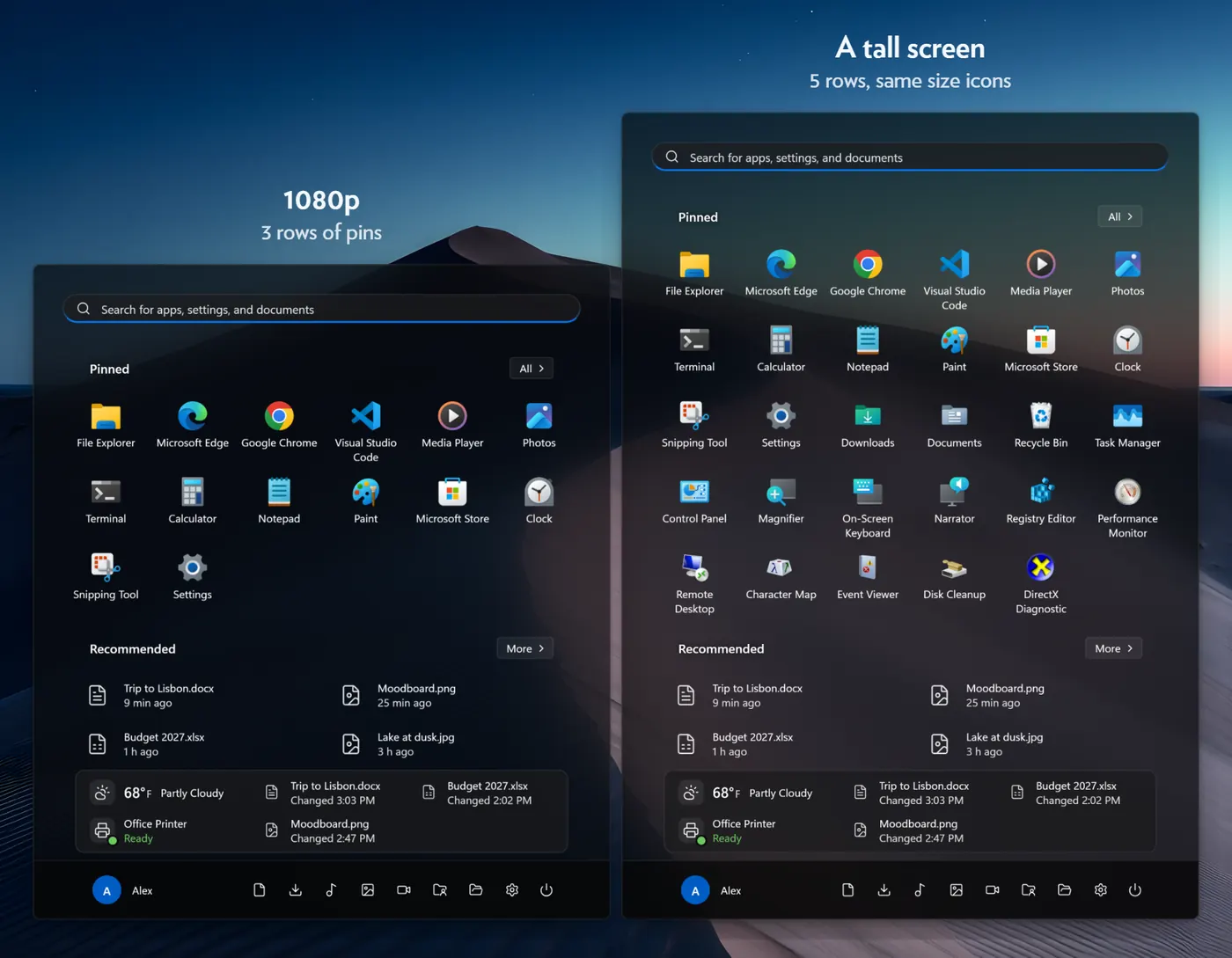
On a tall screen, every design grows: more rows of pins, at the same icon size. A 1080p screen looks as it always did.
Every picture in these stacks is a real render of the app. Point at a stack to fan it out, click a card to bring it to the front, or use the arrow keys.
A hundred and five flavors in all, one click each in Settings. Here are 26 of them, the newest last. They all search the same and hold the same pins.
Each with its own shape, its own edge and its own way of moving. Twenty-one more come with the whole themes below.
New in 1.1.11. One tap on the Themes page gives you a notch, its own dock and the Start menu that goes with them. Or give the notch and the dock different themes.
With a choice of edge shapes, and the option to follow the notch's design.
Full colour, or quiet and plain. It's one switch, for the whole notch.
Light and dark follow your Windows setting, across the notch, the dock and the Start menu.
Nine named colours, plus Theme, which follows your own custom colour.
How the notch shows the sound while music or a video plays.
One click changes every icon in the dock and the Start menu. Cloud is a full set, with its own folders, drives and bin. The six styles, Round, Squircle, Glass, Mono, White and Tinted, are drawn on each app's own icon, so they cover every app you have. System icons puts it all back.
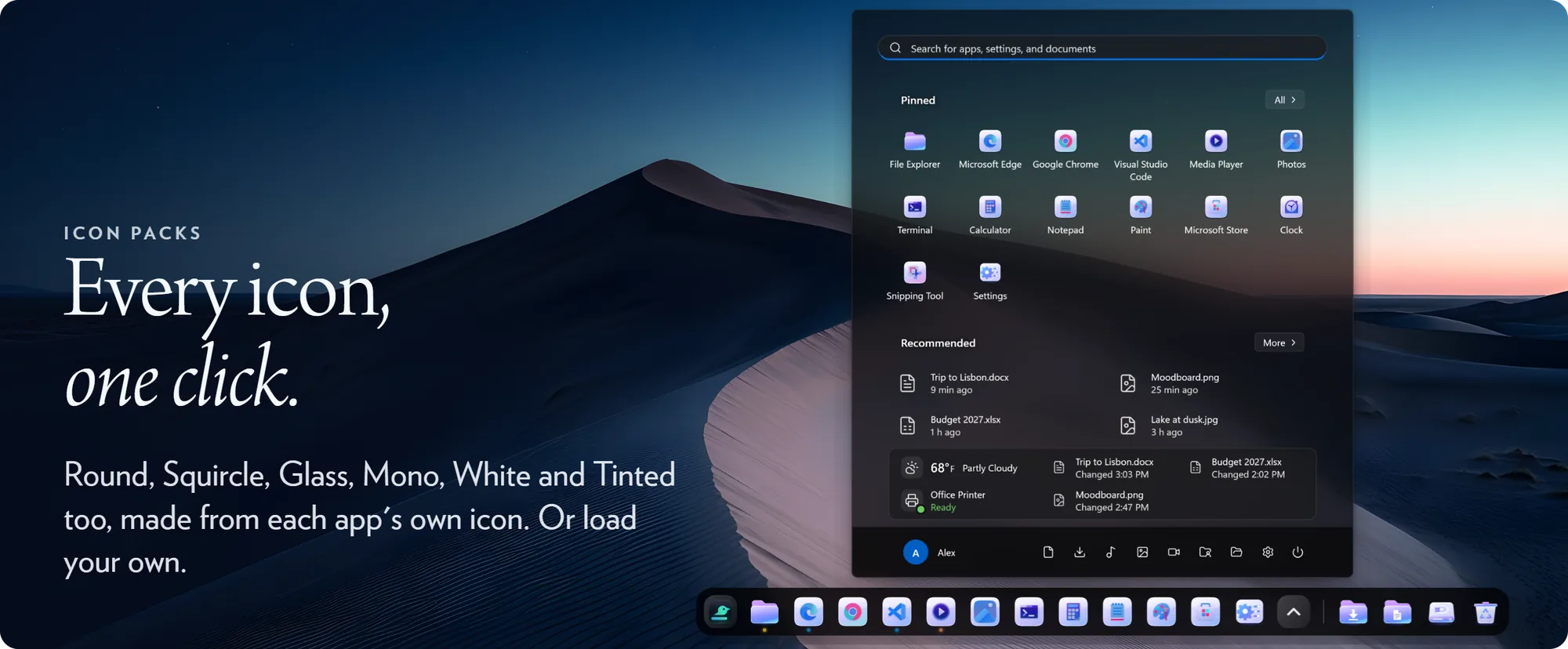
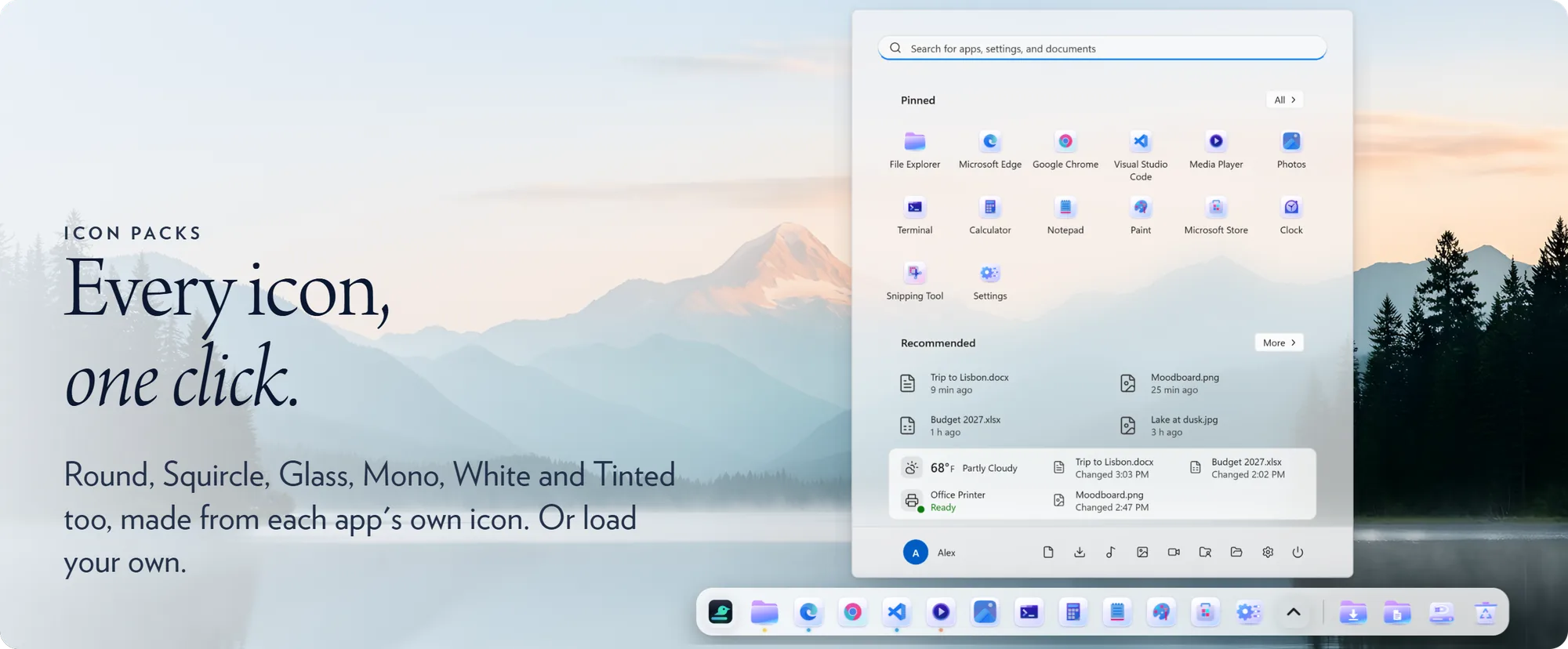

Point Perch at a folder of PNG or ICO files, or a Resource Redirect pack. Perch reads them as pictures, runs nothing, and tells you how many icons it matched. You'll find many free sets at Link Vegas Theme. Thanks to them and to the artists behind each set.
No Windhawk needed. Perch reads Resource Redirect sets itself and applies them to folders, drives and file types. A few places, such as the File Explorer side panel, still keep Windows' own icons.
Optional, and off by default. Folders, drives, This PC, the Recycle Bin, Network and common file types in File Explorer follow your pack, through Windows' own settings. No system file is touched, and Put Windows icons back restores every original exactly.
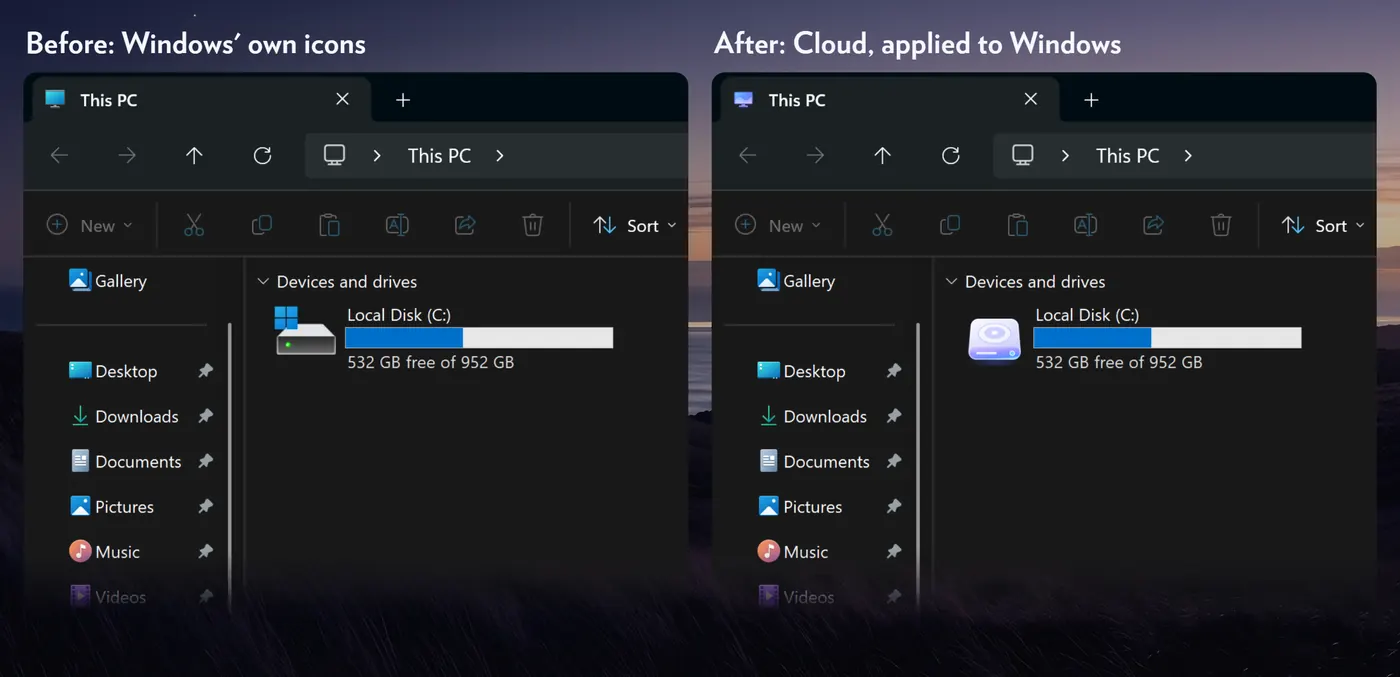
Real Windows 11 screenshots. Your drives, folders and This PC change. Documents, Downloads and Pictures in Explorer's side panel keep their stock icons, and so do apps' own toolbars and Settings.
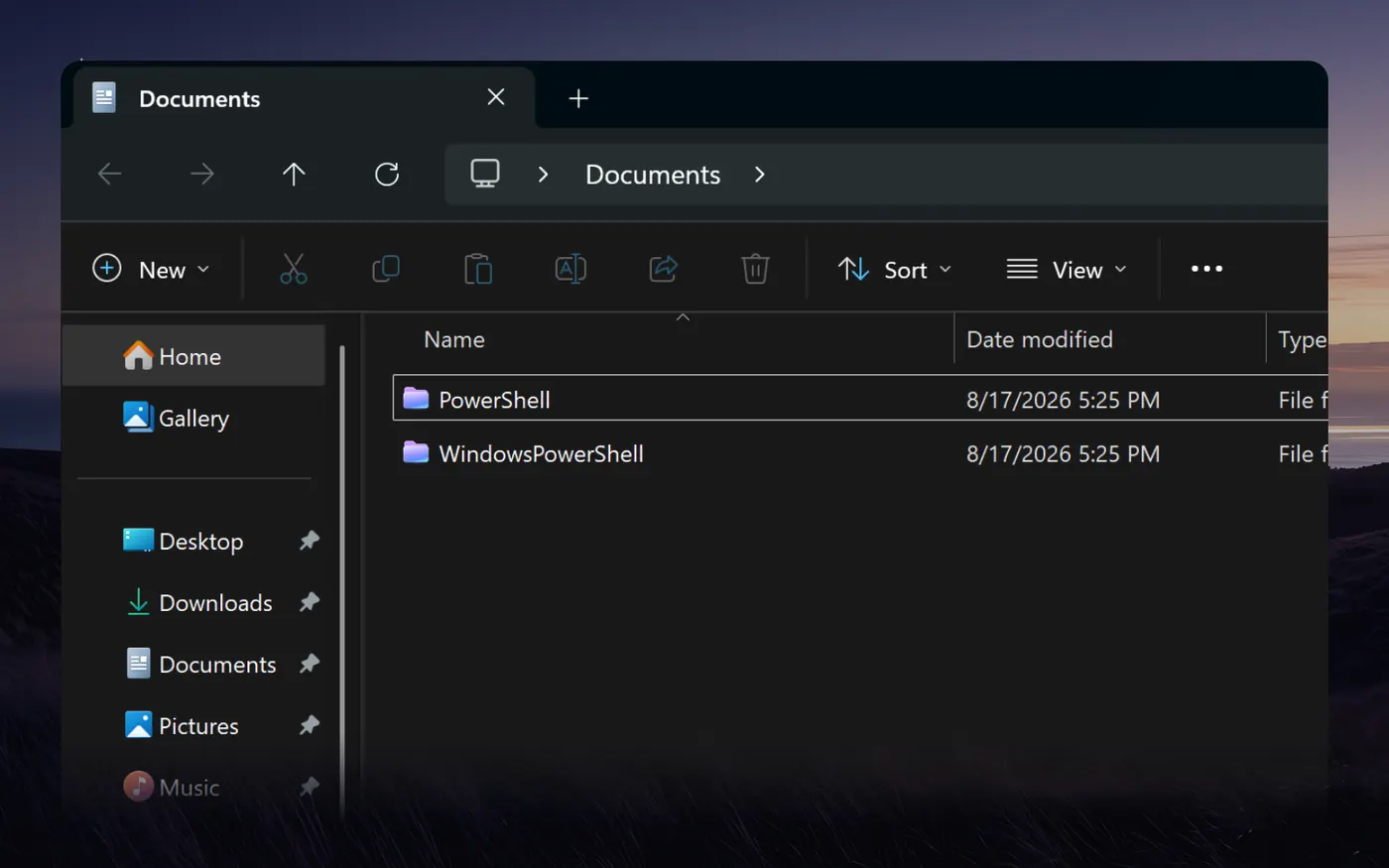
Every folder in the list follows the pack, right there in File Explorer.
| What you want | Windows | Perch |
|---|---|---|
| Icons that grow under the pointer | No | Yes, with your own size and spread |
| How it sits | A strip on the bottom edge | Attached, floating, or a low strip |
| Drives and Recycle Bin beside your apps | Not built in | Yes |
| CPU, RAM, GPU and network, always in sight | Task Manager | One hover away, on the notch |
| Hour-by-hour weather | A widgets board | One hover away |
| Music with album art and a visualizer | A small media flyout | A full player, five visualizers, live lyrics |
| Volume per app | A Settings page or the mixer | In the notch |
| A timer and a stopwatch | The Clock app | In the notch |
| Start menu designs | 1 | 94, in 105 flavors |
| Notch, dock and Start in one theme | No | 21 whole themes, one tap each |
| A dock on the left or right | Windows 10 only | Yes, with icons two across if you like |
| Apps grouped on the dock | No | Hold Alt and drop one app on another |
| Icon sets | 1 | 7 built in, or load your own |
| Price | Comes with Windows | Free |
12*7, (3.5*4)^2, 200*15%; Enter copies the answer10 km to mi, 5kg in lb, 100 f to cregedit or a path, press EnterPerch-Setup.exe, straight from the GitHub release page. Windows 11, or Windows 10 version 22H2.
If SmartScreen shows "Windows protected your PC", click More info, then Run anyway. It warns about apps it has not seen many times yet.
Perch takes over the top and bottom of the screen when it starts. Everything else is in its Settings, with a search box.
When Perch starts and every 6 hours, it reads a small file called latest.json from its release page, whatever the Auto update switch says. When there is a new version the notch says so and waits for you to press Update. With Auto update on, which is off until you turn it on, it installs by itself with no question, an hour after the release. Perch refuses any update whose signature does not match.
Yes. Perch costs nothing, at home or at work. The licence lets you use it; it does not let you copy, change, share or sell it.
Windows 11 and Windows 10 version 22H2. Older versions of Windows 10 are not supported. To check yours, press Win + R, type winver and press Enter.
No. Your apps, files and settings stay where they are. Perch only changes how you reach them. Quit or uninstall Perch and the Windows taskbar and Start menu are back.
Yes. The Windows key on its own and Ctrl+Esc open Perch's Start menu. Every Win+key shortcut keeps working, and you can hand the key back to Windows Start in Settings.
The dock stays hidden over full-screen apps and shows up only when you press the Start key, the same rule the Windows taskbar follows. The notch steps away too, and you can turn on a small strip with CPU, GPU and RAM over games.
SmartScreen warns about apps it has not seen many times yet. Click More info, then Run anyway. The file comes straight from Perch's GitHub release page.
Yes. Point Perch at a folder of PNG or ICO files, or a Resource Redirect pack. Perch reads them as pictures, runs nothing, and tells you how many icons it matched.
Only if you ask. A pack changes what Perch draws. Apply to Windows too is off by default and reaches folders, drives, This PC, the Recycle Bin, Network and common file types in File Explorer, through Windows' own settings. Put Windows icons back restores every original exactly, and so does uninstalling Perch. Documents, Downloads and Pictures in Explorer's side panel keep their stock icons, as do apps' own toolbars and Settings.
When Perch starts and every 6 hours, it reads a small file called latest.json from its GitHub release page, whatever the Auto update switch says. When a new version is out, the notch says so and waits: press Update and Perch installs it and restarts. With Auto update on, which is off until you turn it on, a new version installs by itself with no question once it is an hour old. Perch refuses an update whose signature does not match.
No personal data. Once after install and once a day, Perch downloads a tiny counter file from its release page, and GitHub's download count is the count. No id, no settings, no files are sent. Settings, About, Privacy, Count this install anonymously turns it off.
The update check above. The weather, from Open-Meteo. A fresh install finds its city from your IP address through ipapi.co, or ip-api.com if that fails, until you pick a city yourself. Live lyrics, off until you turn them on, then look up each song on lrclib.net. Calendars you link are read from their own address every 15 minutes. Web searches you choose open in your browser. That is all.
Yes. Perch works on every screen size and scaling level, and on touch screens.
Open Settings, then Apps, then Installed apps. Find Perch and choose Uninstall.
No. The source code is private. The public GitHub repository holds the installers, release notes, the update file and the licence.
Open a new issue on GitHub and pick the form that fits. A screenshot helps more than anything else. Settings, About, Report a bug fills in your Perch version and Windows build for you.
Free. Version 1.1.12. Windows 11 and Windows 10 22H2.